
How to manage plugins using the cPanel WordPress Toolkit
Managing your WordPress plugins is a vital part of maintaining your website’s overall health, performance, and security. While many users are accustomed to managing these tools through the WordPress admin area, the WordPress Toolkit (WordPress Management) in cPanel offers a powerful alternative. This feature allows you to oversee your entire plugin ecosystem directly from your hosting control panel. Whether you need to troubleshoot a conflict by deactivating a plugin or ensure your site is secure with the latest updates, the WordPress Toolkit provides a centralized interface to handle these tasks efficiently.
Quick Steps
-
Log in to your cPanel account.
-
Open the WordPress Toolkit (WordPress Management) from the Domains section.
-
Select your website and click on the Plugins tab.
-
Use the Activate/Deactivate toggles to manage status.
-
Click Update to install the latest security patches.
-
Use the Install or Uninstall buttons to modify your site features.
Follow the step-by-step instructions below to manage your plugins within the WordPress Toolkit.
1. Access WordPress Toolkit in cPanel
To begin, you must log in to your cPanel account and scroll down to the Domains or Applications section to locate the WordPress Toolkit icon.
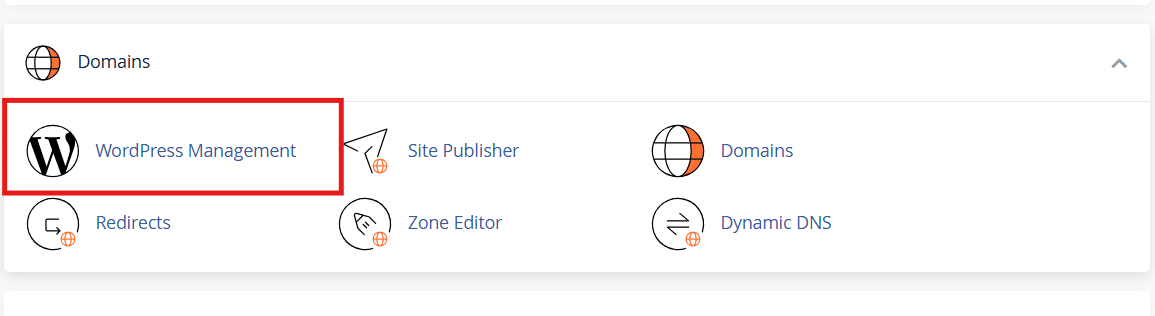
WordPress Toolkit in cPanel
Once the interface loads, you will be presented with a comprehensive list of all WordPress installations currently hosted under your account. Simply identify the specific website you wish to manage and click on its name to expand the management options.
2. View Installed Plugins
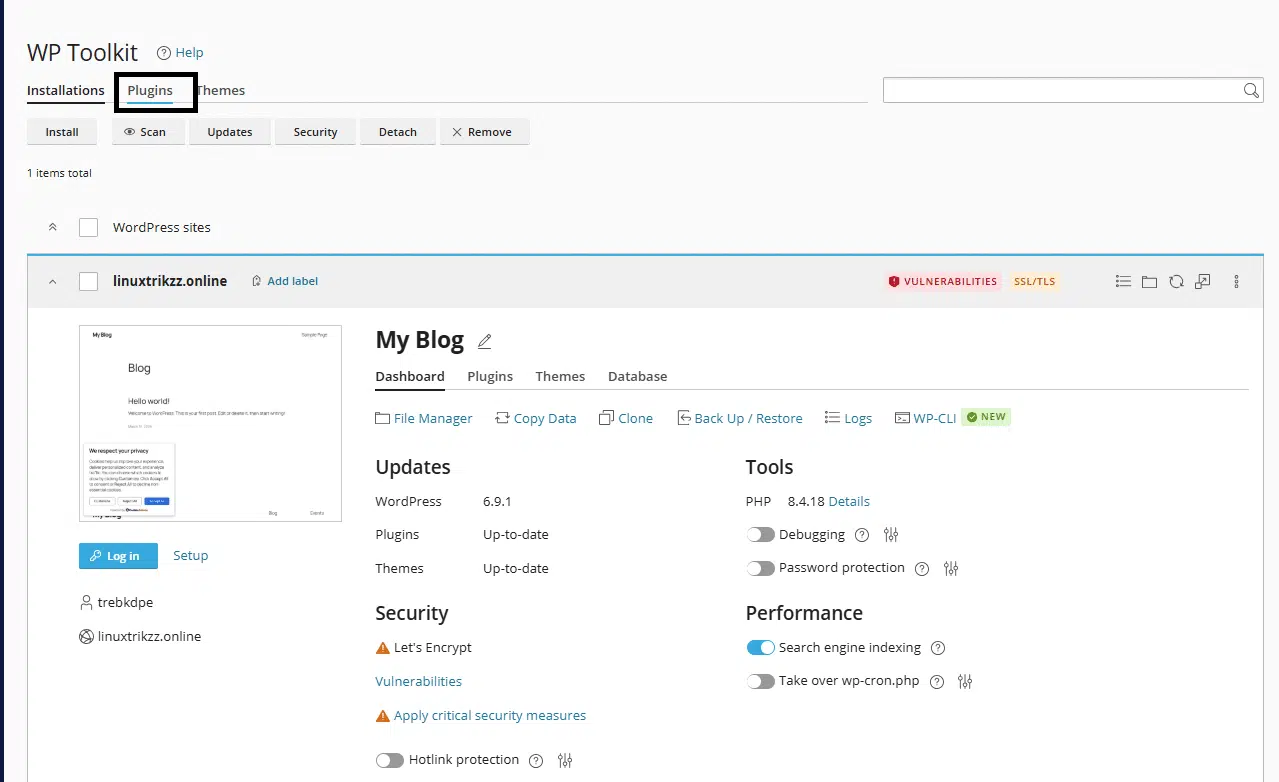
WordPress Toolkit in cPanel
Once you have selected your website, locate and click on the Plugins tab within that installation’s dashboard. This action will display a full inventory of every plugin currently present on your site, regardless of whether they are currently running.
From this view, you can easily audit your site’s tools, seeing exactly which versions are installed and identifying which plugins are active or inactive at a glance.
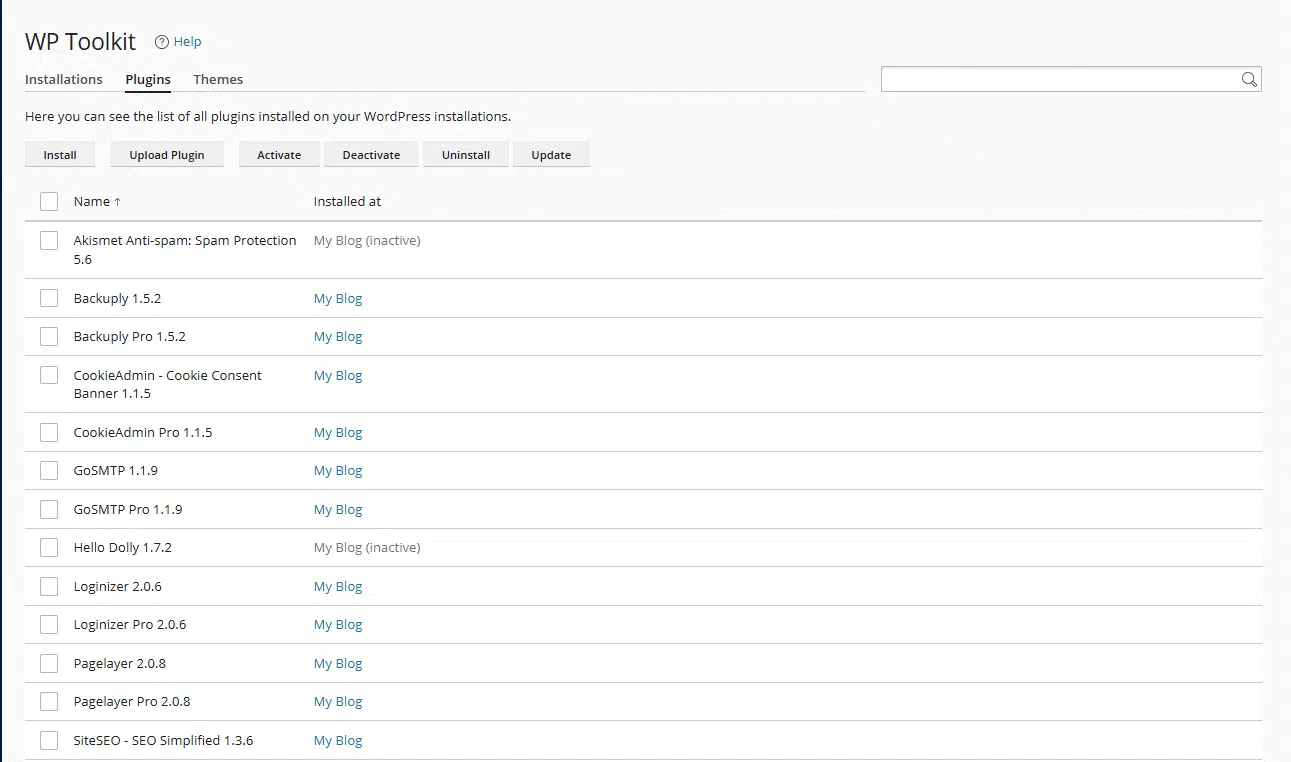
WordPress Toolkit in cPanel
3. Activate or Deactivate Plugins
The Toolkit makes it incredibly easy to enable or disable features without needing to access your WordPress backend. In the Plugins section, each entry features a simple toggle or button labeled Activate or Deactivate. This is particularly useful for troubleshooting; if your site is experiencing an error, you can quickly deactivate plugins one by one from cPanel to identify the source of the conflict.
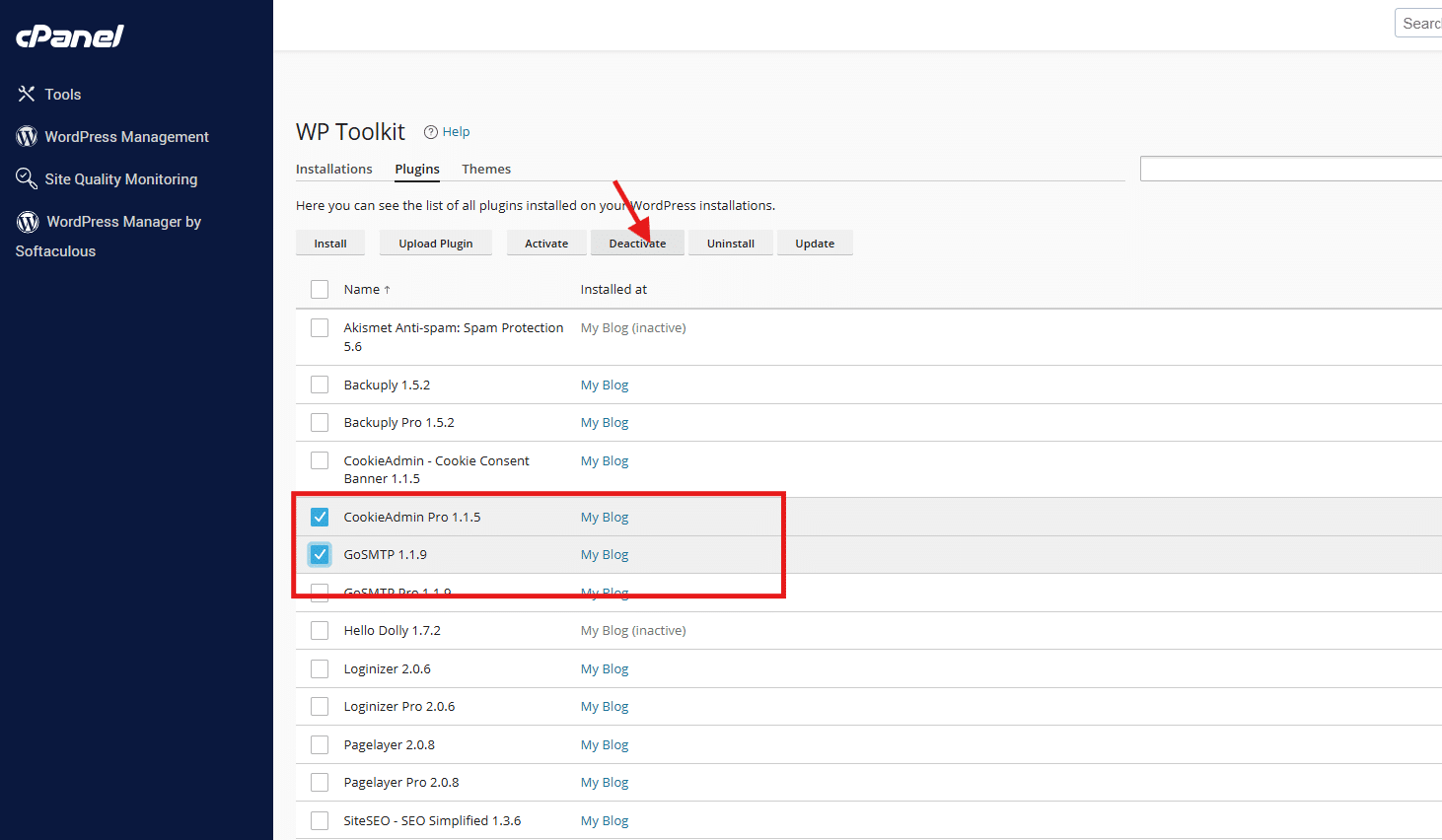
WordPress Toolkit in cPanel
4. Update Plugins
Keeping your software up to date is your first line of defense against security vulnerabilities. Within the Plugins tab, the WordPress Toolkit will automatically highlight any plugin that has a newer version available. You can click the Update button next to an individual plugin, or use the bulk update feature to refresh multiple tools at once, ensuring your site remains compatible with the latest WordPress core standards.
5. Install a New Plugin
If you need to add new functionality to your site, you can do so directly from the Toolkit by clicking the Install or Add Plugin button. A search interface will appear, allowing you to browse the official WordPress plugin repository. Once you find the tool you need, simply click to install it; the Toolkit will handle the file transfer and installation process in the background.
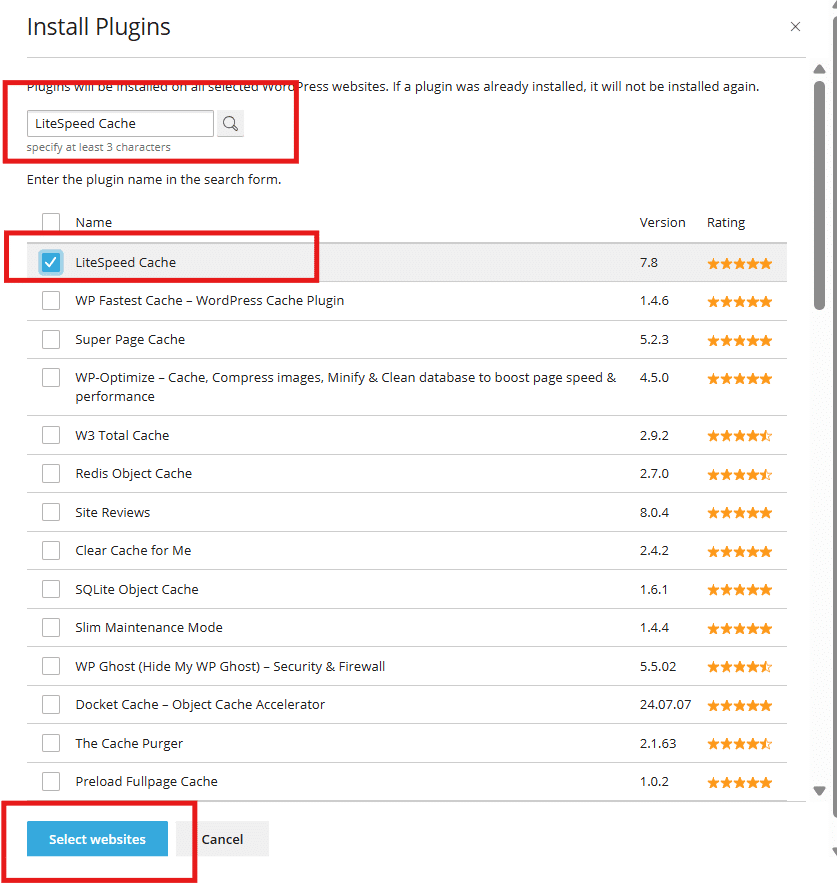
WordPress Toolkit in cPanel
6. Remove a Plugin
For the sake of website performance and security, it is best practice to remove any plugins that are no longer in use. To do this, find the unnecessary plugin in your list and click the Delete or Uninstall icon.
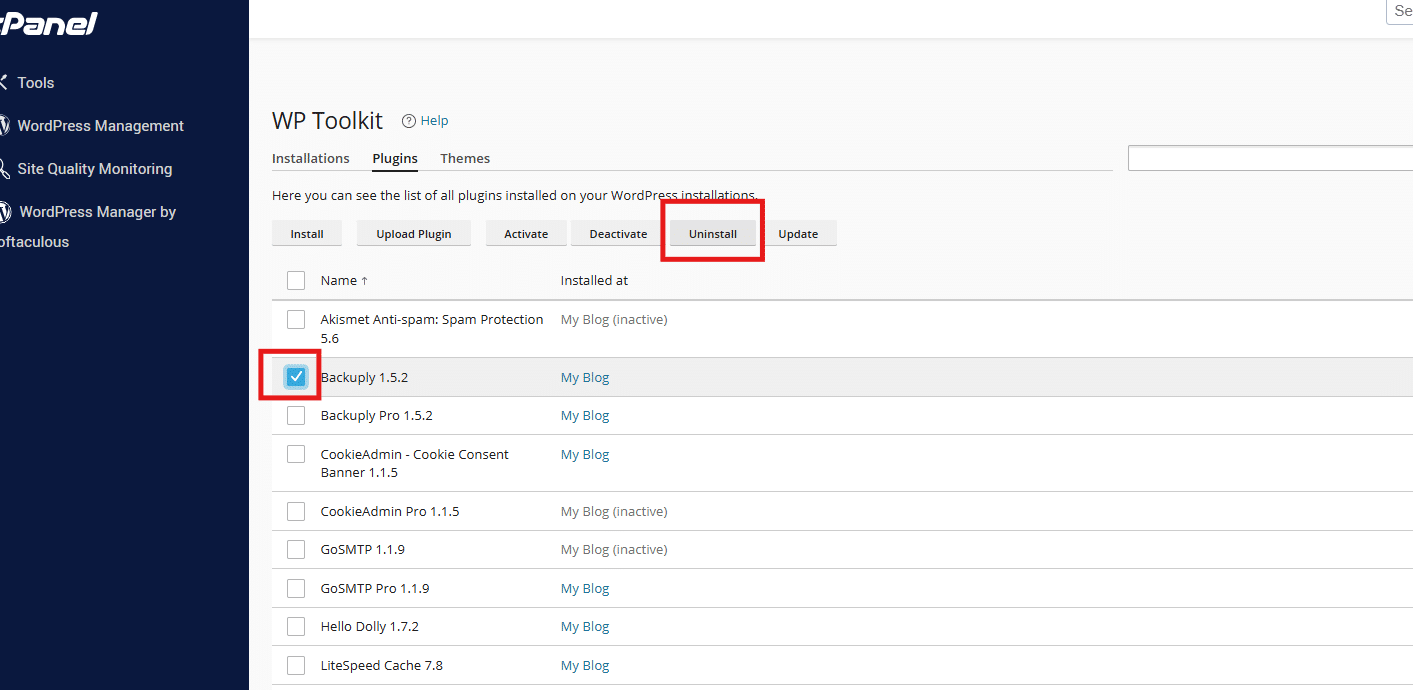
WordPress Toolkit in cPanel
Removing these files reduces the “bloat” on your server and eliminates potential entry points for hackers, helping your site stay lean and fast.
Wrapping up
The WordPress Toolkit in cPanel offers a streamlined, professional way to manage your site’s plugins without the need to jump between multiple login screens. By handling your installations, updates, and removals from this single interface, you can maintain a more secure and stable website with less effort. Regularly auditing your plugins through the Toolkit is a great habit that ensures your WordPress site continues to run smoothly.
If you have any web hosting questions please feel free to reach out to us.
We’re happy to help.
Our Guiding Principles
Related Articles
If you have any web hosting questions please feel free to reach out to us. We're happy to help.
Our Guiding Principles