Category Archives: WordPress

Best Hosting for WooCommerce: Speed, Security & Growth

Launching a WooCommerce store is one of the easiest ways to start selling online, but many store owners quickly discover that success depends on more than just great products and marketing. Your hosting provider plays a critical role in your website’s speed, security, reliability, and ability to handle traffic spikes.

Choosing the Best Hosting for WooCommerce can significantly impact customer experience, search engine rankings, conversion rates, and overall business growth. Slow-loading pages, checkout failures, and unexpected downtime can cost you valuable sales and damage your reputation.

In this guide, we’ll explore everything you need to know about selecting the right WooCommerce hosting solution, compare hosting options, and explain why businesses trust VeeroTech for high-performance hosting.

Why WooCommerce Hosting Matters

WooCommerce is a powerful eCommerce platform, but it requires more resources than a standard WordPress website.

A WooCommerce store typically handles:

  • Product catalogs
  • Customer accounts
  • Shopping carts
  • Payment processing
  • Order management
  • Inventory tracking

These dynamic functions place additional demands on hosting infrastructure.

The best WooCommerce hosting providers optimize servers specifically for WooCommerce workloads, ensuring:

  • Faster page loading
  • Better checkout performance
  • Improved security
  • Higher uptime
  • Scalability during traffic spikes


What Makes the Best Hosting for WooCommerce?

When evaluating WooCommerce web hosting, consider the following factors.

1. Performance and Speed

Fast-loading stores create better shopping experiences and improve SEO rankings.

Look for:

  • NVMe or SSD storage
  • LiteSpeed or optimized web servers
  • PHP optimization
  • Server-side caching
  • CDN integration

Fast WooCommerce hosting can dramatically improve conversion rates.

2. Security Features

Online stores process sensitive customer information.

Secure WooCommerce hosting should include:

  • Free SSL certificates
  • Malware protection
  • DDoS mitigation
  • Web application firewalls
  • Regular security updates

WooCommerce hosting with free SSL is especially important for protecting customer transactions.

3. Scalability

Your hosting should grow with your business.

Scalable WooCommerce hosting allows you to:

  • Handle seasonal traffic spikes
  • Expand product catalogs
  • Support more concurrent users
  • Upgrade resources without downtime

4. Backup and Recovery

Accidental data loss can be devastating.

Choose WooCommerce hosting with daily backups to ensure:

  • Fast recovery
  • Protection from human error
  • Business continuity

5. Expert Support

Technical issues can affect sales immediately.

Reliable support should provide:

  • 24/7 assistance
  • WooCommerce expertise
  • Server management help
  • Migration support

Types of WooCommerce Hosting

Shared WooCommerce Hosting

Shared hosting is typically the most affordable WooCommerce hosting option.

Pros

  • Low cost
  • Easy setup
  • Suitable for beginners

Cons

  • Limited resources
  • Slower performance under load
  • Less scalability

Best for:

  • Small startups
  • New online stores

Managed WooCommerce Hosting

Managed WooCommerce hosting provides optimized environments specifically designed for WooCommerce.

Pros

  • Automatic updates
  • Enhanced security
  • Performance optimization
  • Expert support

Cons

  • Higher cost than shared hosting

Best for:

  • Growing businesses
  • Revenue-generating stores

WooCommerce VPS Hosting

WooCommerce VPS hosting offers dedicated resources in a virtualized environment.

Pros

  • Better performance
  • Greater control
  • Improved scalability
  • Enhanced security

Cons

  • Requires technical knowledge unless managed

Best for:

  • Medium-sized stores
  • High-traffic websites

WooCommerce Cloud Hosting

WooCommerce cloud hosting uses a distributed infrastructure for maximum flexibility.

Pros

  • Excellent scalability
  • High availability
  • Resource flexibility

Cons

  • Pricing can fluctuate

Best for:

  • Rapidly growing stores
  • Enterprise-level businesses

Best Hosting for WooCommerce Websites: Key Features Checklist

Before selecting a provider, ensure your hosting plan includes:

✓ SSD or NVMe storage

✓ Free SSL certificates

✓ Daily backups

✓ Malware protection

✓ WooCommerce optimization

✓ Staging environments

✓ CDN integration

✓ High uptime guarantees

✓ Expert support

✓ Scalability options

WooCommerce Hosting Comparison

Feature

Shared Hosting

Managed WooCommerce

VPS Hosting

Cloud Hosting

Performance

Basic

Excellent

Excellent

Excellent

Security

Moderate

High

High

High

Scalability

Limited

Good

Excellent

Excellent

Management

Easy

Fully Managed

Optional

Optional

Cost

Low

Medium

Medium-High

Variable

Best For

Small Stores

Growing Stores

High Traffic Stores

Enterprise Stores

Why Store Owners Choose VeeroTech

VeeroTech provides hosting solutions designed for performance-focused businesses and eCommerce stores.

Benefits include:

High-Performance Infrastructure

Strong Security

Scalable Hosting Solutions

Businesses can easily grow from shared hosting to VPS solutions as traffic increases.

Expert Support

Knowledgeable support teams help resolve technical issues quickly and efficiently.

Reseller Hosting Opportunities for WooCommerce Agencies

Many web designers, developers, and agencies manage WooCommerce websites for clients.

In these cases, reseller hosting becomes an attractive option.

Cheap Reseller Hosting

Affordable plans allow agencies to start selling hosting without major infrastructure investments.

WHM Reseller Hosting

WHM Reseller Hosting provides account management capabilities that make it easy to create and manage client accounts.

cPanel Reseller Hosting

cPanel Reseller Hosting simplifies website management for agencies and their customers.

SSD Reseller Hosting

SSD Reseller Hosting delivers improved performance and faster loading speeds for WooCommerce stores.

Web Hosting for Resellers

Web Hosting for Resellers allows agencies to create recurring revenue streams while maintaining control over client hosting environments.


WooCommerce Hosting for Small Business

Small businesses need a balance between affordability and performance.

Look for:

  • Affordable WooCommerce hosting
  • Managed updates
  • Security protection
  • Reliable backups
  • Growth flexibility

Starting with a high-quality hosting provider prevents costly migrations later.


Common Mistakes When Choosing WooCommerce Hosting

Choosing Based Only on Price

Cheap WooCommerce hosting can be attractive initially, but poor performance often costs more in lost sales.

Ignoring Scalability

Stores that experience growth may quickly outgrow basic plans.

Overlooking Security

A compromised eCommerce website can damage customer trust and revenue.

Skipping Backup Features

Without reliable backups, recovering from mistakes or attacks becomes much harder.


Expert Recommendations

When selecting the best hosting for WooCommerce:

  1. Prioritize speed and uptime.
  2. Ensure strong security features.
  3. Choose scalable infrastructure.
  4. Select a provider with WooCommerce expertise.
  5. Review backup and disaster recovery options.
  6. Consider managed solutions if technical resources are limited.

For most growing online stores, managed WooCommerce hosting or WooCommerce VPS hosting offers the best balance between performance and cost.

Conclusion

The Best Hosting for WooCommerce is one that delivers speed, security, scalability, and dependable support while supporting your long-term business goals.

Whether you’re launching a new online store or upgrading an existing one, investing in high-performance WooCommerce hosting can improve customer satisfaction, search visibility, and sales conversions.

VeeroTech offers reliable hosting solutions designed to help WooCommerce businesses grow confidently with fast infrastructure, strong security, and expert support.

Ready to improve your WooCommerce store’s performance? Explore VeeroTech hosting solutions and give your online business the foundation it needs to succeed.


Frequently Asked Questions

1. What is the best hosting for WooCommerce?

The best hosting for WooCommerce provides fast performance, strong security, daily backups, scalability, and WooCommerce-specific optimizations.

2. Is managed WooCommerce hosting worth it?

Yes. Managed WooCommerce hosting reduces technical workload while improving performance, security, and reliability.

3. Can WooCommerce run on shared hosting?

Yes, small stores can run on shared hosting, but growing businesses often benefit from VPS or managed hosting solutions.

4. Does WooCommerce hosting need SSL?

Absolutely. SSL certificates secure customer data and are essential for online payments.

5. What is the difference between WooCommerce VPS hosting and shared hosting?

VPS hosting provides dedicated resources and better performance, while shared hosting distributes resources among multiple websites.


How to Install WordPress on Shared Hosting (Step-by-Step Guide)

Introduction

Launching a website has never been easier. Whether you’re starting a blog, business website, or portfolio, WordPress combined with shared hosting offers a cost-effective and beginner-friendly solution.

In this guide, you’ll learn how to install WordPress on shared hosting step-by-step, along with optimization tips to improve performance, security, and SEO.

What is the easiest way to install WordPress on shared hosting?

The easiest way to install WordPress on shared hosting is by using a one-click installer like Softaculous in cPanel. This allows you to set up your website within minutes without any coding knowledge.

What You Need Before Installing WordPress

Before you begin, ensure you have:

  • A domain name
  • A hosting account with VeeroTech
  • Access to cPanel or hosting dashboard

Start with affordable shared hosting plans

Method 1: Install WordPress Using cPanel (Softaculous)

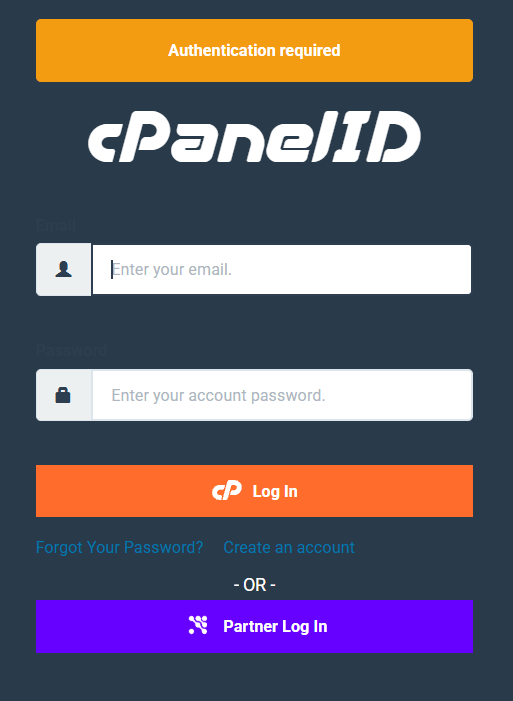
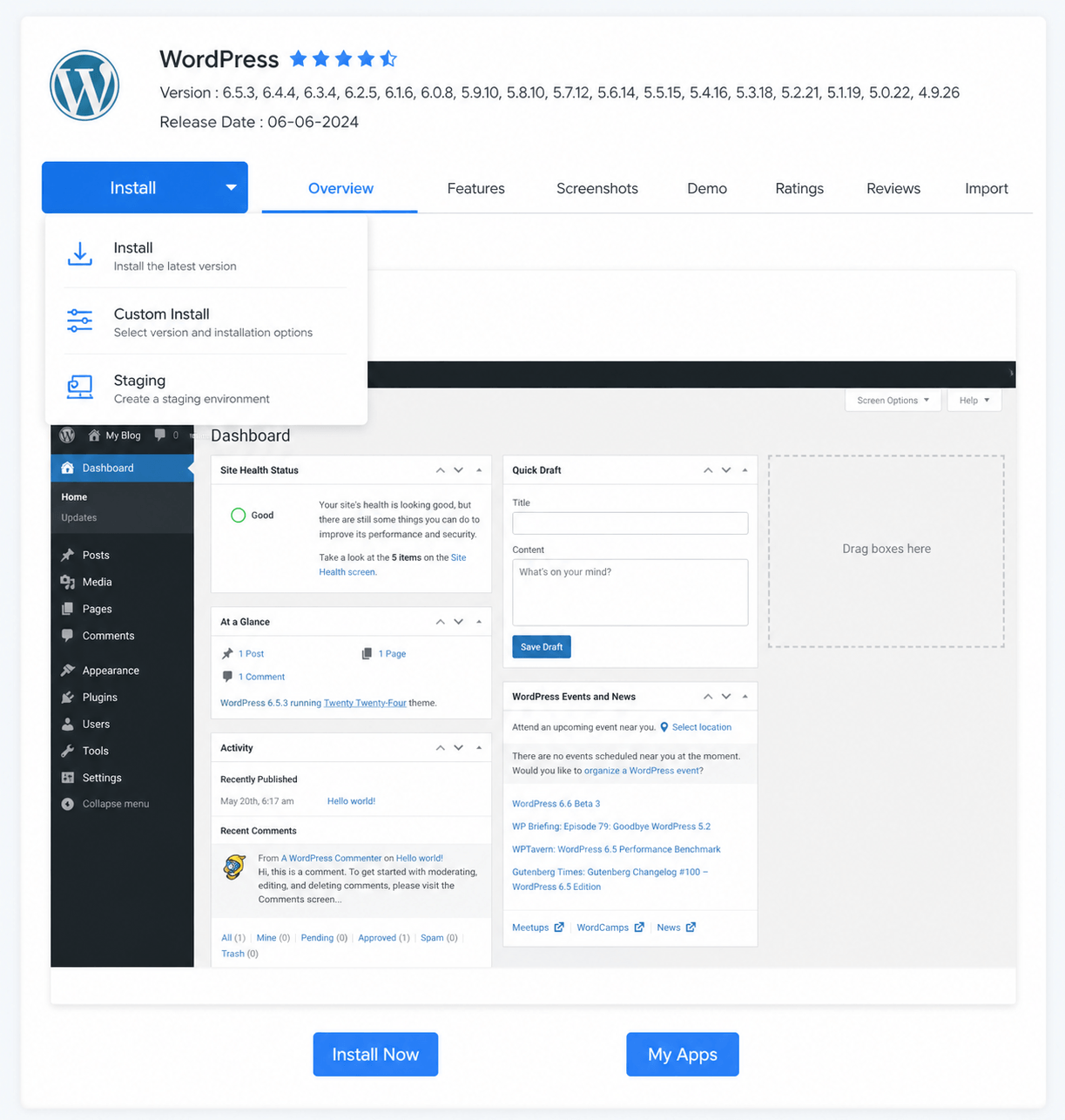
Step 1: Login to cPanel

How to Install WordPress on Shared Hosting

How to Install WordPress on Shared Hosting

How to Install WordPress on Shared Hosting

  • Login to your hosting account
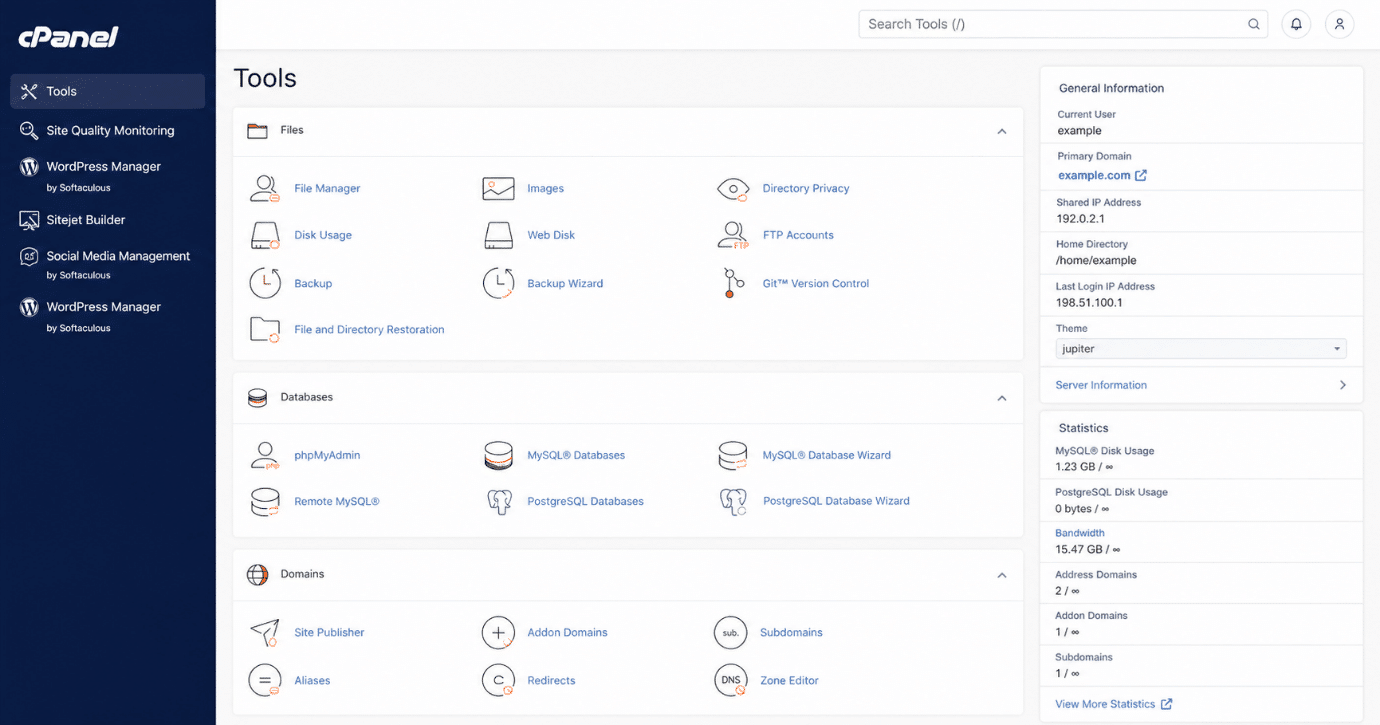
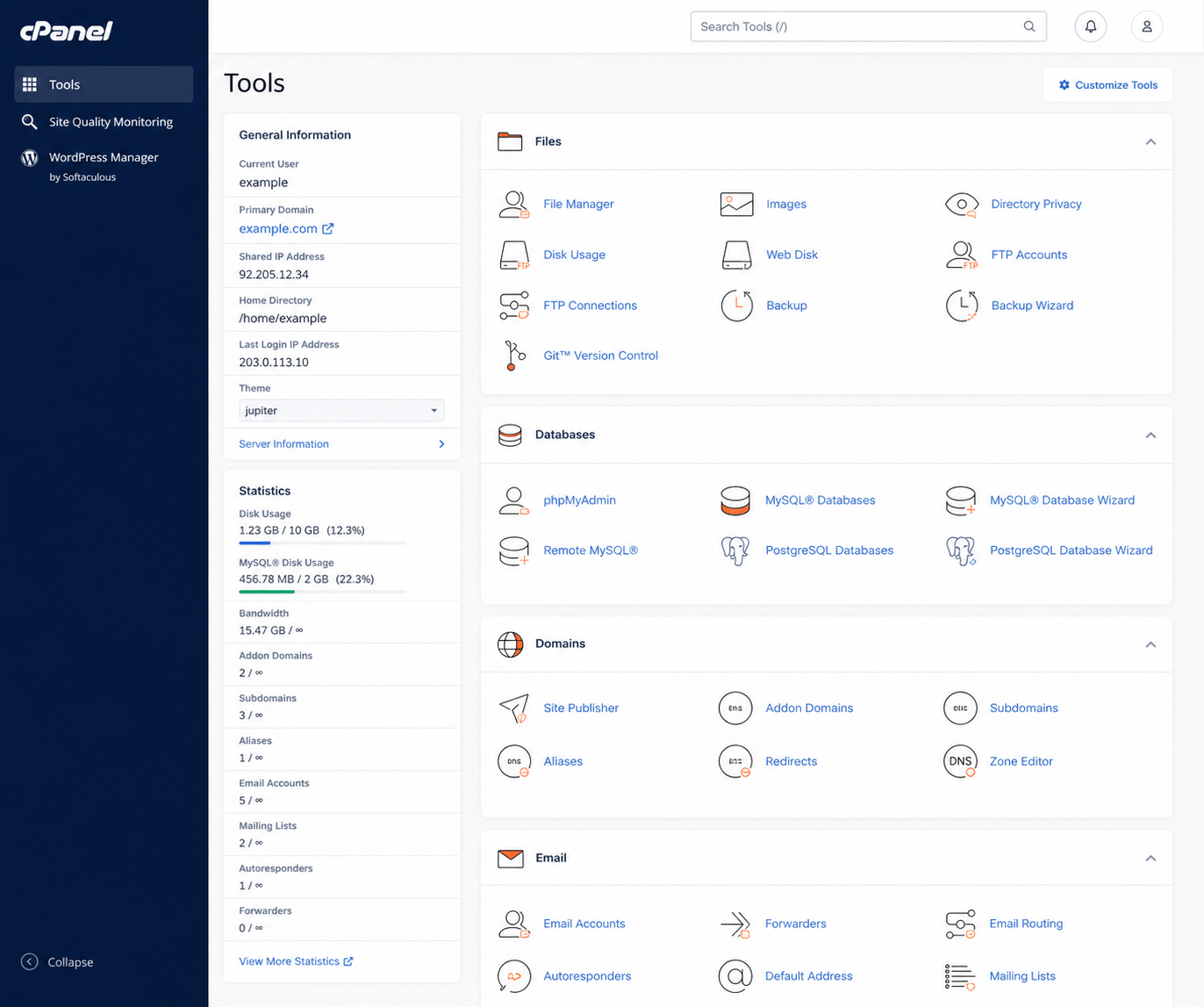
  • Open the cPanel dashboard

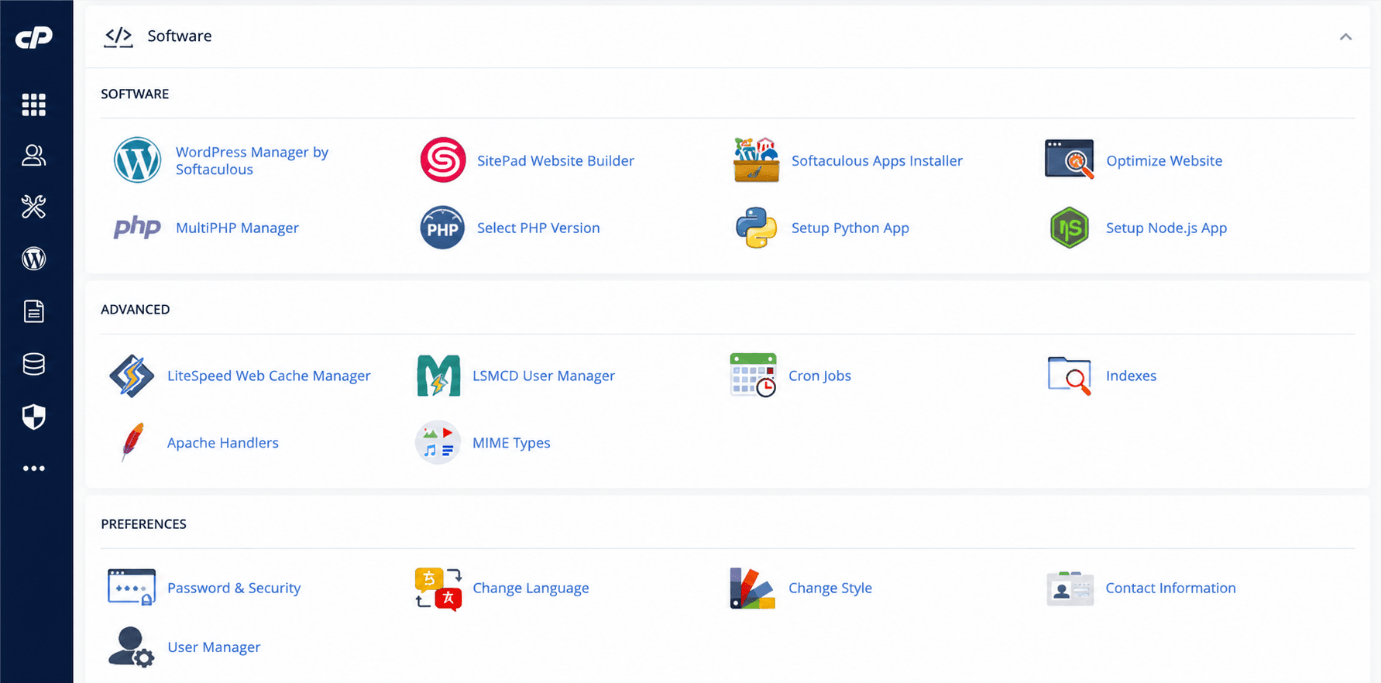
Step 2: Locate Softaculous Installer

How to Install WordPress on Shared Hosting

How to Install WordPress on Shared Hosting

  • Navigate to “Software” section
  • Click on Softaculous
  • Choose WordPress

Step 3: Configure Installation Settings

  • Select your domain
  • Choose HTTPS (recommended)
  • Set directory (leave blank for main domain)

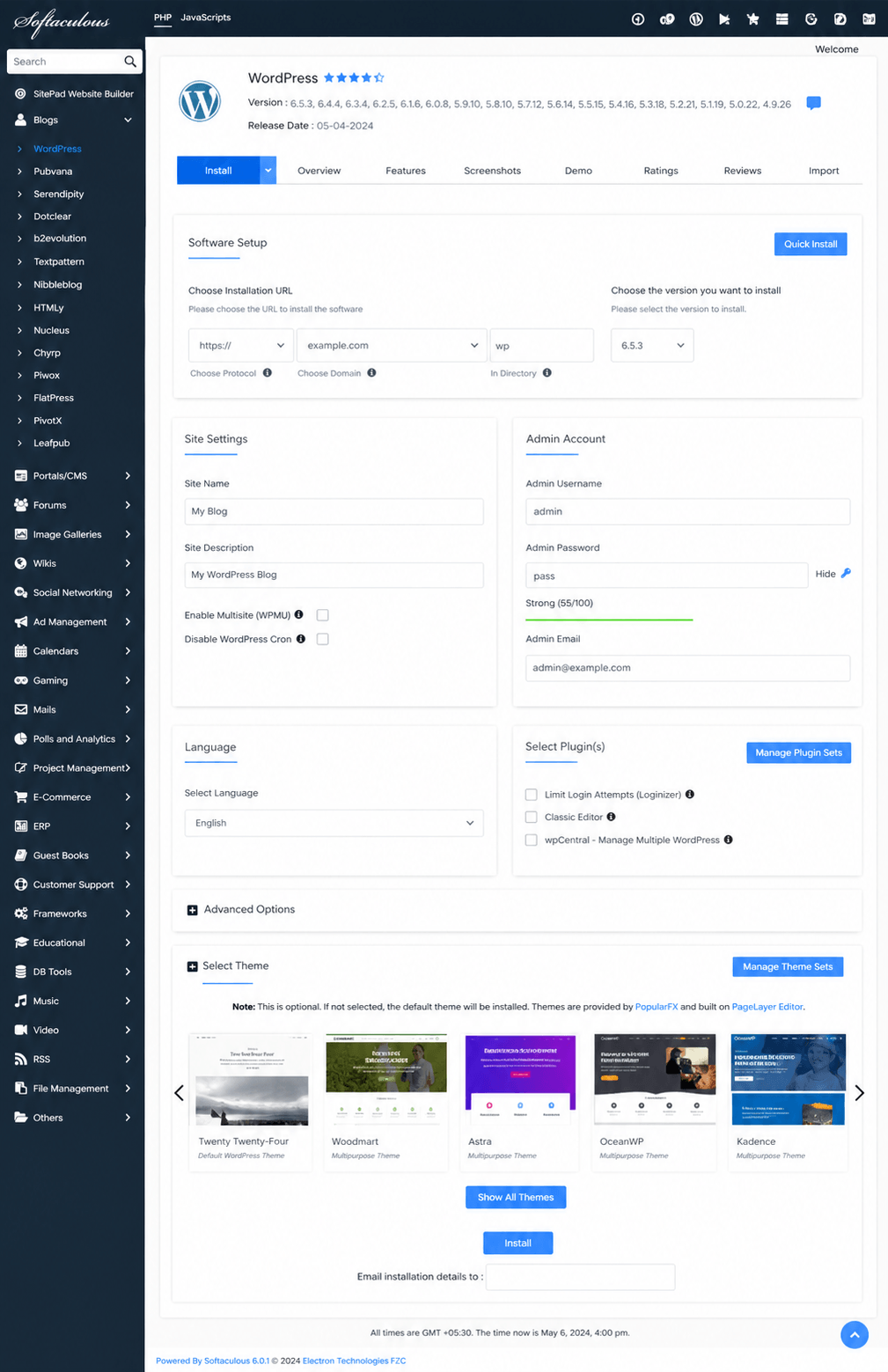
Step 4: Enter Website Details

How to Install WordPress on Shared Hosting

How to Install WordPress on Shared Hosting

  • Site name & description
  • Admin username & password
  • Email address

Always use a strong password

Step 5: Choose Theme (Optional)

  • Select a theme or skip for later customization

Step 6: Complete Installation

  • Click “Install”
  • Wait a few seconds
  • Access your site and admin panel

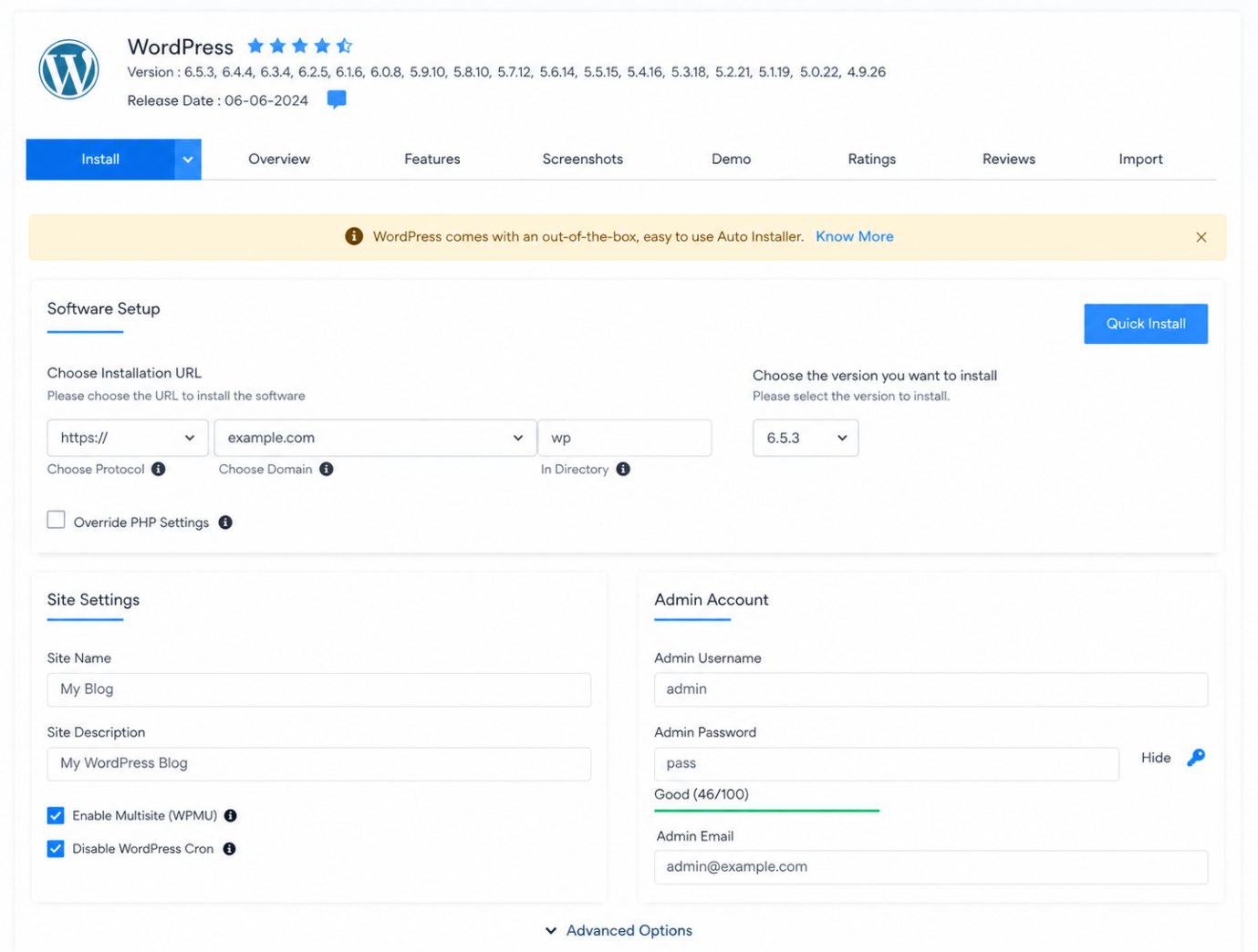
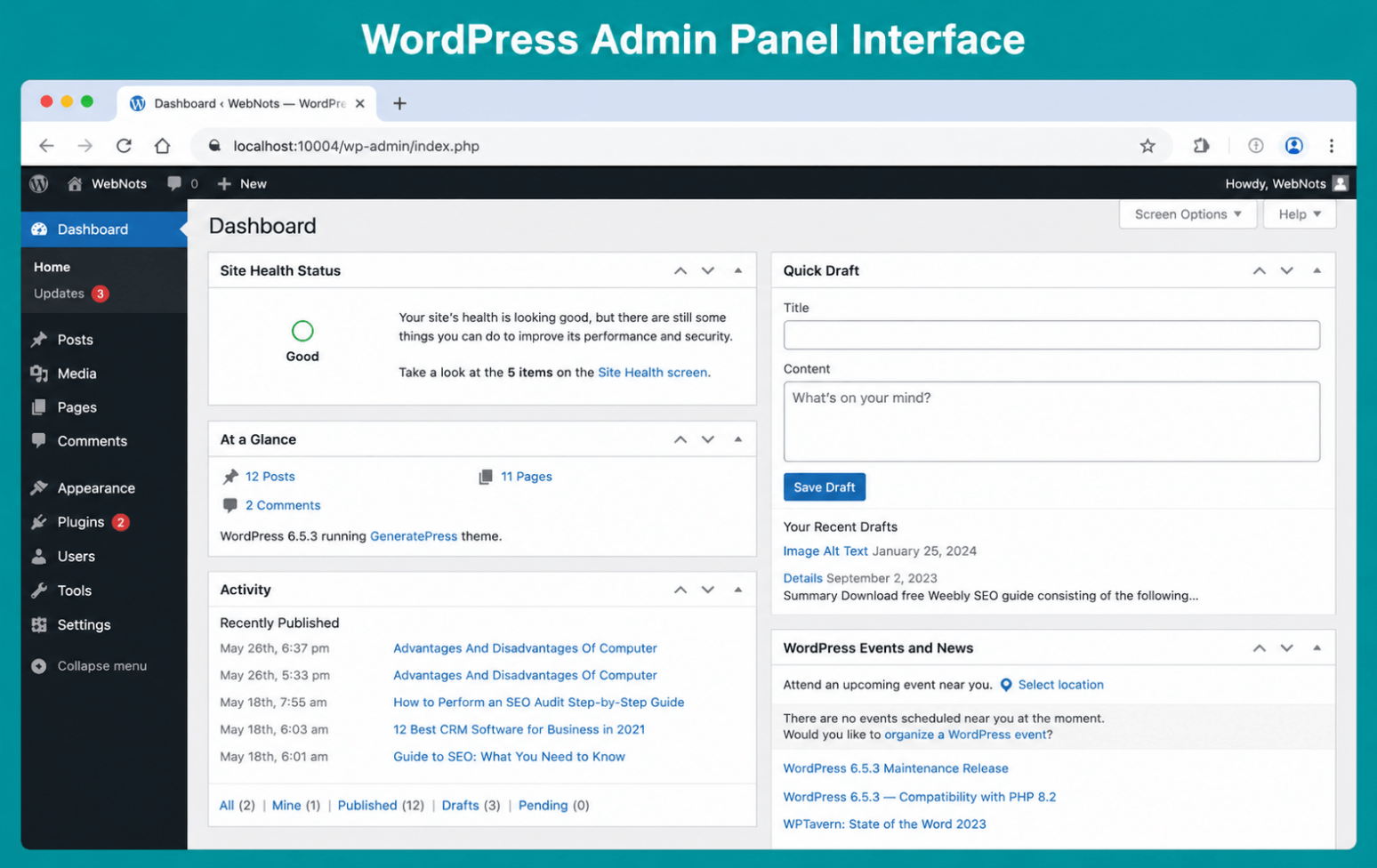
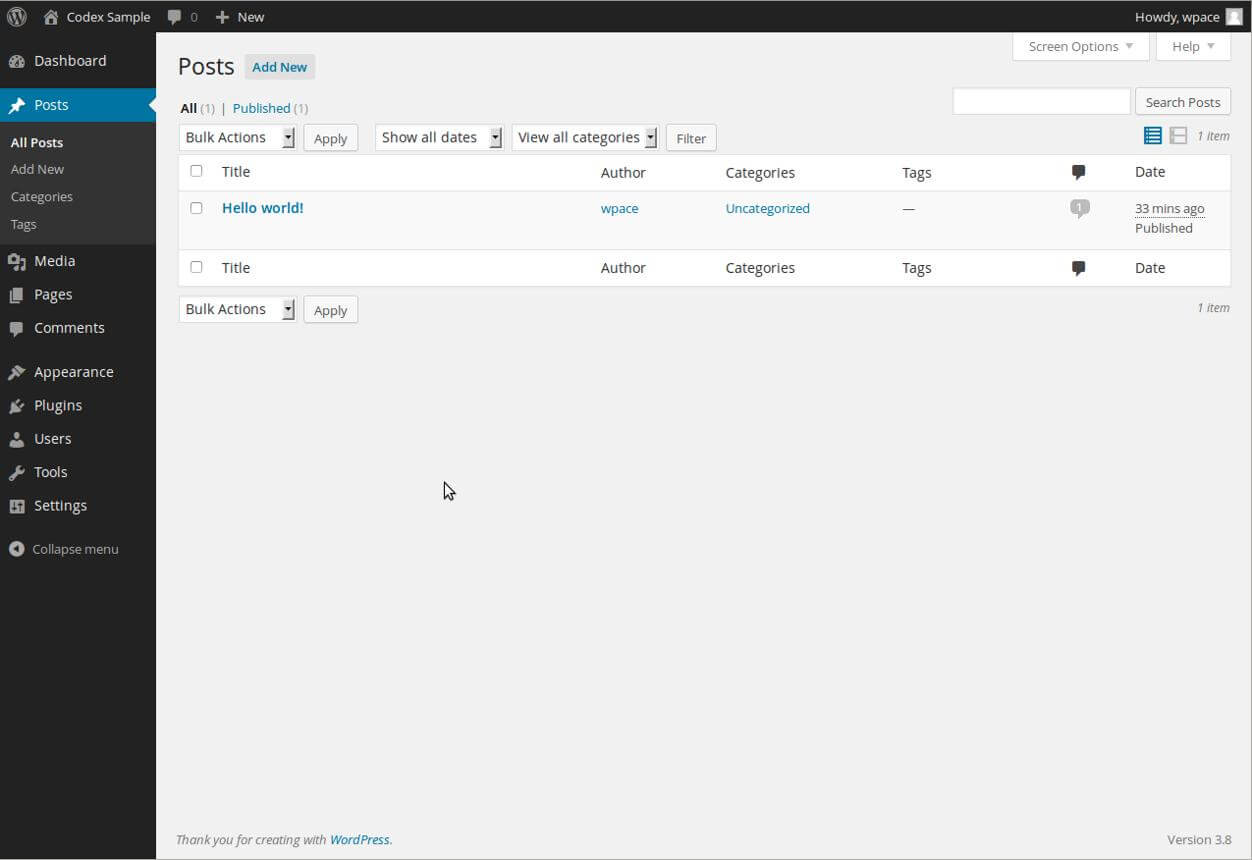
WordPress Dashboard Overview

How to Install WordPress on Shared Hosting

How to Install WordPress on Shared Hosting

How to Install WordPress on Shared Hosting

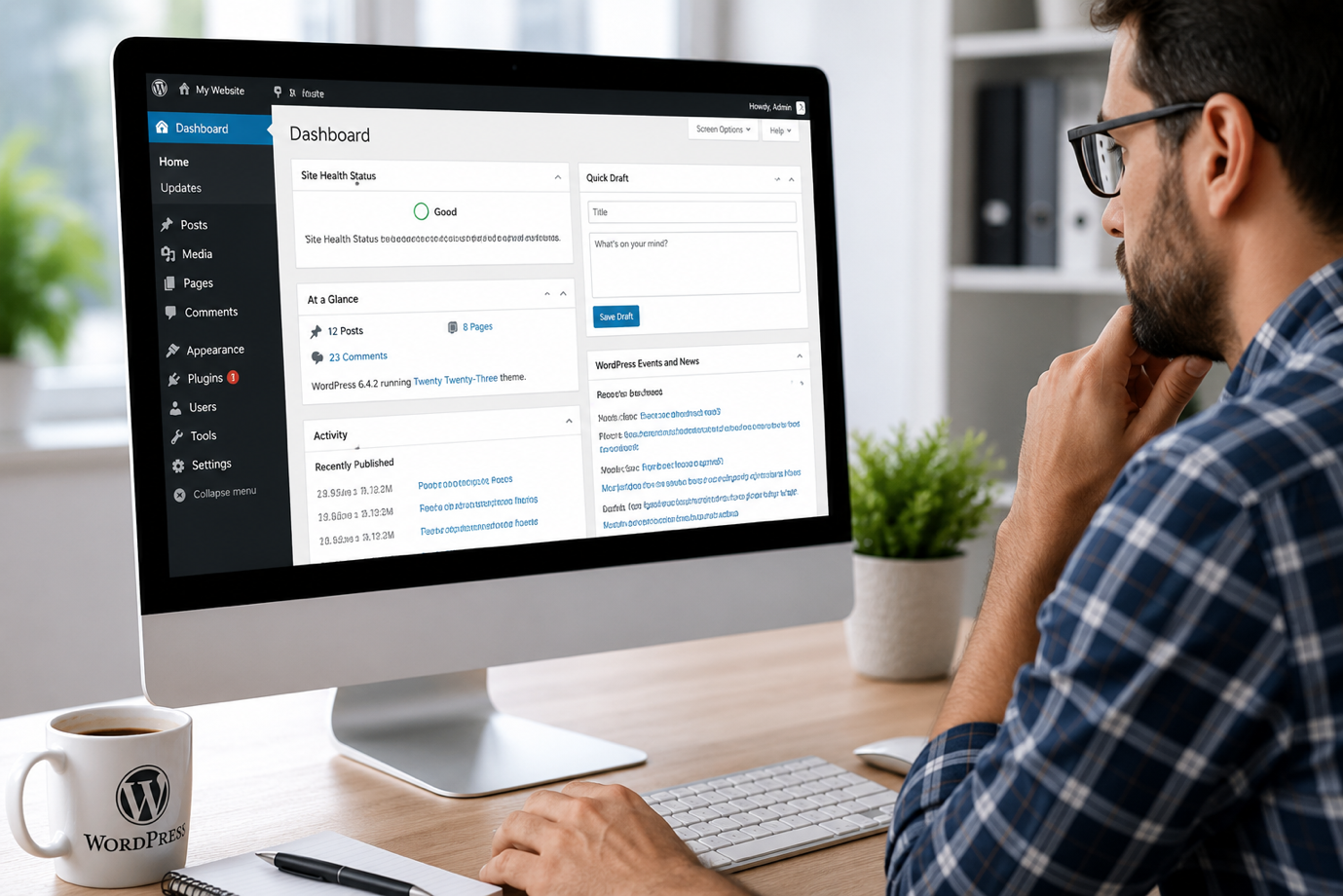
Once installed, you can manage content, themes, plugins, and settings from your dashboard.

Method 2: Manual WordPress Installation (Advanced)

For advanced users:

  1. Download WordPress from WordPress
  2. Upload files via FTP or File Manager
  3. Create MySQL database
  4. Configure wp-config.php
  5. Run installation

Recommended for developers needing full control.

Best Settings After Installing WordPress

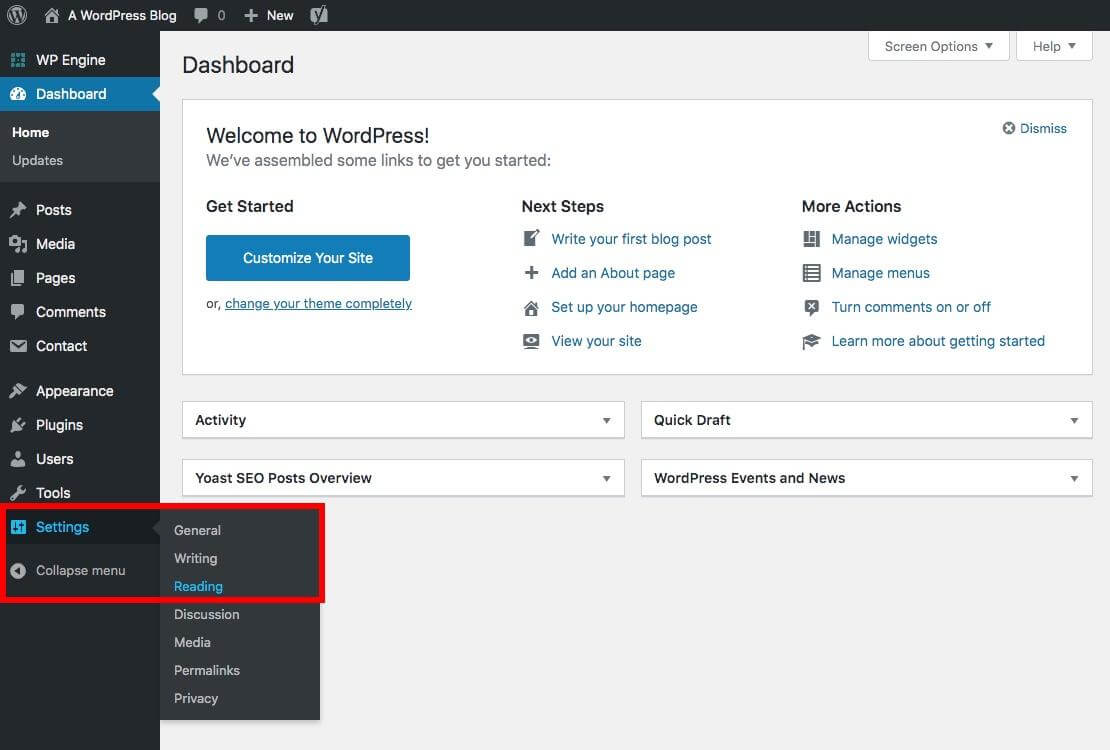
1.Update Permalinks

  • Go to Settings → Permalinks
  • Choose “Post Name”

2. Install Essential Plugins

  • SEO plugin
  • Cache plugin
  • Security plugin

3. Choose a Lightweight Theme

  • Improves speed and user experience

How to Optimize WordPress on Shared Hosting

Improve Speed

  • Enable caching
  • Compress images
  • Use CDN

Need help? Optimize your website performance

Improve Security

  • Enable SSL
  • Use strong passwords
  • Install firewall plugins

Learn to secure your website from threats

Common Mistakes to Avoid

  • Using weak login credentials
  • Installing too many plugins
  • Ignoring backups
  • Not updating WordPress

Shared Hosting vs Managed Hosting

Feature

Shared Hosting

Managed Hosting

Cost

Low

Medium

Speed

Moderate

High

Support

Basic

Advanced

Security

Limited

Strong

If your website grows, consider upgrading.

When Should You Upgrade Hosting?

Upgrade if:

  • Your website is slow
  • Traffic increases
  • Security issues arise

Consider upgrade to managed VPS hosting

Why Choose VeeroTech for WordPress Hosting?

With VeeroTech:

  • High-performance hosting
  • Easy WordPress setup
  • Advanced security
  • Expert support
  • Scalable solutions

Ready to build your website?

Start with VeeroTech shared hosting and launch your WordPress site in minutes.

FAQs

1. Can I install WordPress on shared hosting?

Yes, WordPress can be installed easily using one-click tools.

2. Is shared hosting good for beginners?

Yes, it is affordable and beginner-friendly.

3. Do I need coding knowledge?

No, installation is simple with Softaculous.

4. How long does installation take?

Less than 5 minutes.

5. Can I host multiple websites?

Yes, depending on your hosting plan.

6. What is Softaculous?

Softaculous is a one-click installer that simplifies application installation.

7. Is cPanel required?

Most shared hosting providers offer cPanel, but alternatives exist.

WooCommerce on WordPress 6.9: Performance Tuning for High-Converting Online Stores

Introduction

WordPress 6.9’s performance improvements benefit WooCommerce stores through faster block rendering and optimized resource loading. Modern WooCommerce blocks can leverage these enhancements for smoother shopping experiences when paired with proper caching and hosting optimization.
Combined with VeeroTech’s WordPress-optimized hosting – featuring dedicated Redis object caching, high PHP worker limits, and enterprise AMD EPYC hardware – WooCommerce stores gain the foundation for handling both everyday traffic and peak sales periods.

Product Block Performance & Dynamic Pricing

WooCommerce product blocks benefit from WordPress 6.9’s general performance improvements including optimized CSS loading. Interactive features like quantity selectors and variation pricing work smoothly when combined with proper caching.

Real-world impact:
When a customer selects “Size: Large” or changes quantity from 1 to 5, modern blocks provide responsive updates. This creates a smoother shopping experience.

Interactive WooCommerce blocks can use client-side JavaScript for simple interactions, while complex pricing and inventory checks benefit from server-side caching like VeeroTech’s Redis object cache – storing calculated prices for popular variants and reducing response times significantly.

Checkout Block Optimization

Checkout pages benefit from WordPress 6.9’s general script optimization and resource prioritization improvements, creating smoother payment flows when paired with caching.

Studies show a 1-second checkout improvement can increase conversions significantly. WordPress 6.9’s performance enhancements help create faster initial page loads when combined with server-side caching and CDN delivery.

VeeroTech’s support for CDN integration offers geographically distributed servers that reduce latency for international customers. Customers connecting from distant locations experience fast response times due to optimized routing and edge caching.

Cart & Mini-Cart Interactivity

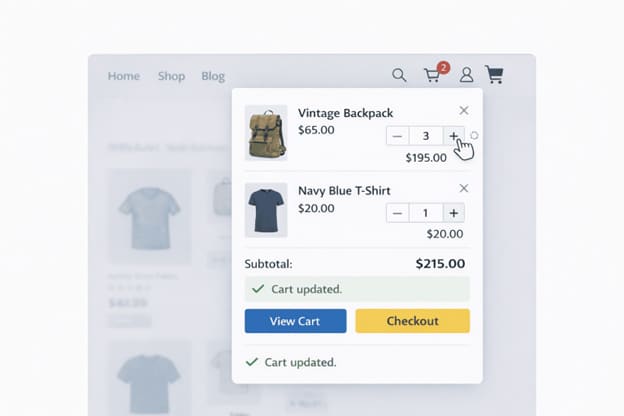
Modern cart and mini-cart blocks provide smooth quantity updates and item management. These interactive elements perform best with object caching to handle the frequent database writes they generate.

Customers can add products, adjust quantities, and apply coupons in the mini-cart overlay without interrupting their browsing flow. This seamless experience reduces the cognitive load associated with managing a shopping cart.

Database consideration:
Every cart update writes to the database. During Black Friday traffic spikes, this generates thousands of writes per minute. VeeroTech’s high-IOPS NVMe storage handles these bursts without degradation, ensuring consistent performance even under extreme load.

Mini-cart with instant quantity update

Update cart quantities smoothly without full page navigation.

Product Filtering Without Plugins

WooCommerce product filters perform best with server-side caching. Redis stores filter results so the first customer triggers a database query, but everyone else gets cached results instantly.

Filters generate REST API calls that Redis caches effectively. The first customer to filter “Price: $50-$100” causes a database query, but subsequent customers receive the cached result in milliseconds. This dramatically improves the browsing experience for category pages with multiple filter options.

VeeroTech’s persistent Redis connections reduce connection overhead compared to per-request connections, delivering consistently fast response times for filtered product queries.


WooCommerce + VeeroTech Optimization Stack

Server-Level Optimizations

Object Cache (Redis)
Stores product data, cart contents, and customer sessions in memory for instant retrieval. This is the single most impactful optimization for WooCommerce performance.

Full Page Cache
Serves cached HTML for non-logged-in users browsing product pages, drastically reducing server load during high-traffic periods.

Image Optimization
With help of plugins like LiteSpeed Cache for WordPress, automatic WebP conversion and lazy loading for product galleries, ensuring high-quality visuals without compromising load times.

CDN Integration
Distributes product images and static assets globally, reducing latency regardless of customer location.

WordPress 6.9 Settings for WooCommerce

Enable WooCommerce Blocks (cart/checkout) for better performance with modern themes. Block-based cart/checkout benefits from WordPress 6.9’s general performance improvements, though shortcodes remain fully supported.

Consider enabling HPOS (High-Performance Order Storage) for stores with high order volume. This optional feature stores orders in custom tables instead of posts, improving query performance for large stores.

Enable background processing for order emails and webhooks to prevent these operations from blocking customer-facing requests during checkout.

Performance Checklist for Store Owners

  • Enable Redis Object Cache via VeeroTech cPanel
  • Switch to block-based cart and checkout
  • Optimize product images (max 1200px width, WebP format)
  • Reduce installed payment gateways to only those actively used
  • Enable WooCommerce’s built-in REST API caching
  • Test checkout flow with GTmetrix to verify sub-3-second load times
  • Configure CDN integration for product image delivery
  • Set up automated database optimization (weekly schedule)

Black Friday Readiness

WordPress 6.9 combined with VeeroTech provides the foundation for handling traffic surges that can overwhelm unprepared stores.

Stress Test Your Setup
Begin with VeeroTech’s staging environment to avoid impacting production traffic. Install a load testing plugin such as WP Test or Query Monitor to gather baseline metrics.

Simulate 500 concurrent users browsing products and monitor PHP worker usage and database query times. If PHP workers max out during testing, consider scaling your VeeroTech plan before the sales event.

Traffic Spike Features
VeeroTech’s AMD EPYC powered enterprise hardware ensuring your store remains responsive without manual intervention.

Background processes- order emails, inventory sync, webhook notifications – are queued to prevent overwhelming the server during peak traffic. This ensures checkout processes remain fast even when administrative tasks are backed up.

During extreme traffic events, enable “Cache Logged-in Users” temporarily to reduce server load. While this limits personalization, it prevents site crashes during the most critical sales windows.


FAQ

Will WordPress 6.9 make my WooCommerce store faster automatically?
WordPress 6.9 provides general performance improvements that benefit WooCommerce stores, particularly those using modern block themes and optimized caching. Block-based cart/checkout may see additional benefits from frontend optimizations.

How does Redis Object Cache help WooCommerce specifically?
WooCommerce generates complex database queries for product variations, pricing rules, and inventory checks. Redis caches these query results, reducing database load significantly. For customers, this means noticeably faster product pages.

Can VeeroTech hosting handle viral product launches or flash sales?
Yes. VeeroTech’s infrastructure offers planned temporary scaling that gives you additional PHP workers, vCPUs, and memory to handle the traffic spikes. For planned events such as product launches, contact VeeroTech support 48 hours in advance for pre-scaling.

Should I use a separate caching plugin with WooCommerce on WordPress 6.9?
Yes, but choose carefully. Use a cache plugin that understands WooCommerce’s dynamic content requirements. Avoid caching cart, checkout, or my-account pages. VeeroTech recommends plugins with WooCommerce-aware caching rules by default.

Content Creators’ Dream: WordPress 6.9 for Blogs, News Sites, and Publishers

Introduction

For bloggers, journalists, and digital publishers, WordPress 6.9 delivers workflow improvements that accelerate content production. The new block-level Notes system enables contextual editorial feedback, refined editor controls improve block manipulation, and enhanced media handling streamlines image workflows.

Publishers running on VeeroTech benefit from infrastructure designed for content-heavy sites: unlimited bandwidth for viral articles, Redis caching for comment-heavy posts, and staging environments for editorial review before publication. This combination ensures your content reaches readers quickly, regardless of traffic volume.

Publishing Workflow Enhancements

Editorial Notes System for Content Teams

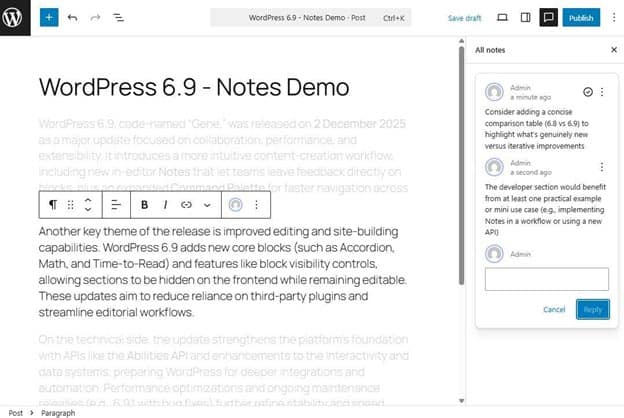
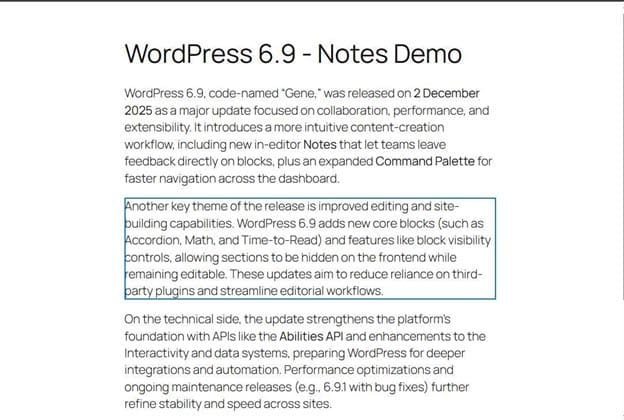
WordPress 6.9’s new Notes feature allows editors to attach threaded feedback directly to specific blocks, eliminating the need for tools like Google Docs comments or Slack threads.

Editorial workflow streamlines: writers draft articles in WordPress, editors leave contextual notes like “Add statistics to this paragraph” or “Fact-check this claim,” writers address notes inline, and editors mark notes as “Resolved” when satisfied.

This keeps content in one place, eliminating context-switching between WordPress, Google Docs, and communication tools. Editorial teams generate significant autosave and revision data – often 50+ revisions per article. VeeroTech’s hosting environment includes regular database optimization, keeping tables defragmented and queries fast — so editor performance stays smooth even as revision history grows.

Editor with Notes panel showing threaded feedback

Leave contextual feedback directly on blocks without external tools.

Improved Media Library & Image Optimization

WordPress 6.9 continues improving media library performance with enhanced thumbnail generation and responsive image handling.

Upload high-resolution photos from press events or product launches, and WordPress automatically generates optimized sizes for different breakpoints. Built-in PHP image modules handles the CPU-intensive work without slowing down the admin interface.

Thumbnail generation now happens more efficiently, allowing writers to continue working while images process. VeeroTech’s NVMe storage handles the multiple file writes – original plus thumbnail sizes – without I/O bottlenecks.

Default editor vs Distraction-free mode

Minimize distractions to focus on writing without interface clutter.

Distraction-Free Writing Mode Refinements

The refined spotlight and distraction-free modes help long-form writers focus by minimizing interface distractions.

Long-form journalists writing 3,000+ word pieces benefit from reduced visual clutter. Toggle spotlight mode to highlight only the current block.

Keyboard shortcuts:

  • Ctrl/Cmd + Shift + \ => Toggle distraction-free mode
  • Ctrl/Cmd + Alt + O => Open command palette
  • / + block name => Quick block insertion

Pattern Libraries for Consistent Design

Publishers can create pattern libraries – pre-designed block layouts for common content types like author bios, call-to-action sections, related articles, and newsletter signups.

Writers drag in the “Related Articles” pattern instead of rebuilding layouts. Design stays consistent, production speed increases. VeeroTech workflow: build patterns in staging, test with real content, sync to production. Object Cache speeds up pattern rendering.

Content Performance on VeeroTech

Traffic Spike Handling

When an article goes viral—hitting Reddit’s front page or trending on social media—traffic jumps dramatically within minutes.

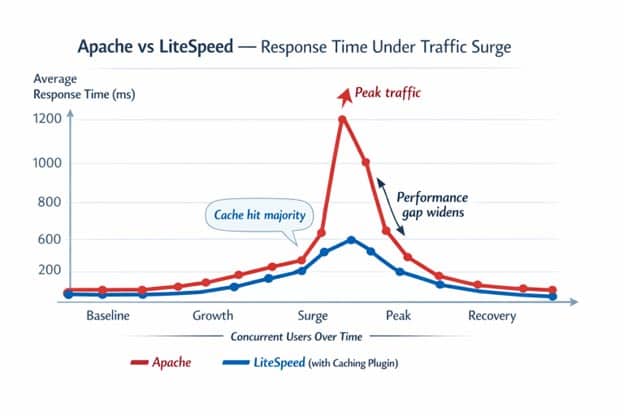
VeeroTech with LiteSpeed web server environment where customers can use plugins like LSCWP to generate full-page cache, serving requests directly from cache storage. These plugins handle asset optimization and delivery, with an optional supported CDN add-on distributing images from edge locations, while ample resources keep the database responsive for comments and admin activity.

Real-world scenario: A lifestyle blog hits Reddit’s front page—80,000 visitors in 6 hours. With VeeroTech, A combination of LiteSpeed and caching plugins configured, most requests are served from cached pages, keeping the site fast and responsive throughout the surge

Viral article traffic pattern and server response

How caching and infrastructure handle sudden traffic surges.

SEO and Performance Benefits for Publishers

WordPress 6.9’s performance improvements help Core Web Vitals through better resource handling.

  • LCP benefits from optimized CSS loading for hero images
  • INP improves through responsive comment forms and sharing buttons
  • CLS reduces with better image dimension handling

VeeroTech delivers fast Time to First Byte (TTFB). Google’s crawler sees consistent fast response times—a positive ranking signal.

Publisher Optimization Checklist

  • Configure Redis Object Cache for comment queries
  • Set up automatic image compression on upload
  • Implement lazy loading for in-article images
  • Create pattern library for common content blocks
  • Configure editorial roles (Author, Editor, Contributor) with proper permissions
  • Schedule automated database optimization weekly
  • Test article templates on staging before deploying to production

FAQ

How does WordPress 6.9 improve writing experience for bloggers?
WordPress 6.9 refines the editor with smoother block manipulation, improved keyboard shortcuts, distraction-free modes, and the Notes system for streamlined editorial feedback – all without leaving WordPress.

Can multiple writers work on the same article simultaneously in WordPress 6.9?
WordPress 6.9 shows when another user is editing and prevents conflicting saves. The Notes system enables effective asynchronous collaboration. Real-time co-editing like Google Docs is planned for future releases.

Will WordPress 6.9 help my blog load faster on mobile?
Yes. Reduced CSS and JavaScript payloads benefit mobile users on slower connections. Articles with multiple blocks load noticeably faster on phones.

Also Read: Unleashing Speed: How WordPress 6.9’s Performance Boost Transforms Your Site

How does VeeroTech hosting prevent my site from crashing when an article goes viral?
VeeroTech with LiteSpeed web server and suitable plugins combines full-page caching, CDN integration, and script optimization. Cached pages are served without database queries, handling 100x normal traffic seamlessly.

Business Websites Powered by WordPress 6.9: Professional Performance on VeeroTech

Introduction

For small businesses, agencies, and corporate sites, WordPress 6.9’s refined block editor and design tools enable professional websites without developer costs. The pattern system and style variations create consistent branding across pages while maintaining flexibility for specific business needs.

Business websites demand reliability—VeeroTech delivers 99.9% uptime, daily automated backups, and professional support that understands business-critical needs. WordPress 6.9’s performance enhancements work with VeeroTech’s infrastructure to ensure fast load times for clients, investors, and partners, projecting competence and credibility essential for business success.

Business-Critical Features in WordPress 6.9

Brand Consistency with Global Styles and Patterns

WordPress 6.9 builds on Global Styles, allowing businesses to define colors, typography, and spacing once for site-wide consistency.

Your brand guide—specific Pantone colors, fonts, spacing rules—translates directly into WordPress. Anyone creating new pages automatically uses approved styles, eliminating design drift without constant oversight.

Implementation: Define brand colors in Appearance → Editor → Styles → Colors, set typography (font families, sizes, line heights), create patterns for service boxes, team member cards, and testimonial blocks.

Pattern rendering relies on database queries. VeeroTech’s Object Cache stores rendered patterns, ensuring new pages load instantly rather than regenerating layouts with each request.

Global Styles panel with brand colors and typography

Define your brand identity once and maintain consistency across all pages.

Form Integration and Lead Generation

Modern form blocks with WordPress 6.9 provide smooth client-side validation, reducing failed submissions that cost businesses potential leads.

Forms submit via AJAX without page reloads, provide clear error messaging, and integrate easily with email marketing platforms. VeeroTech reliability ensures form submissions save immediately to the database with automated backups—no lead is ever lost.

Professional Imagery and Media Presentation

WordPress 6.9’s media enhancements create polished visual presentations that project professionalism.

Gallery blocks include hover effects, built-in lightbox functionality for click-to-expand viewing, video backgrounds for dynamic hero sections, and image aspect ratio locking that prevents distortion.

High-resolution images can slow sites significantly. With support of plugins, automatic WebP conversion and CDN distribution ensure professional imagery maintains both aesthetics and speed.

Before/after slider — Business site hero section image quality vs load time

Maintain professional image quality while optimizing for performance.

Client Area and Private Content

WordPress role-based permissions make client portals and private content secure and manageable.

Use cases: Law firms share case documents, consultants provide retainer client resources, agencies show project progress to stakeholders—all secured without exposing information publicly.

Create restricted pages, use block-level permissions to hide pricing for non-logged-in visitors, or display custom content by user role—all without complex plugins.

VeeroTech’s SSL certificates, server-level security, and automated malware scanning protect sensitive information, ensuring compliance with data protection expectations.

Business Website Performance Benchmarks

Target Metrics:

  • Page Load Time: Under 2 seconds desktop, 3 seconds mobile
  • Time to Interactive: Under 3 seconds
  • Uptime:9%+ (VeeroTech guarantee)
  • Mobile PageSpeed Score: 80+ on Google PageSpeed Insights

How WordPress 6.9 + VeeroTech Achieves This

WordPress 6.9 reduces CSS/JavaScript payloads for faster paint times. VeeroTech’s NVMe storage delivers sub-100ms response times, Redis Object Cache eliminates database bottlenecks.

Business Website Maintenance Strategy

Weekly Tasks:

  • Review form submissions and respond to leads promptly
  • Check Google Search Console for crawl errors
  • Verify backup completion in VeeroTech dashboard
  • Update content (blog posts, case studies)

Monthly Tasks:

  • Update WordPress, plugins, themes via staging first
  • Review analytics, adjust content strategy
  • Optimize database using VeeroTech’s one-click tool
  • Fix broken links and 404 errors

Quarterly Tasks:

  • Conduct security audits, review user accounts
  • Create a custom full backups to external locations
  • Perform content audit, update services/team photos
  • Run performance benchmarks vs previous quarter

VeeroTech Support for Business Sites

Responsive support for all customers, professional migration assistance, proactive monitoring, and security alerts

Business Website Checklist

  • Configure Schema.org structured data
  • Set up contact forms with spam protection
  • VeeroTech automated backups (daily)
  • Install SSL certificate (free with VeeroTech)
  • Create privacy policy/terms of service pages
  • Configure Google Analytics 4
  • Set up professional email via VeeroTech
  • Test site across devices/browsers
  • Create 301 redirects for old URLs
  • Submit sitemap to Google Search Console

FAQ

Is WordPress 6.9 suitable for professional business websites?
Absolutely. WordPress 6.9 powers sites from sole proprietorships to Fortune 500 companies. The block editor provides professional design capabilities without coding; VeeroTech ensures enterprise-grade reliability.

How does VeeroTech’s uptime guarantee protect my business?
VeeroTech maintains 99.9% uptime through redundant infrastructure and proactive monitoring. Your website remains accessible to clients 24/7.

Can I move my existing business website to WordPress 6.9 on VeeroTech?
Yes. VeeroTech provides free migration service, ensuring minimal to zero downtime while preserving content, SEO rankings, and functionality.

What happens if my business site gets hacked on VeeroTech?
VeeroTech’s security includes malware scanning, firewall protection, intrusion detection. Daily clean backups enable quick restoration; support identifies/prevents recurrence.