
When you add an Addon Domain in cPanel, the system automatically generates a corresponding subdomain under your primary domain as a functional requirement. For instance, if your main site is, example.com and you add domain2.com, cPanel creates domain2.example.com in the background. While this is necessary for the server’s file structure, you likely want your visitors and search engines to access your site only through the primary addon domain. By redirecting this automatic subdomain, you can ensure brand consistency, prevent duplicate content issues, and improve your overall SEO.
Quick Steps
-
Log in to your cPanel dashboard.
-
Navigate to the Domains section and select Redirects.
-
Choose the specific subdomain (e.g.,
domain2.example.com) from the list. -
Enter your primary addon domain as the destination.
-
Set the redirect type to Permanent (301).
-
Click Add to save your settings.
Follow the step-by-step instructions below to manage subdomain redirects in your cPanel interface.
Method 1: Steps to Disable Subdomain Access via cPanel Redirects
The most straightforward way to handle unwanted subdomain access is through the built-in Redirects tool in your control panel. After logging in to cPanel, scroll down to the Domains section and click on the Redirects icon to manage your URL forwarding. Under the Add Redirect section, you will find a dropdown menu where you can select the automatically created subdomain that you wish to disable.
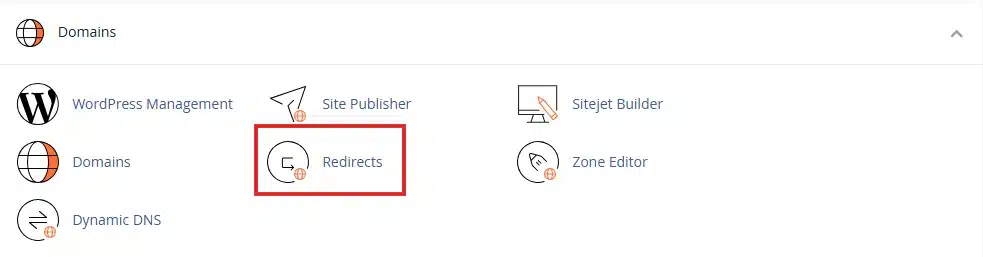
Domains in cPanel
Once you have selected the correct subdomain, move to the Redirects to field and enter the full URL of your addon domain, such as https://domain2.com. It is important to select the Permanent (301) redirect type, as this tells search engines that your website has a single, official location. After clicking the Add button, anyone attempting to visit the site via the subdomain will be instantly and seamlessly sent to your main addon domain.
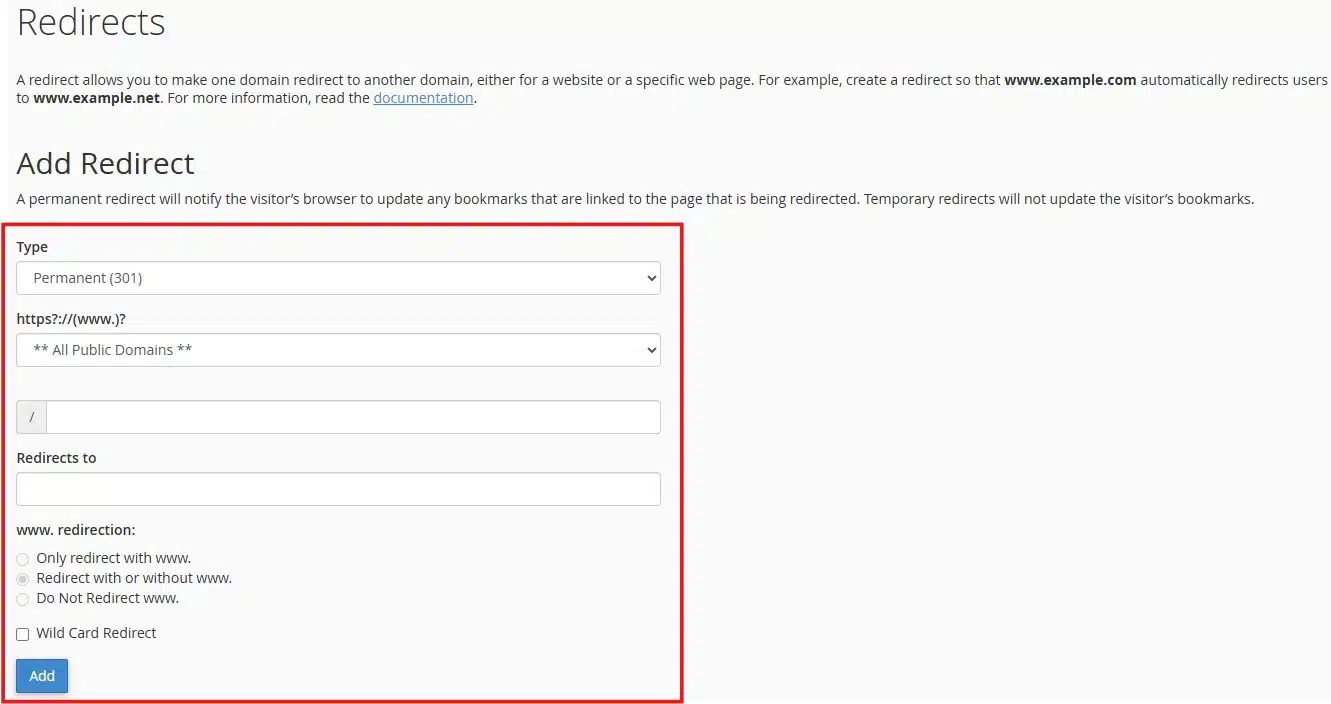
Redirects in cPanel
Method 2: Alternative Method (Using .htaccess)
For those who prefer a more manual approach or want to manage redirects directly within their site files, you can use the .htaccess file located in the addon domain’s document root. Open your File Manager, locate the folder for your addon domain, and edit the .htaccess file to include a specific rewrite rule.
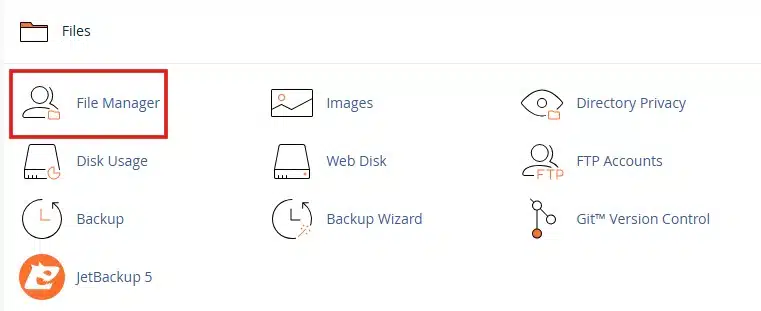
File Manager in cPanel
This method is highly efficient and operates at the server level before the page even begins to load.
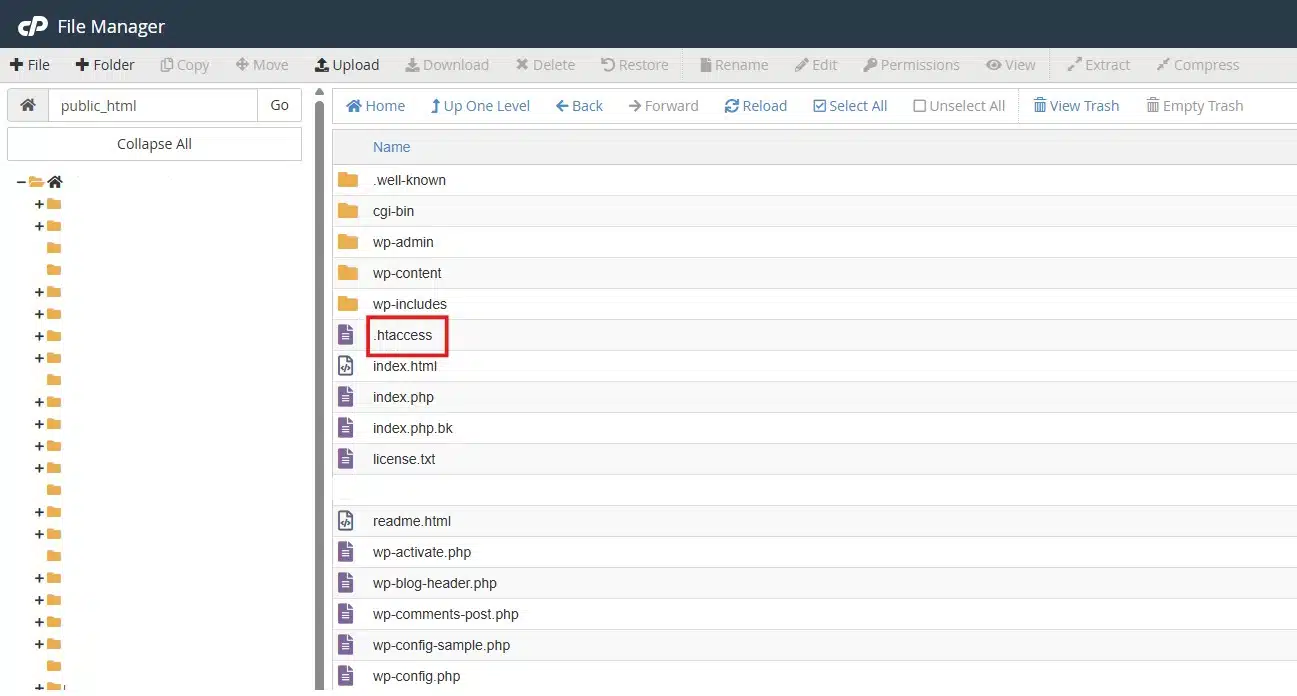
File Manager in cPanel
To implement this, you would add the following code block to the top of your file:
RewriteEngine On
RewriteCond %{HTTP_HOST} ^domain2\.example\.com$ [NC]
RewriteRule ^(.*)$ https://domain2.com/$1 [L,R=301]
When using this method, ensure you replace domain2.example.com and domain2.com with your actual domain details. This manual configuration provides the same SEO benefits as the cPanel tool by consolidating your traffic into one “canonical” URL.
Wrapping Up
By default, cPanel’s creation of subdomains for every addon domain can lead to your website being accessible via two different URLs. Setting up a 301 redirect is a simple yet powerful way to ensure that visitors only interact with your preferred domain name. This small technical adjustment helps maintain a professional appearance and keeps your SEO ranking strong by preventing split traffic.
If you have any web hosting questions please feel free to reach out to us. We're happy to help.
Our Guiding Principles