
It can be incredibly frustrating when your WordPress website fails to send critical notifications, such as contact form submissions, password resets, or order confirmations. This issue typically stems from server-level restrictions on the default PHP mail function or incorrect configuration within your WordPress settings. Because many email providers now have strict authentication requirements to prevent spam, standard WordPress emails often get blocked or filtered. This guide will walk you through the essential troubleshooting steps and show you how to implement a reliable SMTP solution to ensure your messages always reach the intended inbox.
Quick Steps
-
Verify the Administration Email Address in your WordPress settings.
-
Check your Spam and Junk folders for missing messages.
-
Audit the “From” and “To” settings in your Contact Form plugin.
-
Install and configure an SMTP plugin for authenticated sending.
-
Perform an Email Test to confirm the fix is working.
Follow the step-by-step instructions below to resolve email delivery issues in WordPress.
Check the Email Address Used in WordPress
The first step is to ensure that the primary email address associated with your site is valid and active. You can verify this by logging into your WordPress Admin Dashboard and navigating to Settings, then selecting General. Here, you should carefully check the Administration Email Address field to confirm there are no typos and that it is an address you can actually access.
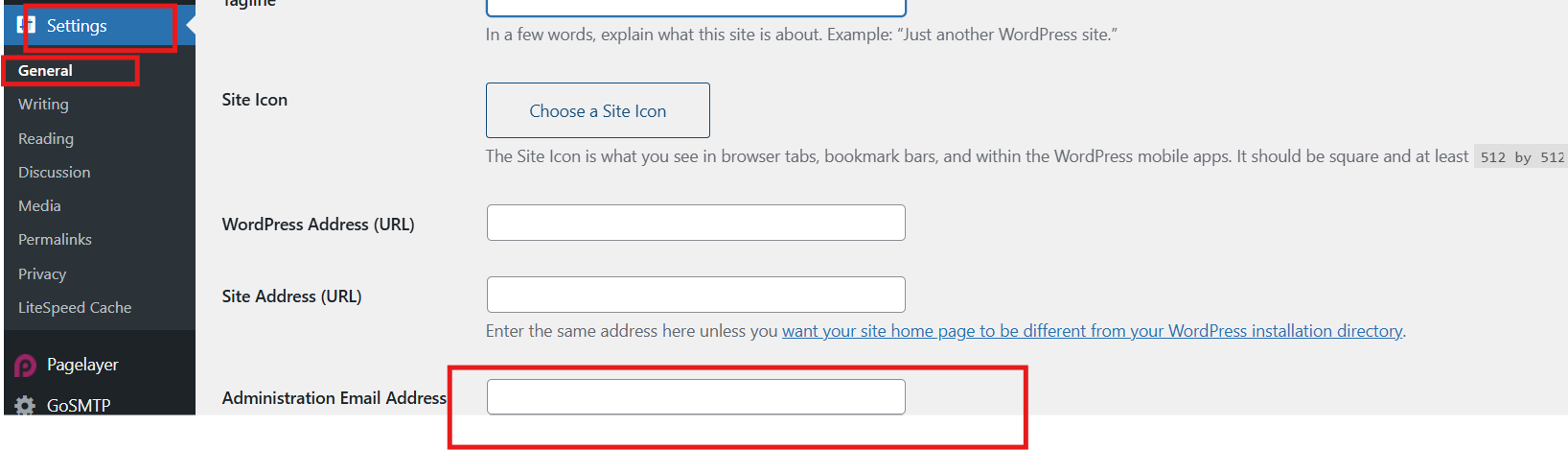
Administration Email Address
Since WordPress uses this specific address to send out core system notifications, any error here will immediately disrupt your site’s communication.
Check Your Spam or Junk Folder
Before diving into technical configurations, it is important to confirm that the emails aren’t simply being misidentified as junk. You should check the Spam or Junk folders of the recipient’s email account to see if the missing notifications are hiding there. If you find a WordPress email in these folders, marking it as Not Spam or “Whitelisting” the sender address can help train your email provider to recognize these messages as legitimate in the future.
Verify Contact Form Plugin Settings
If your issue is specifically related to form submissions, the problem often lies within the plugin’s internal settings. Open your contact form plugin, such as Contact Form 7 or WPForms, and inspect the “Mail” settings for your specific form. Ensure the Recipient Email is correct and, most importantly, that the From Email address uses an email that belongs to your actual domain (e.g., info@yourdomain.com). Using a “From” address that doesn’t match your domain (like a Gmail address) is a common reason why servers reject these emails.
Install an SMTP Plugin
By default, WordPress relies on the PHP mail() function, which is frequently disabled or limited by hosting providers to prevent outbound spam. The most professional and reliable fix is to switch to SMTP (Simple Mail Transfer Protocol), which uses a real, authenticated email account to send messages. To do this, navigate to the Plugins section, click Add New, and search for a plugin like Easy WP SMTP. After activating the plugin, you will need to enter your email account’s SMTP server, username, password, and port—details you can find in your cPanel email accounts section.
Test Email Sending
Once you have configured your SMTP settings, it is vital to verify that the connection to the mail server is successful. Most SMTP plugins include a built-in Email Test feature where you can enter a recipient address and send a sample message.

Email Test
After clicking the test button, check the target inbox to confirm the message arrived. If the test fails, the plugin will usually provide a detailed error log that can help you or our support team identify if a port is blocked or if the login credentials need adjusting.
Wrapping Up
Resolving a “WordPress not sending emails” error is usually a matter of moving away from the unreliable default PHP mailer and toward an authenticated SMTP setup. By verifying your administration settings, auditing your contact forms, and implementing a dedicated SMTP plugin, you can ensure that your website maintains a professional and reliable communication line with your users.
If you have any web hosting questions please feel free to reach out to us. We're happy to help.
Our Guiding Principles