
Permalinks are the permanent URLs used for your WordPress posts, pages, and other content. In many cases, a website may begin showing “404 Not Found” errors or broken links immediately after migrating to a new server, installing certain plugins, or making structural configuration changes. These issues usually occur because the server’s rewrite rules are out of sync with the database. Resetting the WordPress permalink structure refreshes these rules and is often the quickest way to resolve URL-related issues. This guide explains how to reset your permalinks using three different methods depending on your level of access.
Quick Steps
-
Log in to your WordPress Admin Dashboard.
-
Navigate to Settings > Permalinks.
-
Scroll to the bottom and click Save Changes without modifying any settings.
-
WordPress will automatically refresh the rewrite rules.
-
Visit your site to confirm the links are working again.
Follow the step-by-step instructions below to refresh your WordPress permalink structure.
Method 1: Reset Permalinks from the WordPress Dashboard
- Log in to your WordPress Admin Dashboard.
- From the left menu, navigate to: Settings → Permalinks.
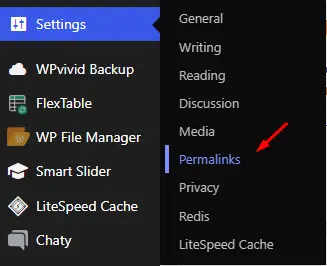
WordPress Admin Dashboard
- You will see the Permalink Settings page.
- Without changing any settings, click the Save Changes button.
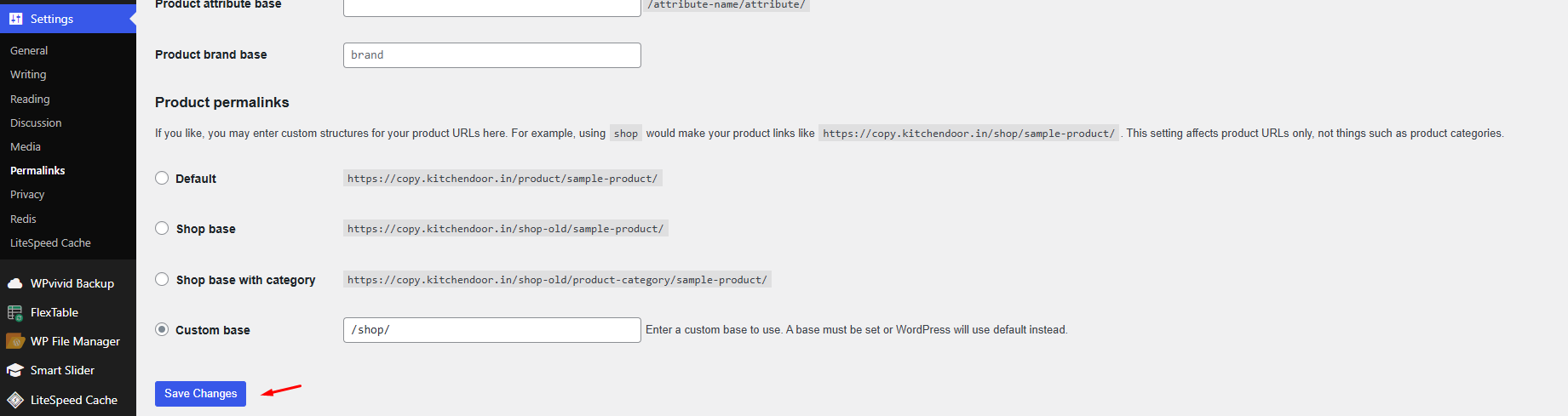
WordPress Admin Dashboard
- WordPress will regenerate the rewrite rules automatically.
Once saved, check your website pages again to confirm that the issue is resolved.
Method 2: Change and Reset the Permalink Structure
- Log in to the WordPress Dashboard.
- Navigate to Settings → Permalinks.
WordPress Admin Dashboard
- Select Plain as the permalink structure.
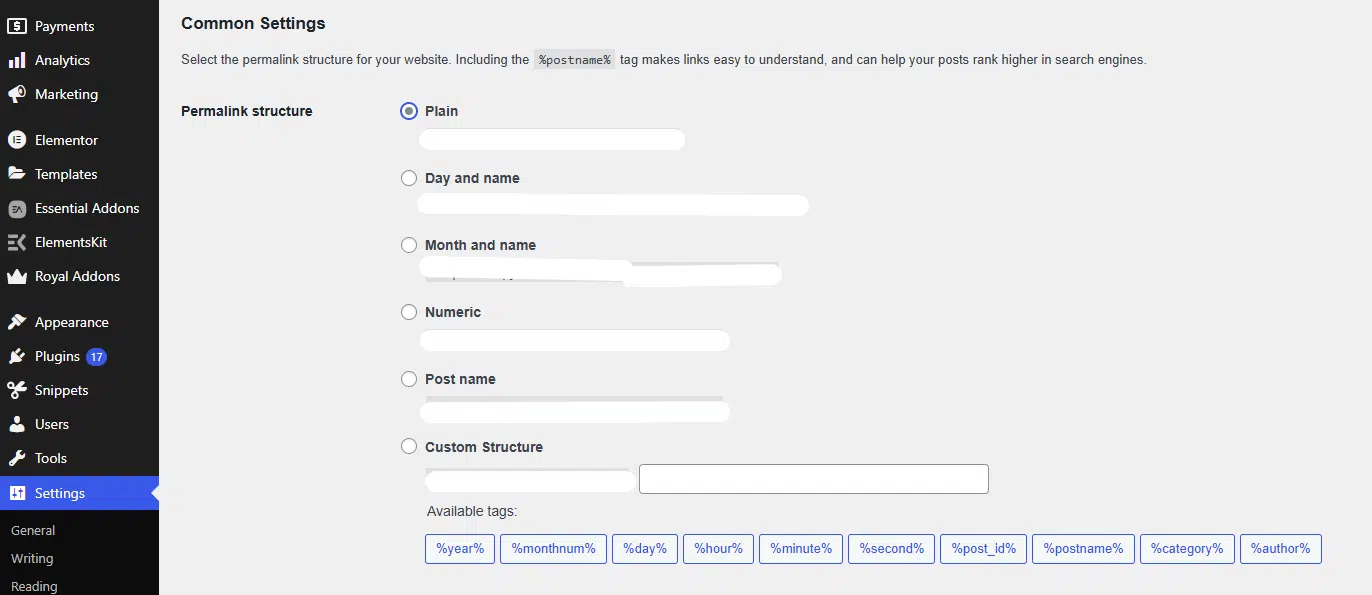
WordPress Admin Dashboard
- Click Save Changes.
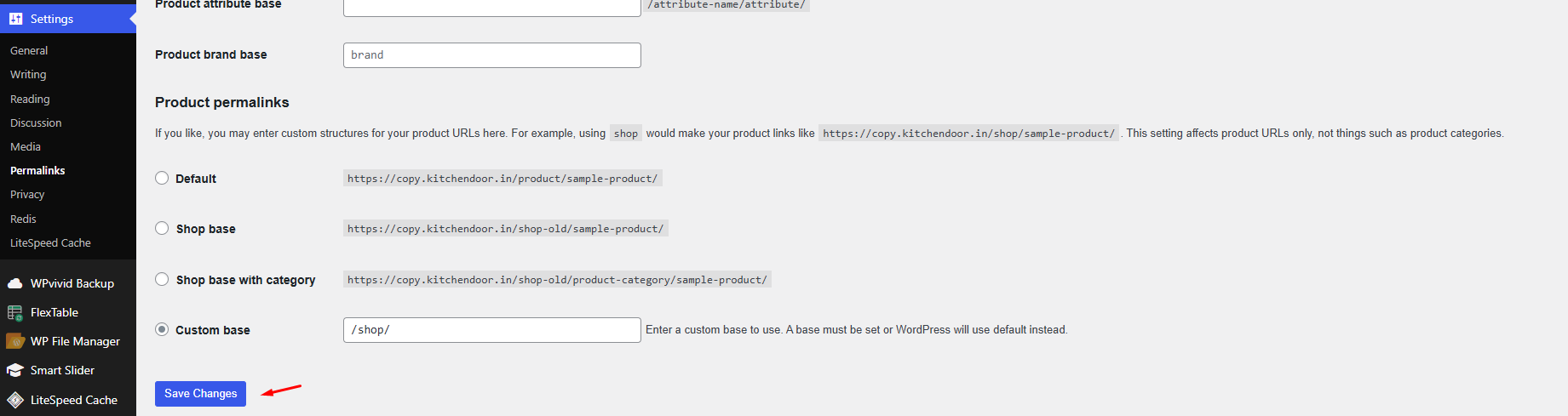
- Change the structure back to your preferred option (for example Post name).
- Click Save Changes again.
Method 3: Reset Permalinks by Updating the .htaccess File
- Log in to your hosting control panel.(cPanel)
- Open File Manager or connect using FTP/SSH.
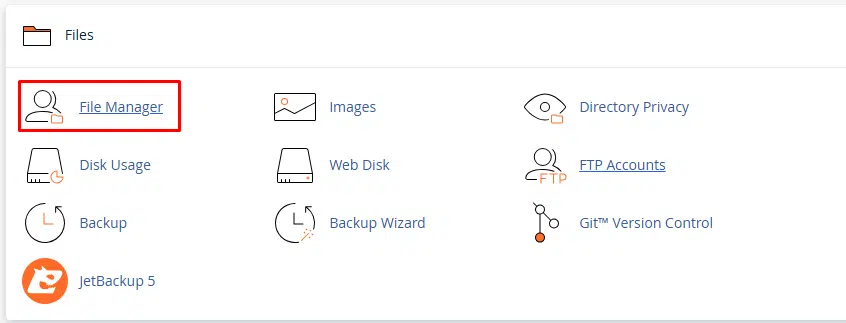
cPanel Interafce FileManager
- Navigate to the WordPress installation directory (the directory containing
wp-config.php). - Locate the
.htaccessfile.
If the file does not exist, create a new file named.htaccess. - Add the following default WordPress rewrite rules:
# BEGIN WordPress
RewriteEngine On
RewriteBase /
RewriteRule ^index\.php$ - [L]
RewriteCond %{REQUEST_FILENAME} !-f
RewriteCond %{REQUEST_FILENAME} !-d
RewriteRule . /index.php [L]
# END WordPress - Save the file and reload your website.
Method 4: Reset Permalinks Using WP-CLI (Advanced)
For developers and administrators with SSH access, using WP-CLI is the fastest way to flush rules without a browser.
- Connect to your server using SSH.
- Navigate to the WordPress installation directory (the directory where
wp-config.phpis located).Example: cd /home/username/public_html -
Run the following command to flush and regenerate the rewrite rules:
wp-cli rewrite flush
- Once the command completes successfully, check your website to confirm the permalink issue has been resolved.
Wrapping Up
Resetting the permalink structure is a simple and effective troubleshooting step for resolving 404 errors and broken links in WordPress. In most cases, saving the permalink settings from the WordPress dashboard will refresh the rewrite rules and restore normal functionality.
If you have any web hosting questions please feel free to reach out to us. We're happy to help.
Our Guiding Principles