Category Archives: Guides

How LiteSpeed Cache and Redis Work Together to Boost WordPress Performance

Running a WordPress website today is about more than just publishing content. Visitors expect pages to load instantly, search engines reward faster websites, and every second of delay can reduce conversions. Whether you’re managing a personal blog, an online store, or a business website, WordPress Performance Optimization should be one of your top priorities.

Many website owners install a caching plugin and assume their website is fully optimized. While page caching significantly improves loading speed, it doesn’t solve every performance bottleneck. Dynamic requests, database queries, logged-in users, WooCommerce stores, and membership websites still require additional optimization.

This is where LiteSpeed Cache with Redis becomes one of the most powerful WordPress Caching Solutions available today.

The LiteSpeed Cache Plugin handles page-level caching, image optimization, CSS and JavaScript optimization, browser caching, and CDN integration. Redis complements it by storing frequently accessed database objects in memory, dramatically reducing database load and speeding up dynamic content delivery.

When combined, LiteSpeed Cache and Redis create a high-performance caching system that helps websites load faster, handle more traffic, improve Core Web Vitals, and deliver a better user experience.

In this guide, you’ll learn how LiteSpeed Cache WordPress optimization works with Redis Object Cache, why this combination is ideal for WordPress Speed Optimization, and how choosing Faster WordPress Hosting with LiteSpeed Web Server can unlock maximum performance.

Why Website Speed Matters for WordPress

Website speed directly affects your visitors, search rankings, and business success.

A slow-loading website can lead to:

  • Higher bounce rates
  • Lower search engine rankings
  • Reduced conversion rates
  • Poor user experience
  • Increased server resource usage

Google considers page speed an important ranking factor, especially through Core Web Vitals. Faster websites generally provide better user engagement and stronger SEO performance.

Some common reasons WordPress websites become slow include:

  • Large database queries
  • Unoptimized plugins
  • Heavy themes
  • Lack of caching
  • Poor hosting environment
  • Dynamic WooCommerce requests
  • Frequent PHP execution

Using LiteSpeed Cache with Redis addresses several of these issues simultaneously.

Understanding LiteSpeed Cache WordPress

The LiteSpeed Cache Plugin is one of the most advanced caching plugins available for WordPress websites running on LiteSpeed Web Server or OpenLiteSpeed.

Unlike many traditional caching plugins, LiteSpeed Cache communicates directly with the web server, making it significantly faster and more efficient.

Key Features of LiteSpeed Cache

  • Full-page caching
  • Browser caching
  • CSS optimization
  • JavaScript optimization
  • HTML minification
  • Lazy loading
  • Image optimization
  • Critical CSS generation
  • CDN integration
  • cloud support
  • Edge Side Includes (ESI)
  • WooCommerce cache optimization

Instead of rebuilding pages every time someone visits your website, LiteSpeed Cache stores a ready-made version and serves it instantly.

This reduces:

  • PHP execution
  • MySQL queries
  • CPU usage
  • Server response time

The result is a noticeably faster website with lower server resource consumption.

What Is Redis Object Cache?

While LiteSpeed Cache handles full-page caching, Redis focuses on something completely different: object caching.

Redis is an in-memory data structure store that temporarily saves frequently requested database objects in RAM instead of forcing WordPress to repeatedly query the database.

Think of it like this:

Without Redis:

Visitor → PHP → MySQL Database → Generate Page

With Redis:

Visitor → PHP → Redis Memory → Page Loads Faster

Because RAM is dramatically faster than disk-based databases, Redis can retrieve cached data almost instantly.

This makes Redis Cache for WordPress especially valuable for:

  • WooCommerce stores
  • Membership websites
  • LMS platforms
  • High-traffic blogs
  • Business websites
  • News portals
  • Community forums

Whenever WordPress needs commonly used information, Redis provides it immediately without repeatedly accessing MySQL.

LiteSpeed Cache vs Redis: What’s the Difference?

Many beginners assume LiteSpeed Cache and Redis perform the same function.

They actually solve different performance problems.

Feature

LiteSpeed Cache

Redis Object Cache

Page Cache

Database Cache

Object Cache

Browser Cache

CSS Optimization

JavaScript Optimization

Image Optimization

Dynamic Data

Limited

Excellent

WooCommerce Optimization

Excellent

Excellent

Rather than competing, these technologies complement each other.

LiteSpeed Cache accelerates page delivery, while Redis accelerates database access.

How LiteSpeed Cache with Redis Works Together

The true power of LiteSpeed Cache with Redis comes from combining page caching and object caching into one optimized workflow.

Here’s a simplified process:

  1. A visitor requests a page.
  2. LiteSpeed Cache checks whether a cached page exists.
  3. If available, the page is served instantly.
  4. If not, WordPress begins generating the page.
  5. WordPress requests data from Redis instead of repeatedly querying MySQL.
  6. Redis returns cached objects in milliseconds.
  7. The page is generated much faster.
  8. LiteSpeed Cache stores the completed page for future visitors.

This combination dramatically reduces:

  • Database queries
  • Server processing time
  • Memory usage
  • CPU load
  • Time to First Byte (TTFB)

The result is significantly faster website performance.

Benefits of Using LiteSpeed Cache with Redis

Faster Page Loading

The biggest advantage is dramatically improved loading speed.

Visitors receive pages much faster because LiteSpeed serves cached pages while Redis minimizes database delays.

Better WordPress Performance Optimization

This combination optimizes multiple layers of WordPress instead of relying on just one caching method.

Benefits include:

  • Faster backend
  • Faster frontend
  • Lower latency
  • Better responsiveness

Lower Server Load

Every uncached request requires PHP processing and MySQL queries.

Redis dramatically reduces database activity while LiteSpeed Cache minimizes PHP execution.

This helps websites support:

  • More visitors
  • Traffic spikes
  • Better uptime
  • Improved scalability

Improved WooCommerce Performance

WooCommerce websites constantly generate dynamic content.

Examples include:

  • Shopping carts
  • Customer accounts
  • Checkout pages
  • Inventory updates
  • Personalized pricing

Redis stores frequently used database objects, while LiteSpeed Cache intelligently caches eligible content without affecting personalized shopping experiences.

Better Core Web Vitals

Google measures several user experience metrics, including:

  • Largest Contentful Paint (LCP)
  • Interaction to Next Paint (INP)
  • Cumulative Layout Shift (CLS)

By reducing server response time and accelerating content delivery, LiteSpeed Cache with Redis helps improve these metrics, contributing to better search visibility and a smoother browsing experience.

Expert Tip

For the best results, pair LiteSpeed Cache with Redis on a hosting platform that includes:

  • LiteSpeed Web Server
  • NVMe SSD storage
  • Latest PHP version (PHP 8.x)
  • HTTP/3 and QUIC support
  • Redis Object Cache
  • Free SSL certificates
  • Built-in CDN compatibility

A well-optimized hosting environment ensures both caching technologies operate at their full potential and provides a strong foundation for Improve WordPress Performance and long-term growth.

How to Enable LiteSpeed Cache with Redis

Setting up LiteSpeed Cache with Redis is straightforward if your hosting provider supports both LiteSpeed Web Server and Redis.

Step 1: Install the LiteSpeed Cache Plugin

  • Log in to your WordPress dashboard.
  • Navigate to Plugins → Add New.
  • Search for LiteSpeed Cache.
  • Install and activate the plugin.

Step 2: Enable Redis on Your Hosting Account

Most premium hosting providers offer Redis as an optional service or include it with managed WordPress hosting.

If Redis is available:

  • Enable Redis from your hosting control panel.

VeeroTech KB: How to Enable Redis Object Cache in cPanel

VeeroTech KB: How to Configure Redis Object Cache in WordPress

  • Note the Redis host (usually 127.0.0.1) and port (6379).

Step 3: Enable Object Cache

In WordPress:

  • Go to LiteSpeed Cache → Cache → Object
  • Enable Object Cache
  • Select Redis
  • Enter your Redis connection details.
  • Save changes.
  • Test the connection.

If configured correctly, WordPress will begin using Redis Object Cache immediately.

Best Practices for WordPress Performance Optimization

Using LiteSpeed Cache WordPress and Redis together is powerful, but following these best practices helps you get the most out of your setup.

Keep WordPress Updated

Always use the latest versions of:

  • WordPress Core
  • Themes
  • Plugins
  • PHP

Newer versions include performance improvements and important security updates.

Use PHP 8.x

Modern PHP versions execute WordPress significantly faster than older releases.

Benefits include:

  • Faster script execution
  • Reduced memory usage
  • Better plugin compatibility
  • Improved security

Optimize Images

Large images often become the biggest reason websites load slowly.

Use:

  • WebP images
  • Lazy loading
  • Image compression
  • Responsive image sizing

The LiteSpeed Cache Plugin includes built-in image optimization features that simplify this process.

Enable Browser Cache

Browser caching stores static assets such as:

  • CSS
  • JavaScript
  • Images
  • Fonts

Returning visitors can load pages much faster because these files are already stored locally.

Minify CSS and JavaScript

Removing unnecessary spaces and comments reduces file sizes.

LiteSpeed Cache provides automatic:

  • CSS Minification
  • JavaScript Minification
  • HTML Minification

Use a CDN

A Content Delivery Network (CDN) delivers your website from servers closer to visitors around the world.

Benefits include:

  • Lower latency
  • Faster global performance
  • Reduced origin server load
  • Better user experience

Clean Your Database

Even with Redis Cache for WordPress, maintaining a clean database improves efficiency.

Regularly remove:

  • Post revisions
  • Spam comments
  • Expired transients
  • Draft posts
  • Unused tables

Common Mistakes to Avoid

Many users install caching tools but overlook proper configuration. Avoid these common mistakes:

Mistake

Impact

Recommendation

Using multiple caching plugins

Plugin conflicts and inconsistent caching

Use only LiteSpeed Cache for page caching

Ignoring Redis configuration

Object cache remains inactive

Verify Redis connection and status

Not purging cache after updates

Visitors may see outdated content

Purge cache after major changes

Using outdated PHP versions

Reduced performance and security

Upgrade to PHP 8.x or later

Installing too many plugins

Increased server load

Keep only essential plugins

Skipping image optimization

Larger pages and slower load times

Compress and convert images to WebP

Cheap shared hosting

Limits caching benefits

Choose Faster WordPress Hosting with LiteSpeed support

LiteSpeed Cache with Redis: Performance Comparison

Feature

Standard WordPress

LiteSpeed Cache Only

LiteSpeed Cache with Redis

Page Speed

Moderate

Fast

Very Fast

Database Queries

High

High

Low

Server Load

High

Medium

Low

WooCommerce Performance

Moderate

Good

Excellent

Logged-in User Performance

Average

Good

Excellent

Core Web Vitals

Average

Improved

Highly Optimized

Scalability

Limited

Better

Excellent

For websites with dynamic content or high traffic, combining LiteSpeed Cache with Redis delivers the most noticeable performance gains.

Conclusion

Website speed has become a critical factor for SEO, user satisfaction, and online business success. While page caching alone can significantly improve loading times, combining LiteSpeed Cache with Redis takes WordPress Performance Optimization to the next level.

The LiteSpeed Cache Plugin efficiently serves cached pages, while Redis Object Cache accelerates database access by storing frequently used data in memory. Together, they reduce server load, improve scalability, enhance WooCommerce performance, and deliver a smoother browsing experience for visitors.

Whether you’re running a personal blog, a business website, or a high-traffic online store, this combination is one of the most effective WordPress Caching Solutions available today. When paired with Faster WordPress Hosting, modern PHP versions, and optimized server infrastructure, you can achieve exceptional speed, better Core Web Vitals, and long-term SEO benefits.

Investing in the right caching strategy today helps ensure your WordPress website remains fast, reliable, and ready to grow with your audience.

Supercharge Your WordPress Website with VeeroTech

Ready to experience lightning-fast WordPress performance?

At VeeroTech, our hosting solutions are built for speed, reliability, and scalability. Enjoy LiteSpeed-powered servers, Redis support, NVMe SSD storage, modern PHP versions, free SSL certificates, and expert support to help your website perform at its best.

Whether you’re launching a new site or optimizing an existing one, our hosting environment is designed to help you achieve faster load times, improved SEO, and an exceptional user experience.

Explore our WordPress hosting solutions today and give your website the performance advantage it deserves.

Frequently Asked Questions

1. What is LiteSpeed Cache with Redis?

LiteSpeed Cache with Redis combines full-page caching and object caching to improve WordPress speed, reduce database queries, and deliver faster page loading.

2. Is Redis necessary if I already use LiteSpeed Cache?

Yes. LiteSpeed Cache primarily handles page caching, while Redis stores frequently accessed database objects in memory. Together they provide more comprehensive WordPress Performance Optimization.

3. Does Redis improve WooCommerce performance?

Absolutely. WooCommerce relies heavily on database queries for carts, products, user accounts, and orders. Redis significantly speeds up these operations.

4. Will LiteSpeed Cache and Redis improve SEO?

Indirectly, yes. Faster websites often achieve better Core Web Vitals, improved user experience, lower bounce rates, and stronger search engine visibility.

5. Which hosting is best for LiteSpeed Cache with Redis?

Choose a hosting provider that includes LiteSpeed Web Server, Redis support, NVMe SSD storage, modern PHP versions, HTTP/3, and optimized WordPress infrastructure.

10 Benefits of Managed WordPress Hosting for Business Websites

Your website is often the first place a potential customer meets your business. But slow pages, plugin conflicts, security alerts, failed backups, and unexplained downtime can quickly turn a valuable business asset into a source of stress.

That is where managed WordPress hosting makes a meaningful difference. Instead of spending time on server maintenance and technical troubleshooting, you get an environment built specifically to run WordPress efficiently and securely. For growing companies, the benefits of managed WordPress hosting extend beyond convenience: they help protect revenue, improve visitor experience, and give your team more time to focus on customers.

In this guide, we’ll explain the 10 most important benefits of managed WordPress hosting for business websites, how it compares with standard hosting, and when a managed WordPress VPS may be the right next step.

What Is Managed WordPress Hosting?

Managed WordPress hosting is a hosting service where the provider handles key technical tasks needed to keep a WordPress site healthy. Depending on the plan, this can include WordPress core updates, server monitoring, backups, caching, security hardening, performance tuning, malware protection, and WordPress hosting support.

Unlike a generic hosting environment, business WordPress hosting is configured around the platform’s needs. That means your website can benefit from WordPress-focused caching, optimized database settings, current PHP versions, and knowledgeable support when issues arise.

A good provider handles the server-side work, while you remain responsible for your website’s content, users, plugins, and business decisions. This shared approach is important: the official WordPress security guidance makes clear that security is risk reduction and that website owners still need to keep WordPress, themes, and plugins responsibly maintained.

Managed WordPress Hosting vs. Standard Hosting

Feature

Standard shared hosting

Managed WordPress hosting

WordPress-specific tuning

Often limited

Built for WordPress workloads

Updates

Usually self-managed

Often monitored or managed

Backups

May be limited

Automated backups and recovery options

Security

Basic server protection

WordPress-focused protection and monitoring

Support

General hosting support

WordPress-aware technical support

Performance tools

Basic

Caching, database and PHP optimization

Scaling

Manual upgrades may be needed

Clearer growth paths and managed resources

For a brochure site with minimal traffic, traditional shared hosting may be enough. But for a lead-generation site, online store, membership platform, agency site, or content-heavy brand, managed WordPress hosting for business can be a practical investment.

1. Faster Website Performance

Speed affects user experience, search visibility, and conversions. Visitors are less likely to wait for a slow product page, contact form, or service page to load, especially on mobile devices.

Fast WordPress hosting typically combines server-level caching, high-performance storage, optimized PHP and database configurations, and a content delivery network (CDN) option. These features reduce the work WordPress must do before returning a page to a visitor.

Google’s Web Vitals guidance also reinforces why real-user performance matters. A managed host will not fix a bloated theme or oversized images by itself, but it provides a stronger foundation for every other optimization effort.

Practical tip

Use a lightweight theme, compress images before uploading them, and remove plugins you no longer use. Pair those practices with managed hosting for more consistent WordPress performance optimization.

2. Stronger Security for Your Business Website

A business website can contain customer inquiries, order information, login credentials, forms, and proprietary content. Security problems can damage trust and create expensive downtime.

Secure WordPress hosting commonly includes a web application firewall (WAF), malware scanning, DDoS mitigation, account isolation, SSL management, and proactive server monitoring. At VeeroTech, managed WordPress plans include security-focused measures such as DDoS protection, server-level WAF, malware scan and removal, and account isolation features. Review the current managed WordPress hosting plans for plan-specific details.

Security is also a partnership. Keep plugins updated, use strong unique passwords, enable multi-factor authentication where available, and only install themes and plugins from trusted sources.

3. Reliable Backups and Easier Recovery

Backups are easy to overlook until something goes wrong. A faulty update, accidental deletion, compromised plugin, or configuration mistake can disrupt your site without warning.

One of the biggest WordPress hosting benefits is automated backup coverage. Managed services typically create backups on a regular schedule and make restoration far simpler than rebuilding a website from scratch. VeeroTech’s managed plans advertise backups every 12 hours plus on-demand backup options, giving businesses useful recovery coverage.

Expert recommendation

Before making a major design change, plugin update, or WooCommerce configuration change, create an on-demand backup and confirm that you know how to request a restore. A backup is only valuable when it can be recovered quickly.

4. Less Time Spent on WordPress Maintenance

WordPress is powerful, but it needs regular attention. Core releases, plugin updates, PHP compatibility, uptime checks, and security patches can add upparticularly when your internal team is small.

Managed WordPress website maintenance reduces that ongoing workload. Your provider handles many server-level tasks and may assist with core updates, monitoring, and performance evaluation. That does not mean you should update every plugin blindly; important updates should be tested when possible. However, it does mean your website has a professional maintenance layer supporting it.

For a business owner, this changes the question from “Why is the website down?” to “How can the website generate more leads?”

Suggested image alt text: Secure managed WordPress hosting infrastructure for business websites.

5. Expert WordPress Hosting Support When It Matters

Generic support can help with account access or basic server questions. But WordPress issues often require more context: caching conflicts, plugin errors, migration problems, PHP compatibility, database behavior, or performance bottlenecks.

Managed WordPress hosting support is designed to bridge that gap. A WordPress-aware team can help identify whether a problem is related to the server, WordPress itself, a theme, or a plugin. This saves time and helps your marketing, sales, or operations team get back to work faster.

VeeroTech provides 24/7/365 support and free migration service with its managed WordPress offering. That is particularly valuable for businesses moving away from an unreliable host or preparing for a new site launch.

6. Better Uptime and More Reliable Operations

Every minute of downtime can mean missed inquiries, abandoned carts, lost advertising spend, and reduced customer confidence. Reliable business website hosting is therefore not just a technical preference, it supports your reputation.

Managed environments use monitoring and infrastructure practices designed to detect problems early. Look for a host that explains its uptime approach, redundancy, backup policy, and support availability. VeeroTech lists live server monitoring, redundant network and power systems, and proactive management among its managed WordPress features.

What to ask before choosing a provider

  • How often are backups created and retained?
  • Is support available 24/7?
  • What security and DDoS protections are included?
  • Are WordPress core updates handled?
  • What happens if traffic suddenly increases?
  • Is migration support available?

For a broader checklist, link internally to VeeroTech’s guide: 10 Things to Check Before Choosing a Hosting Provider.

7. Scalable Resources as Your Business Grows

A successful campaign, seasonal sale, viral social post, or product launch can create a sudden traffic spike. On an underpowered platform, that success can make your site slow or unavailable.

Scalable WordPress hosting gives you an upgrade path as traffic, content, and transaction volume grow. Managed plans often provide larger allocations of CPU, memory, storage, and workers as your needs increase without forcing you to manage the underlying server yourself.

For example, VeeroTech’s managed WordPress tiers scale resources from its StartUP plan through Pro and ScaleUP plans. Businesses should evaluate actual usage patterns, not just monthly visits. An ecommerce site with many dynamic cart sessions may need more resources than a content site with similar traffic.

8. Optimized Hosting for WooCommerce and Dynamic Sites

A WordPress site is not always a simple blog. WooCommerce stores, membership sites, learning platforms, directories, and booking systems generate dynamic requests that cannot always be served from a cached page.

Managed hosting can improve these workloads through tuned databases, object caching, sufficient PHP workers, and performance monitoring. VeeroTech’s managed WordPress hosting includes Redis, LiteSpeed Cache, and OPcache on its listed plans/tools that can support more responsive WordPress experiences when correctly configured.

Use case: Ecommerce

For an online store, faster category and product pages can help visitors browse more comfortably, while well-configured dynamic resources support carts, checkout, customer accounts, and inventory workflows. Always test checkout, payment, and emails after major changes.

9. Simpler, Safer Website Migrations

Changing hosts can feel risky when your website supports daily business. DNS changes, file transfers, databases, email settings, SSL certificates, and testing all need careful handling.

Free or assisted migration is a useful managed service because it reduces the chance of a rushed, error-prone move. VeeroTech offers free website migration, helping businesses transfer WordPress websites with a more controlled process.

Plan your migration during a lower-traffic period, test the website on the new environment before changing DNS, and keep the old hosting account active until you confirm that forms, orders, email, and analytics work properly.

10. A Clear Path to a Managed WordPress VPS

As your website becomes more demanding, shared managed WordPress hosting may no longer be the best fit. Large WooCommerce stores, agencies, high-traffic publishers, and custom applications may need additional isolation, control, and dedicated resources.

A managed WordPress VPS provides virtual server resources with professional management. It can be an excellent middle ground for businesses that need more power but do not want to hire someone to manage server updates, security, monitoring, and troubleshooting.

Choose managed WordPress hosting when…

Consider a managed WordPress VPS when…

You want simplicity and WordPress-focused care

You need more dedicated resources or customization

Your site has moderate-to-growing traffic

Your site has high traffic or complex operations

You prefer an easy upgrade path

You need stronger isolation and server flexibility

You want hosting teams to handle routine platform tasks

You need managed infrastructure with more control

Explore VeeroTech’s fully managed VPS hosting when your business has outgrown its current environment.

How to Choose the Right Managed WordPress Hosting Plan

Choose based on your business requirements, not on price alone. Consider your expected traffic, website type, storage needs, number of sites, growth plans, required support level, and the cost of downtime.

A service company with a single lead-generation site may thrive on an entry managed plan. An agency, online store, or company running multiple websites may need more resources from the start. When uncertain, ask the host to review your current website and recommend a plan based on real usage.

Get More From Your Business Website With VeeroTech

The benefits of managed WordPress hosting are clearest when your website is essential to your business. Faster performance, practical security, dependable backups, expert support, and scalable resources give you a more reliable platform for growth.

Ready to spend less time troubleshooting and more time building your business? Explore VeeroTech Managed WordPress Hosting for WordPress-optimized performance, proactive management, security features, backups, and 24/7 support.

Frequently Asked Questions

Is managed WordPress hosting worth it for a small business?

Yes, particularly if your website generates leads, appointments, sales, or brand trust. Managed hosting can save time on maintenance while providing stronger performance, security, backups, and support.

Does managed WordPress hosting improve SEO?

It can support SEO by improving the technical foundation for speed, uptime, security, and user experience. It does not replace quality content, keyword research, helpful design, or link-building.

What is included in managed WordPress website maintenance?

It varies by provider but may include server monitoring, backups, security tools, WordPress core updates, caching, PHP updates, and technical support. Always confirm exactly what is covered.

Is managed WordPress hosting secure?

It is generally more secure than an unmanaged setup when the provider includes proactive monitoring, a firewall, backups, malware protection, and regular updates. Website owners must still protect logins and keep plugins and themes current.

When should I upgrade to a managed WordPress VPS?

Consider a managed WordPress VPS when your site receives high traffic, runs WooCommerce or complex plugins, needs more resource isolation, or requires configurations beyond a shared managed plan.


Best Use Cases for Shared Hosting

Launching a website does not have to mean spending a large amount of money on servers or dealing with complicated technical configurations. For bloggers, startups, small businesses, freelancers, and website owners building their first online presence, shared hosting can provide an affordable and practical starting point.

But is shared hosting suitable for every website? Not necessarily.

The right hosting solution depends on your website’s traffic, resource requirements, technical needs, budget, and growth plans. Understanding the best use cases for shared hosting can help you avoid paying for resources you do not need or choosing a plan that becomes too restrictive as your website grows.

In this guide, we will explore when to use shared hosting, who should use shared hosting, its major benefits and advantages, and how shared hosting compares with VPS hosting.

What Is Shared Hosting?

Shared hosting is a web hosting environment where multiple websites operate on the same physical server infrastructure. The hosting provider manages the server, networking, security, and underlying infrastructure, while customers manage their individual websites.

Because server resources and infrastructure costs are shared among multiple customers, shared web hosting is generally more affordable than VPS or dedicated hosting.

This makes it particularly useful for people who want to get a website online without managing a server themselves.

Modern shared hosting can include features such as cPanel, SSL certificates, backups, application installers, email hosting, security tools, and performance optimizations.

For example, VeeroTech’s shared hosting plans include cPanel, free SSL, free migration, backups, WordPress readiness, CloudLinux, LiteSpeed, and 24×7 support.

Best Use Cases for Shared Hosting

Shared hosting is not simply a “cheap hosting” option. It can be a suitable solution for many real-world website projects.

1. Shared Hosting for Small Businesses

One of the most common use cases is shared hosting for small businesses.

A local business website usually needs pages such as:

  • Home
  • About Us
  • Services
  • Contact
  • Location information
  • Testimonials
  • Blog

If the website receives moderate traffic and does not require significant server resources, shared hosting can provide an economical foundation.

For small businesses, money saved on hosting can instead be invested in SEO, advertising, branding, content, and customer acquisition.

2. Shared Hosting for Beginners

If you are creating your first website, server management can feel overwhelming.

Shared hosting for beginners simplifies the process because the hosting provider handles much of the infrastructure management.

With tools such as cPanel and one-click application installers, beginners can manage domains, email accounts, databases, files, SSL certificates, and applications from a centralized interface.

This makes shared hosting a strong choice for users who want to focus on their website instead of learning server administration.

3. Shared Hosting for Blogs

Blogs typically do not require the resources of a dedicated server when they are starting out.

Whether you are publishing business articles, travel content, tutorials, personal experiences, or niche content, shared hosting for blogs can provide enough resources for many growing websites.

WordPress is also commonly used for blogs. VeeroTech’s shared hosting is WordPress-ready, while dedicated WordPress hosting options are available for websites requiring more specialized optimization.

Suggested In-Content Image: Blogger managing a WordPress website from a laptop with a secure hosting server in the background.
Suggested Alt Text: Shared hosting for blogs and WordPress websites

4. Shared Hosting for Personal Websites

Personal websites, online resumes, hobby websites, and family websites often have relatively modest resource requirements.

If the primary purpose is to publish information, photos, articles, or personal projects, shared hosting for personal websites can be an economical option.

It allows you to maintain your own domain and website without paying for infrastructure designed for high-traffic applications.

5. Shared Hosting for Portfolio Websites

Freelancers, designers, photographers, developers, writers, and consultants often need an online portfolio to showcase their work.

A portfolio website usually contains:

  • Project galleries
  • Service information
  • Testimonials
  • Contact forms
  • Resume or profile information
  • Case studies

These requirements generally fit well within the capabilities of shared hosting for portfolio websites, particularly when traffic is moderate.

6. Shared Hosting for Startups

Early-stage startups often need to control expenses while validating their business idea.

Instead of immediately investing in expensive infrastructure, a startup can begin with shared hosting for startups and upgrade when traffic, applications, or resource requirements increase.

This approach allows businesses to allocate more of their initial budget toward product development, marketing, customer acquisition, and operations.

7. Shared Hosting for New Websites

A new website usually has an important challenge: traffic is uncertain.

You may expect thousands of visitors eventually, but a newly launched website may initially receive only a small number of visitors.

Starting with shared hosting for new websites can therefore be practical. You can establish your website, monitor traffic and resource usage, and upgrade when your actual requirements justify the additional expense.

8. Shared Hosting for Small E-commerce Websites

Can you use shared hosting for an e-commerce website?

Yes, shared hosting for e-commerce websites can be appropriate for smaller online stores, provided the hosting plan supports the website’s software, database requirements, security needs, and expected traffic.

A small store selling a limited number of products may not need a VPS immediately.

However, online stores should pay particular attention to SSL, backups, security, performance, payment integrations, and resource limits.

As traffic and transactions increase, moving to a higher-resource hosting solution may become necessary.

Shared Hosting Benefits and Advantages

The popularity of shared hosting comes from its combination of affordability and simplicity.

Affordable Pricing

Because infrastructure costs are distributed across multiple customers, shared hosting is generally less expensive than VPS or dedicated hosting.

This makes affordable shared hosting attractive to individuals, bloggers, startups, and small businesses.

Easy Website Management

Control panels such as cPanel make everyday hosting management easier. Users can manage files, domains, email, databases, SSL, and other hosting functions without extensive command-line knowledge.

Lower Technical Responsibility

With shared hosting, the hosting provider manages the underlying server infrastructure. This means website owners can spend more time working on content, marketing, products, and customers.

Useful Features for New Websites

Many modern shared hosting plans include SSL, backups, application installers, email accounts, security features, and migration services.

VeeroTech, for example, lists free SSL, free migration, daily account-wide backups, LiteSpeed, CloudLinux, CDN integration, and 24×7 support among its shared hosting features.

Easy Upgrade Path

A good hosting strategy should not only consider today’s requirements but also future growth.

VeeroTech provides higher-resource options such as semi-dedicated hosting and managed VPS hosting for websites that eventually need more resources or isolation.

Shared Hosting vs VPS Hosting

One of the most common questions is whether you should choose shared hosting or VPS hosting.

Feature

Shared Hosting

VPS Hosting

Cost

Lower

Higher

Ease of use

Beginner-friendly

More technical

Server resources

Shared environment

Dedicated virtual resources

Server control

Limited

Greater control

Management

Usually provider-managed

Can be managed or unmanaged

Best for

Small and new websites

Growing and resource-intensive websites

Scalability

Moderate

Higher

Technical expertise

Low

Moderate to advanced

Shared hosting is usually the better starting point when affordability, simplicity, and ease of management are priorities.

VPS hosting becomes more attractive when a website needs guaranteed resources, greater control, stronger isolation, or more advanced server configurations.

VeeroTech’s managed VPS plans provide guaranteed resources, daily backups, monitoring, and fully managed server support for customers who need a more isolated environment.

When to Use Shared Hosting

You should consider shared hosting when:

  • Your website is new.
  • Your traffic is low to moderate.
  • You want affordable hosting.
  • You do not want to manage a server.
  • You are launching a personal website.
  • You are creating a blog.
  • You operate a small business website.
  • You are building a portfolio.
  • You are testing a new business idea.
  • Your website has moderate resource requirements.

The key is to choose hosting based on actual requirements rather than simply selecting the most powerful server available.

Who Should Use Shared Hosting?

The best candidates for shared hosting generally include:

Beginners: People creating their first website.

Bloggers: Individuals publishing regular content.

Small businesses: Companies with informational or service-based websites.

Freelancers: Professionals who need portfolio or personal branding websites.

Startups: New businesses trying to minimize infrastructure costs.

Developers and designers: Professionals building smaller client websites that fit within the hosting environment.

Small online stores: Businesses running relatively modest e-commerce websites with appropriate security and resource capacity.

When Should You Upgrade From Shared Hosting?

Shared hosting can be an excellent starting point, but it is not necessarily the final destination for every website.

Consider upgrading when you consistently experience:

  • Resource usage warnings
  • Slow response times caused by resource constraints
  • Increasing traffic
  • High CPU or RAM requirements
  • Large database workloads
  • Resource-intensive applications
  • Significant traffic spikes
  • Requirements for greater server isolation or customization

The goal should not be to upgrade simply because your website is growing. Instead, monitor actual resource usage and performance.

For websites requiring substantially more resources, VeeroTech’s Semi-Dedicated Hosting offers higher CPU and RAM allocations than standard shared hosting.

Practical Tips for Choosing the Best Shared Hosting

Before purchasing a plan, evaluate these factors:

Check Resource Allocation

Do not judge a hosting plan only by storage. Look at CPU, RAM, entry processes, inode limits, databases, and other restrictions.

Look for Reliable Support

Technical support becomes especially important for beginners and business websites.

Check Backup Policies

Find out how frequently backups are created, how long they are retained, and how restoration works.

Prioritize Security

Look for SSL, malware protection, account isolation, firewalls, DDoS protection, and other security measures.

Consider Performance Technology

NVMe storage, LiteSpeed, caching, optimized databases, and CDN compatibility can help improve website performance.

Plan for Growth

Choose a provider that makes upgrading straightforward. A good hosting company should allow you to move from shared hosting to higher-resource solutions as your website evolves.

SEO and Shared Hosting: What Website Owners Should Know

Hosting is only one part of SEO, but website performance, security, accessibility, and user experience all matter to a successful online presence.

Google recommends creating helpful, reliable, people-first content and making websites easy for users and search engines to understand. It also recommends using high-quality images near relevant content and optimizing them appropriately.

For website owners, this means choosing hosting that provides a stable foundation while also focusing on quality content, mobile usability, technical SEO, internal linking, and site performance.

Final Verdict: Is Shared Hosting Right for You?

The best use cases for shared hosting include small business websites, blogs, portfolios, personal websites, startups, new websites, and smaller online stores.

Its biggest advantages are affordability, simplicity, easier management, and access to essential website hosting features without requiring extensive server administration knowledge.

If your website is just getting started, there is often little reason to pay for significantly more infrastructure than you currently need. Start with a reliable shared hosting plan, monitor your website’s performance and resource requirements, and upgrade when your project genuinely needs additional power.

For businesses and individuals looking for affordable shared hosting with performance, security, support, and an easy upgrade path, VeeroTech provides shared hosting solutions designed for a wide range of websites.

Ready to Launch Your Website?

Choose a hosting environment that gives your website a reliable foundation today and room to grow tomorrow.

Explore VeeroTech Shared Hosting Plans and get your website online with fast, secure, and affordable hosting.

Frequently Asked Questions

1. What are the best use cases for shared hosting?

The best use cases for shared hosting include blogs, personal websites, portfolio sites, small business websites, startups, new websites, and smaller e-commerce websites with moderate traffic and resource requirements.

2. Is shared hosting good for beginners?

Yes. Shared hosting is often a good option for beginners because the hosting provider manages the underlying server infrastructure and tools such as cPanel simplify website administration.

3. Is shared hosting suitable for small businesses?

Yes. Shared hosting for small businesses can provide an affordable way to host professional websites, service pages, contact forms, business email, blogs, and other common website functions.

4. Should I choose shared hosting or VPS hosting?

Choose shared hosting when you prioritize affordability and simplicity and your website has moderate resource requirements. Consider VPS hosting when you need more dedicated resources, greater control, stronger isolation, or advanced server configurations.

5. When should I upgrade from shared hosting?

You should consider upgrading when your website consistently requires more CPU, RAM, database capacity, or server resources than your shared hosting plan can comfortably provide, or when you need greater control and isolation.


What Is VPS Hosting? A Complete Beginner’s Guide

Choosing the right web hosting can be confusing, especially when your website starts growing. Shared hosting may be affordable when you are starting out, but increasing traffic, resource limitations, slow page loads, and limited server control can eventually become frustrating.

This is where VPS Hosting can make a difference.

VPS stands for Virtual Private Server. It provides a virtualized server environment with allocated resources such as CPU, RAM, and storage. Unlike traditional shared hosting, a VPS gives your website a more isolated environment and greater control over server configuration.

For beginners, VPS Hosting can sound technical. However, the basic idea is simple: you get many of the advantages of a dedicated server without having to rent an entire physical server.

According to AWS, VPS hosting provides a virtual machine with dedicated resources while the underlying physical infrastructure is managed by the hosting provider.

Whether you run a growing business website, an online store, WordPress website, web application, or multiple websites, understanding VPS Server Hosting can help you make a better hosting decision.

What is VPS Hosting

What Is VPS Hosting?

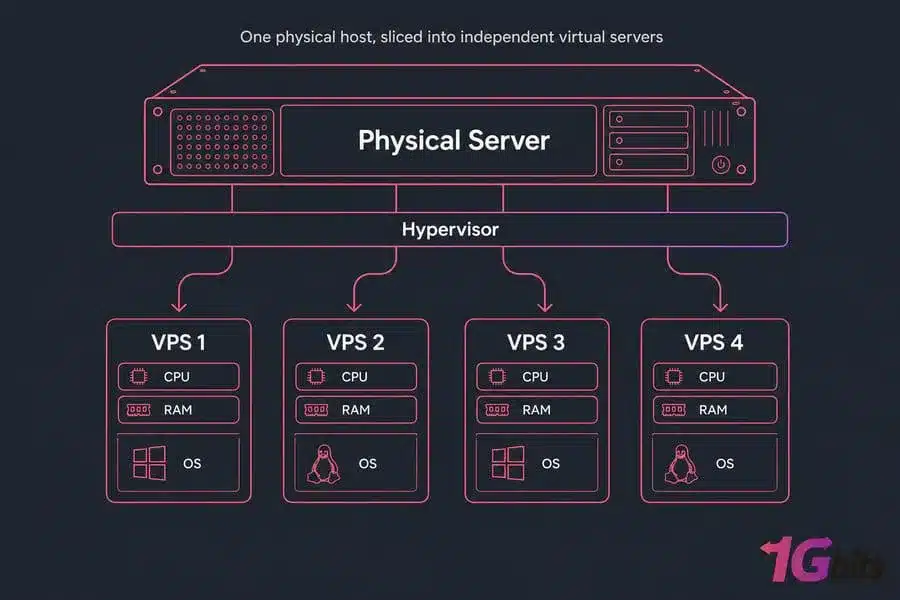
VPS Hosting is a web hosting solution where one physical server is divided into multiple independent virtual servers using virtualization technology.

Each virtual server operates as its own environment and receives allocated resources such as:

  • CPU or vCPU
  • RAM
  • SSD or NVMe storage
  • Bandwidth
  • Operating system
  • IP address
  • Server configuration

This means a VPS behaves much like an independent server even though multiple virtual servers may exist on the same physical hardware.

In simple terms, think of a large apartment building. The building represents the physical server, while each individual apartment represents a VPS. You share the building’s infrastructure, but your apartment is separated from the others.

This makes Virtual Private Server Hosting a middle ground between shared hosting and dedicated server hosting.

How Does VPS Hosting Work?

Virtualization and the Hypervisor

A VPS uses virtualization technology to divide a physical server into separate virtual machines. A software layer called a hypervisor manages these virtual environments and allocates resources to each VPS.

Each VPS can have its own operating system, applications, files, and configurations.

This isolation is one of the major VPS Hosting Features because problems or resource usage in one virtual environment are less likely to directly affect another.

Dedicated Resources

Depending on the hosting provider and plan, VPS users receive allocated CPU, RAM, storage, and bandwidth.

This gives businesses greater resource predictability compared with traditional shared hosting.

Server Management

A VPS can be managed by either the customer or the hosting provider.

With Managed VPS Hosting, the provider handles many server administration tasks.

With Unmanaged VPS Hosting, the customer generally manages operating system updates, security configuration, software installation, backups, and server maintenance.

VPS Hosting Benefits

There are several important VPS Hosting Benefits for websites and businesses that have outgrown basic shared hosting.

1. Better Performance

A VPS provides allocated resources, helping websites handle more traffic and resource-intensive applications.

For growing websites, ecommerce stores, and applications, this can provide more predictable performance than a basic shared hosting environment.

2. Greater Server Control

VPS users generally have more control over their server environment. Depending on the plan, you may be able to configure software, operating systems, applications, and security settings.

3. Improved Isolation

Virtual environments are separated from each other. This can reduce the impact of resource-intensive activity on neighboring VPS environments.

4. Scalability

Scalable VPS Hosting allows you to increase resources as your website or application grows.

Instead of immediately moving to an expensive dedicated server, you can upgrade your VPS resources according to your requirements.

5. Better Security Options

A VPS allows greater control over firewalls, software, access permissions, security tools, and server configurations.

However, VPS hosting is not automatically secure simply because it is a VPS. Proper server hardening, updates, backups, strong passwords, monitoring, and security practices are still important.

6. Cost-Effective Alternative to Dedicated Hosting

A VPS can provide dedicated resource allocations and greater control without the cost of leasing an entire physical server.

This makes VPS Hosting for Small Businesses particularly attractive.

VPS Hosting Features to Look For

When comparing VPS plans, don’t focus only on the monthly price. Look at the complete feature set.

Important VPS Hosting Features include:

  • vCPU allocation
  • RAM
  • NVMe or SSD storage
  • Bandwidth
  • Backup options
  • DDoS protection
  • Server monitoring
  • Operating system choices
  • Root access
  • Control panel availability
  • Security management
  • Technical support
  • Scalability
  • Uptime commitment

For example, VeeroTech’s managed VPS plans include features such as pure NVMe SSD storage, daily backups, proactive security, 24/7 monitoring, guaranteed resources, and control panel options.

VPS Hosting vs Shared Hosting

One of the most common questions for beginners is VPS Hosting vs Shared Hosting. Both can host websites, but they are designed for different requirements.

Feature

Shared Hosting

VPS Hosting

Resources

Shared

Allocated resources

Performance

Suitable for smaller websites

Better for growing websites

Server Control

Limited

Greater control

Scalability

Limited

More scalable

Customization

Limited

Higher customization

Technical Knowledge

Beginner-friendly

Basic to advanced

Isolation

Lower

Higher

Cost

Generally lower

Generally higher

Best For

Small/basic websites

Growing websites and applications

Shared hosting is often suitable for new websites, blogs, portfolios, and small projects. VPS hosting becomes more attractive when your website requires additional resources, customization, or control.

VPS vs Dedicated Server: What’s the Difference?

VPS vs Dedicated Server is another important comparison.

With a VPS, you receive a virtual server environment running on physical infrastructure that is shared with other virtual machines.

With a dedicated server, you rent the entire physical server.

Feature

VPS

Dedicated Server

Physical Hardware

Shared

Entire server

Resources

Allocated

Entire server resources

Performance

High

Very high

Customization

High

Very high

Scalability

Relatively easy

Hardware upgrades may be required

Cost

Lower

Higher

Best For

Growing businesses

Resource-intensive workloads

AWS describes VPS hosting as a balance between affordability and performance, while dedicated servers provide access to the complete physical server and its resources.

Managed VPS Hosting vs Unmanaged VPS Hosting

What Is Managed VPS Hosting?

Managed VPS Hosting means the hosting provider takes responsibility for many server management tasks.

This can include:

  • Server monitoring
  • Operating system maintenance
  • Security management
  • Troubleshooting
  • Backups
  • Server configuration
  • Software support

Managed VPS is particularly useful for business owners, agencies, developers, and website owners who don’t want to spend their time managing server infrastructure.

VeeroTech’s fully managed VPS service includes proactive monitoring, daily backups, security management, free migration, and server support.

What Is Unmanaged VPS Hosting?

Unmanaged VPS Hosting, also called self-managed or root VPS hosting, gives the customer much greater responsibility and control.

You may need to manage:

  • Operating system updates
  • Firewall configuration
  • Server security
  • Software installation
  • Backups
  • Performance optimization
  • Troubleshooting

VeeroTech’s self-managed VPS plans provide full root access, KVM virtualization, OS choices, NVMe storage, and DDoS protection, while server management remains the customer’s responsibility.

Expert tip: Choose managed VPS if you don’t have server administration experience. Choose unmanaged VPS if you have the technical knowledge and want full root-level control.

Linux VPS Hosting vs Windows VPS Hosting

Linux VPS Hosting

Linux VPS Hosting is widely used for websites and applications because Linux distributions such as Ubuntu and Debian support many popular web technologies.

Linux VPS can be a good choice for:

  • WordPress
  • PHP websites
  • MySQL/MariaDB applications
  • Nginx
  • Apache
  • js applications

Windows VPS Hosting

Windows VPS Hosting may be more suitable when your application depends on Microsoft technologies such as Windows Server, ASP.NET, or other Windows-specific software.

The best operating system depends on your application’s technical requirements rather than simply choosing the most popular option.

Cloud VPS Hosting: What Does It Mean?

Cloud VPS Hosting combines VPS-style virtualization with cloud infrastructure.

Cloud-based VPS environments can be useful for websites and applications that need flexible infrastructure and scalability.

Cloud VPS solutions can support:

  • Business applications
  • Ecommerce websites
  • Development environments
  • Web applications
  • Database applications
  • High-traffic websites

Cloud VPS should not automatically be considered better than every traditional VPS. Compare the provider’s infrastructure, performance, redundancy, support, pricing, and scalability before choosing.

VPS Hosting Cost: How Much Does VPS Hosting Cost?

VPS Hosting Cost varies significantly depending on resources and management.

Factors that influence pricing include:

  • RAM
  • vCPU
  • Storage type
  • Bandwidth
  • Operating system
  • Control panel
  • Managed support
  • Backups
  • Security services
  • Data center location

For example, VeeroTech currently lists self-managed VPS plans starting at $4.95/month, while fully managed VPS plans start at $49.99/month. Pricing and plan availability can change, so always check the current plans before purchasing.

A lower-priced VPS may require more technical work from you, while managed VPS hosting generally costs more because server administration and support are included.

When to Use VPS Hosting

You should consider VPS hosting when:

  • Your shared hosting plan is no longer sufficient.
  • Website traffic is increasing.
  • Your website needs more CPU or RAM.
  • You need custom server configurations.
  • You run an ecommerce website.
  • You host multiple websites.
  • You need greater server isolation.
  • You run a web application.
  • You need root access.
  • Your business requires more predictable resources.

VPS Hosting for Websites is especially useful when a website has moved beyond the requirements of basic hosting but doesn’t yet need the entire capacity of a dedicated server.

VPS Hosting for WordPress

VPS Hosting for WordPress can be a good option for growing WordPress websites that require more resources and server control.

A VPS can be useful for:

  • High-traffic WordPress websites
  • Ecommerce stores
  • Membership websites
  • WooCommerce stores
  • Large content websites
  • Multiple WordPress installations

However, WordPress performance depends on more than hosting alone. Themes, plugins, databases, caching, images, PHP versions, and website configuration also influence performance.

Internal linking opportunity: Add a link here to your relevant Managed WordPress Hosting page and WordPress optimization guide.

How to Choose VPS Hosting

When deciding How to Choose VPS Hosting, consider these seven factors:

1. Determine Your Resource Requirements

Estimate your RAM, CPU, storage, and bandwidth requirements based on your website traffic and applications.

2. Choose Managed or Unmanaged

If you don’t have server administration expertise, managed VPS is usually easier.

3. Check Storage Technology

NVMe SSD storage can provide fast storage performance for supported workloads.

4. Look for Backups

Regular backups can help protect your website and server data.

5. Evaluate Security

Look for firewall options, monitoring, DDoS protection, security updates, and other protective measures.

6. Check Scalability

Choose a provider that allows you to increase resources as your website grows.

7. Consider Technical Support

For businesses, responsive technical support can be extremely valuable when server issues occur.

Practical VPS Hosting Tips for Beginners

If you’re new to VPS Hosting for Beginners, follow these basic practices:

  1. Keep your operating system and applications updated.
  2. Use strong passwords and secure authentication.
  3. Configure a firewall.
  4. Maintain regular backups.
  5. Monitor CPU, RAM, storage, and traffic.
  6. Remove unnecessary applications and services.
  7. Use SSL/TLS for websites.
  8. Choose a reputable hosting provider.
  9. Don’t purchase significantly more resources than you need.
  10. Upgrade resources when your workload consistently approaches your limits.

Best VPS Hosting: What Should You Look For?

The Best VPS Hosting isn’t necessarily the cheapest VPS or the plan with the highest specifications.

A good VPS provider should offer a combination of:

  • Reliable infrastructure
  • Appropriate resource allocation
  • Strong security
  • Good performance
  • Backup options
  • Scalability
  • Responsive support
  • Transparent pricing
  • Suitable management options

For businesses without dedicated server expertise, a fully managed VPS can provide an easier experience because the provider handles many technical server responsibilities.

VeeroTech offers fully managed and self-managed VPS options, allowing customers to choose between hands-off server management and full root-level control.

Frequently Asked Questions

1. What is VPS Hosting?

VPS Hosting is a hosting service that provides a virtualized server with allocated resources such as CPU, RAM, storage, and bandwidth. It offers more control and isolation than traditional shared hosting.

2. Is VPS Hosting good for beginners?

Yes. VPS Hosting for Beginners can be a good choice, especially when using managed VPS hosting. Managed services reduce the amount of technical server administration required.

3. Is VPS better than shared hosting?

VPS hosting generally offers greater control, isolation, and allocated resources. However, shared hosting can be more appropriate for small websites with modest requirements.

4. How much does VPS Hosting cost?

The VPS Hosting Cost depends on resources, management, storage, bandwidth, operating system, and additional services. Entry-level self-managed plans can be inexpensive, while managed VPS plans generally cost more.

5. When should I move from shared hosting to VPS?

Consider VPS hosting when your website experiences increasing traffic, resource limitations, slow performance, server errors, or requires greater configuration and control.

Final Thoughts: Is VPS Hosting Right for You?

VPS Hosting offers an effective middle ground between shared hosting and dedicated servers. It provides allocated resources, greater control, improved isolation, and scalability without requiring you to rent an entire physical server.

For beginners, the most important decision is choosing between managed and unmanaged VPS hosting. If you want to focus on your website or business instead of server administration, Managed VPS Hosting can be a practical choice. If you have technical expertise and need root-level control, an unmanaged VPS may provide the flexibility you need.

As your website grows, the right VPS Server can provide the resources and control needed to support traffic, applications, ecommerce stores, WordPress websites, and business workloads.

Ready to Upgrade Your Hosting?

If your website has outgrown shared hosting, explore VeeroTech’s fully managed VPS hosting with NVMe storage, daily backups, proactive security, 24/7 monitoring, guaranteed resources, and expert server management.


How to Fix PR_CONNECT_RESET_ERROR in Firefox

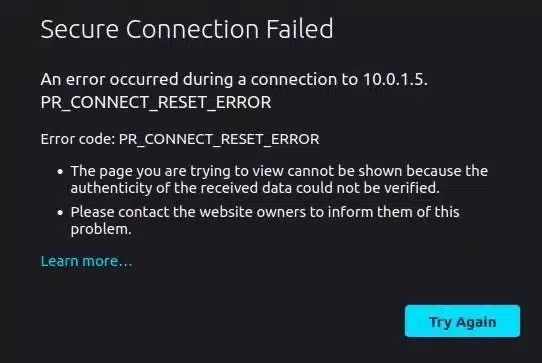
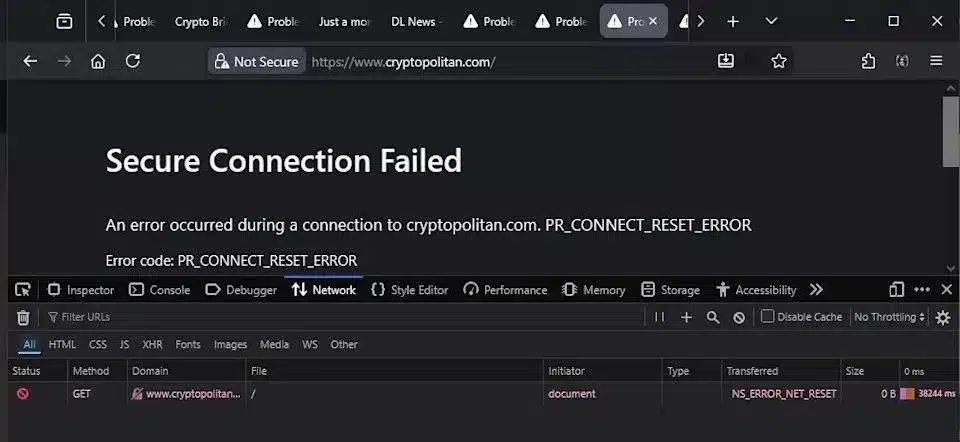
Getting a PR_CONNECT_RESET_ERROR Firefox message while trying to open a website can be frustrating, especially when the same website works normally in Chrome or Edge. Firefox may display “Secure Connection Failed”, leaving you wondering whether the problem is with your browser, internet connection, firewall, DNS, or the website itself.

The good news is that a Firefox connection reset error is usually related to an interrupted connection between Firefox and the destination server. A proxy, VPN, security application, DNS configuration, network issue, or website-side configuration can cause the connection to be terminated before the page loads.

This guide explains practical ways to fix PR_CONNECT_RESET_ERROR Firefox, particularly on Windows, without making unnecessary changes to your system.

How to Fix PR_CONNECT_RESET_ERROR in Firefox

How to Fix PR_CONNECT_RESET_ERROR in Firefox

How to Fix PR_CONNECT_RESET_ERROR in Firefox

What Is PR_CONNECT_RESET_ERROR in Firefox?

PR_CONNECT_RESET_ERROR means that the connection between Firefox and the requested website was reset before Firefox could complete the connection.

It does not necessarily mean that Firefox itself is broken. The connection can be interrupted by your computer, network, security software, proxy, VPN, router, ISP, or the destination server.

Mozilla explains that secure connection failures can occur when Firefox cannot establish a secure connection, when something on the computer or network interferes with it, or when there is an issue with the website.

Common Symptoms

You may see:

  • Secure Connection Failed
  • PR_CONNECT_RESET_ERROR
  • Firefox unable to connect securely
  • A website that works in another browser but not Firefox
  • Certain HTTPS websites failing while others work
  • Repeated Firefox website connection errors

Why Does PR_CONNECT_RESET_ERROR Happen?

There isn’t one universal cause. Common reasons include:

Possible Cause

What It Can Do

Unstable internet

Interrupts the connection

Proxy settings

Routes Firefox through an unavailable proxy

VPN

Changes the network path

DNS problems

Prevents reliable domain resolution

Firewall

Blocks Firefox or secure connections

Antivirus

May inspect or interfere with HTTPS traffic

Browser extensions

Can modify or block requests

Incorrect system time

Can cause certificate problems

Website/server issue

Server may reset connections

Outdated or modified settings

Can create compatibility problems

Mozilla specifically notes that security software can interfere with secure connections and that an incorrect system clock can cause secure website errors.

How to Fix PR_CONNECT_RESET_ERROR Firefox

Try the following solutions one at a time. After each change, reload the affected website to determine whether the Firefox connection reset problem has been resolved.

1. Check Your Internet Connection

Start with the simplest solution.

Open another website in Firefox. Then try the same website in Chrome or Edge.

If multiple websites fail in every browser, the problem is more likely to be your internet connection, router, DNS, or network.

Try:

  1. Restart your router or modem.
  2. Disconnect and reconnect Wi-Fi.
  3. Try another network or mobile hotspot.
  4. Restart your computer.
  5. Test the website again.

If the website works on another network, your local network may be responsible for the Firefox network connection error.

2. Restart Firefox and Your Computer

Temporary browser or network processes can sometimes cause connectivity problems.

Close every Firefox window and restart the browser. If the issue remains, restart Windows.

Mozilla recommends restarting the computer as one of the initial troubleshooting steps for Firefox problems.

This is particularly useful if Firefox was working normally earlier and suddenly started showing a PR_CONNECT_RESET_ERROR Windows message.

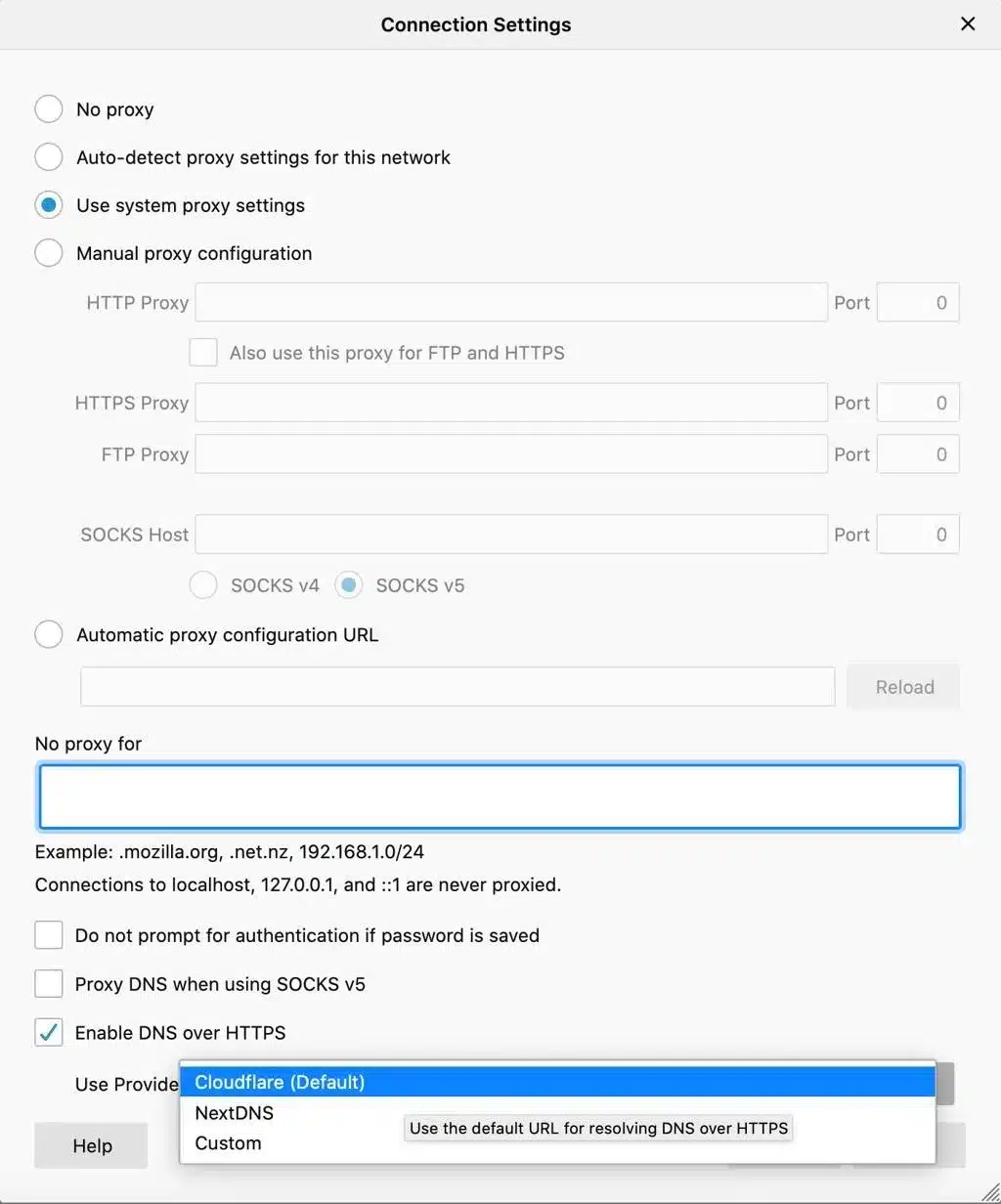
3. Check Firefox Proxy Settings

Incorrect Firefox proxy settings are a common reason websites fail to connect.

To check them:

  1. Open Firefox.
  2. Click Menu → Settings.
  3. Search for proxy.
  4. Find Network Settings.
  5. Click Settings.
  6. If you do not intentionally use a proxy, select No proxy.
  7. Click OK.
  8. Restart Firefox.

Mozilla notes that an incorrectly functioning proxy can prevent Firefox from loading websites.

If you’re using a company network, VPN, or managed connection, don’t remove a required proxy without checking with your network administrator.

4. Check DNS Settings

DNS converts a website domain name into an IP address. Problems with DNS can contribute to Firefox internet connection problems.

Firefox also supports DNS over HTTPS (DoH), which changes how DNS requests are handled. Mozilla recommends DoH for privacy, but recognizes that some networks, enterprise environments, parental controls, and VPN configurations may require different DNS behavior.

To review the setting:

  1. Open Firefox Settings.
  2. Select Privacy & Security.
  3. Scroll to DNS over HTTPS.
  4. Review the current protection level.
  5. If you suspect a network compatibility problem, temporarily test with another setting, including Off.
  6. Reload the website.

Do not permanently disable secure DNS simply because you see a connection error. Test the change and restore the preferred secure configuration if it does not resolve the problem.

5. Flush DNS on Windows

If Windows has stale or incorrect DNS information, flushing the DNS cache may help.

Open Command Prompt as Administrator and run:

ipconfig /flushdns

You should receive a message confirming that the DNS Resolver Cache was successfully flushed.

Then restart Firefox and test the website again.

This is a useful step when troubleshooting PR_CONNECT_RESET_ERROR Firefox alongside other DNS-related symptoms.

6. Temporarily Check Firewall and Antivirus Software

Security applications can sometimes interfere with secure connections.

Mozilla notes that some internet security products inspect secure connections and that this can result in connection errors.

If Firefox works normally after temporarily changing the security software’s web-protection settings, the security application may be responsible.

Instead of permanently disabling your antivirus or firewall, check whether:

  • Firefox is allowed through the firewall.
  • Firefox is listed as a trusted application.
  • HTTPS/web scanning is interfering with the connection.
  • The security software is fully updated.
  • A recent security software update coincided with the problem.

Expert recommendation: Don’t leave your firewall or antivirus permanently disabled just to fix a browser connection error.

7. Disable Firefox Extensions Temporarily

Browser extensions can interfere with websites, especially extensions that modify traffic, privacy settings, DNS behavior, scripts, or security controls.

Firefox’s Troubleshoot Mode temporarily disables extensions and themes, making it a useful diagnostic test.

To test:

  1. Open the Firefox menu.
  2. Select Help.
  3. Choose Troubleshoot Mode.
  4. Restart Firefox.
  5. Visit the affected website.

If the website works in Troubleshoot Mode, an extension or customization may be responsible.

Enable your extensions one at a time to identify the problematic one.

8. Clear Firefox Cache and Site Data

Corrupted or outdated browser data can sometimes contribute to website loading problems.

Try clearing the cached data for the affected website first rather than immediately deleting everything.

You can also clear Firefox’s cache through:

Settings → Privacy & Security → Cookies & Site Data

After clearing the relevant data, restart Firefox and test the website.

Mozilla includes clearing cookies and cache among its recommended Firefox troubleshooting steps.

9. Check Your Windows Date and Time

An incorrect system clock can cause HTTPS certificate validation problems.

Check:

  • Date
  • Time
  • Time zone
  • Automatic time synchronization

Mozilla specifically identifies an incorrect system clock as a potential cause of secure connection errors.

After correcting the time, restart Firefox and try the website again.

10. Update Firefox

An outdated browser can have compatibility problems with newer website technologies and security protocols.

Open:

Firefox Menu → Help → About Firefox

Allow Firefox to check for available updates.

After updating, restart the browser and test the website.

Avoid changing advances about:config security or TLS settings based on random online tutorials. Incorrectly modifying security preferences can create new compatibility and security problems.

11. Try Firefox Troubleshooting Information

Firefox provides a dedicated troubleshooting page at:

about:support

It contains technical information about your Firefox installation, extensions, modified preferences, security software and other configuration details. Mozilla also provides troubleshooting tools through this page.

If normal troubleshooting doesn’t work, this information can help identify unusual configuration problems.

12. Determine Whether the Website or Server Is the Problem

Sometimes PR_CONNECT_RESET_ERROR Firefox is not caused by your computer.

Try the following comparison:

Test

Result

Likely Direction

Firefox + Website

Fails

Investigate Firefox/network

Chrome + Website

Works

Firefox-specific issue possible

Firefox + Another Website

Works

Website-specific issue possible

Multiple Browsers + Website

Fail

Server/network issue likely

Firefox + Mobile Hotspot

Works

Local network issue likely

Firefox + Every Network

Fails

Browser/system issue more likely

A useful diagnostic question is:

Does the website fail only in Firefox, or does it fail everywhere?

If the website fails in every browser and on multiple devices, contact the website owner or hosting provider.

PR_CONNECT_RESET_ERROR Firefox Fix: Quick Troubleshooting Checklist

For a fast troubleshooting process, follow this order:

  1. Check the internet connection.
  2. Restart Firefox.
  3. Restart the computer.
  4. Test the website in another browser.
  5. Check Firefox proxy settings.
  6. Review DNS/DoH settings.
  7. Flush Windows DNS.
  8. Test Firefox Troubleshoot Mode.
  9. Check firewall and antivirus settings.
  10. Clear site data/cache.
  11. Check Windows date and time.
  12. Update Firefox.
  13. Test another network.
  14. Contact the website administrator if the problem is server-side.

When Is the Problem Related to Web Hosting?

If you’re a website owner and visitors repeatedly report Firefox secure connection failed, Firefox SSL connection error, or connection reset messages, don’t assume the visitor’s browser is always responsible.

Check your hosting environment for:

  • SSL/TLS configuration
  • Certificate validity
  • Web server configuration
  • Firewall rules
  • CDN configuration
  • Reverse proxy settings
  • Server resource usage
  • IP reputation or blocking
  • Recent server configuration changes

A properly configured hosting environment helps provide a more reliable experience across browsers and networks.

For businesses managing resource-intensive websites, applications, or multiple websites, a managed VPS can provide greater control over server configuration and monitoring.

How to Fix PR_CONNECT_RESET_ERROR in Firefox

Choosing Reliable Hosting for Better Website Performance

If browser connectivity problems are caused by server configuration, having reliable hosting support can make troubleshooting much easier.

VeeroTech Managed VPS Hosting offers fully managed VPS hosting with features including 24/7 support, daily backups, proactive security, monitoring, guaranteed resources and a 99.9% uptime guarantee.

VeeroTech also provides hosting options including shared hosting, semi-dedicated hosting, managed WordPress hosting, reseller hosting and fully managed VPS hosting.

Related Internal Linking Opportunities

For stronger topical SEO, consider linking this article to:

  • Managed VPS Hosting – for businesses needing managed server resources
  • Managed WordPress Hosting – for WordPress websites
  • Reseller Hosting – for agencies managing multiple client websites
  • Semi-Dedicated Hosting – for websites that need additional resources

These internal links can help users move from browser troubleshooting to relevant hosting solutions.

Final Thoughts

The PR_CONNECT_RESET_ERROR Firefox message can look complicated, but most cases can be narrowed down by testing the connection systematically. Start with your internet connection, then move through proxy settings, DNS, security software, extensions, browser data and system configuration.

If the error occurs only on one website, test that website from another browser and network. If it fails everywhere, the website or hosting environment may require investigation.

For website owners, reliable hosting, proactive monitoring, proper SSL configuration and responsive technical support can reduce the impact of server-side connectivity problems.

Looking for reliable hosting backed by managed infrastructure and technical support? Explore VeeroTech Hosting and choose a hosting solution that fits your website, application or business requirements.

Frequently Asked Questions

1. What is PR_CONNECT_RESET_ERROR in Firefox?

PR_CONNECT_RESET_ERROR is a Firefox connection error that indicates the connection was reset before Firefox could successfully complete communication with the website. It can be caused by network problems, security software, proxy settings, DNS configuration, or a server-side issue.

2. How do I fix PR_CONNECT_RESET_ERROR Firefox on Windows?

Start by restarting Firefox and your computer. Then check your internet connection, Firefox proxy settings, DNS configuration, firewall, antivirus software, extensions and Windows date/time. Testing the website on another network can also help identify whether the problem is network-specific.

3. Why does Firefox show Secure Connection Failed?

Firefox shows Secure Connection Failed when it cannot establish a secure HTTPS connection. Possible causes include website TLS problems, security software interference, incorrect system time, or network-related issues.

4. Can DNS cause PR_CONNECT_RESET_ERROR?

Yes. DNS-related problems can interfere with website connectivity. Firefox also has DNS over HTTPS settings that can affect how DNS requests are resolved. Testing the DNS configuration can help identify network-related problems.

5. Why does a website work in Chrome but not Firefox?

The browsers may use different configurations, extensions, DNS behavior, security integrations or network settings. If a website works in Chrome but not Firefox, test Firefox Troubleshoot Mode, proxy settings, DNS settings and security software before assuming the website is down.