
Category Archives: Guides

How to Make Your Website Lightning-Fast in 2025

Introduction

We’ve all been there—clicking on a website that takes forever to load and giving up in frustration. In 2025, slow websites aren’t just annoying; they cost you users, conversions, and even your search rankings. Studies show a one-second delay in load time can reduce conversions by 7% and increase bounce rates by 32%.

With Google’s Core Web Vitals now a key factor in SEO rankings, performance is no longer optional—it’s mission-critical. Whether you run a blog, an e-commerce site, or a business portfolio, this guide offers hands-on strategies to significantly improve your site speed. From hosting to image optimization to code cleanup, we’ll cover what you need to know to make your site lightning-fast and future-ready.

1. Choose High-Performance Hosting

Your hosting provider is the foundation of your website’s speed and performance. In 2025, top-tier performance means hardware such as AMD EPYC processors and NVMe storage (up to 7 times faster than SSDs), along with software like LiteSpeed Web Server, which enhances dynamic content delivery.

What to look for:

  • NVMe storage (for ultra-fast data access)
  • Modern CPUs (e.g., AMD EPYC)
  • Built-in server-level caching (like LSCache)
  • Guaranteed resource allocation (especially with VPS and semi-dedicated plans)

2. Optimize and Compress Images

Images are often the most significant contributors to slow load times.

Best practices:

  • Use modern image formats: WebP and AVIF offer significant compression with no visible quality loss.
  • Compress images with tools like ShortPixel, TinyPNG, or Squoosh.

Compress images with tools like ShortPixel, TinyPNG, or Squoosh

  • Serve images in the correct size for different devices using responsive <img> tags.
  • Use a CDN (Content Delivery Network) to serve images closer to your visitors.
  • Test performance with: GTmetrix, Google PageSpeed Insights

3. Clean Up and Minify Code

Bloated code slows your site and wastes bandwidth. Reduce file size and remove any unnecessary content.

Steps:

  • Minify CSS, JavaScript, and HTML using tools like WP Rocket, Autoptimize, or UglifyJS.
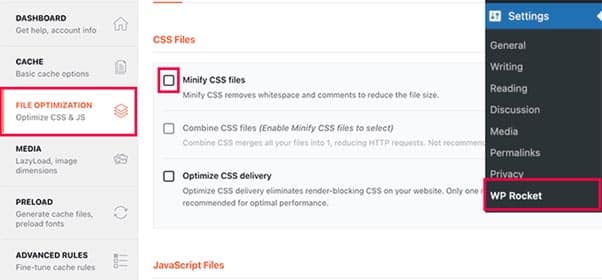
Optimize Files using WP Rocket, UglifyJS

  • Eliminate unused CSS and JavaScript (especially from old plugins or themes).
  • Combine smaller files into one (where possible) to reduce HTTP requests.
  • For WordPress, regularly audit plugins and themes.

4. Enable Caching

Caching stores static versions of your content to speed up repeat visits.

Types of caching:

  • Browser caching: Stores elements locally on the user’s device.
  • Server-side caching: Like LiteSpeed Cache or Varnish.
  • Object caching: Great for dynamic sites (e.g., WooCommerce).

Tip: Use a plugin like LSCache for WordPress for seamless integration with LiteSpeed servers.
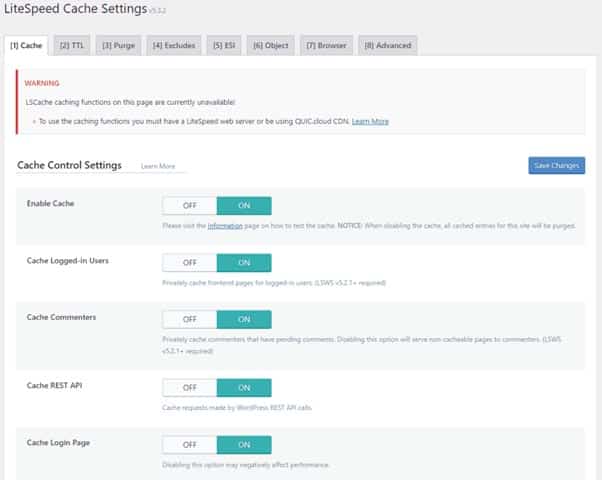
LSCache for wordpress

5. Lazy Load Media

Lazy loading means deferring image/video loading until they’re needed.

Why it matters:

  • Reduces initial page load times.
  • Especially effective for media-heavy pages.

How to implement:

  • Built-in for many WordPress themes.
  • Use plugins like a3 Lazy Load or Native Lazyload.
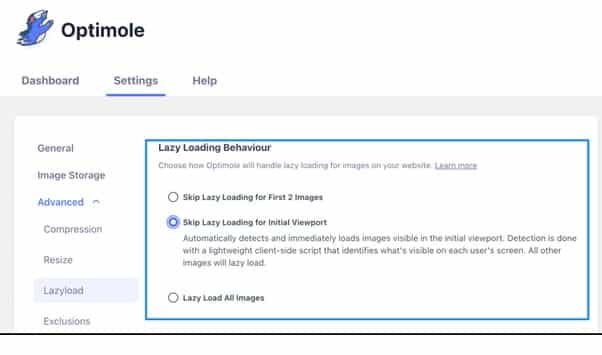
a3 Lazy Load Native Lazyload Plugins for WordPress

6. Use a Lightweight Theme

Heavy, bloated themes with tons of animations and scripts can cripple your load speed.

Go for:

  • Clean, minimal themes like GeneratePress, Astra, or Neve.
  • Themes optimized for performance and responsive design.

Avoid:

  • Themes that load a dozen font styles and 20 JavaScript libraries by default.

7. Monitor Your Performance Frequently

You can’t fix what you don’t measure.

Tools to use:

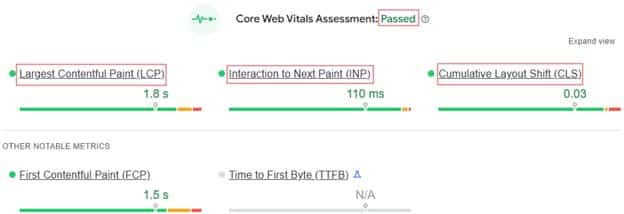
  • Google PageSpeed Insights: Google’s benchmark for speed & Core Web Vitals.
  • Pingdom: Simple waterfall analysis and speed grades.
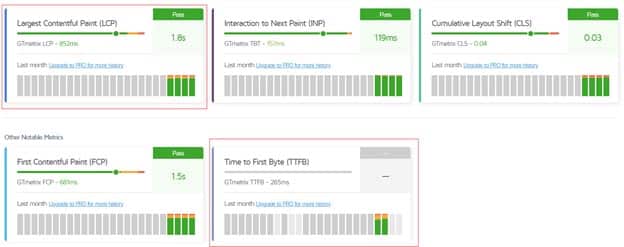
  • GTmetrix: Detailed performance breakdown with actionable suggestions.
  • WebPageTest: Advanced metrics like Time to First Byte (TTFB).

Monitor performance monthly or after any site changes.

Why VeeroTech Makes Speed Simple

With VeeroTech, you get a hosting platform built for speed:

  • AMD EPYC processors and NVMe storage for raw power.
  • LiteSpeed Web Server and LSCache for smarter, faster content delivery.
  • Shared, WordPress, semi-dedicated, and VPS plans tailored for speed-focused sites.
  • Proactive monitoring and robust infrastructure to reduce downtime and bottlenecks.
  • Easy-to-use cPanel and DirectAdmin panels to tweak performance settings without developer skills.
  • 24/7 human support to help with everything from cache setup to plugin conflicts.

Shopper approved ratings for veerotech

Whether you’re scaling a small blog or running a high-traffic ecommerce store, VeeroTech helps make fast performance sustainable and straightforward.

Conclusion

A fast-loading website isn’t a luxury in 2025—it’s a necessity. By investing in high-performance hosting, optimizing assets, and regularly monitoring performance, you can ensure users stay engaged, search rankings remain strong, and bounce rates stay low.

Need help securing your site too? Check out our Website Security Tips guide.

Know someone struggling with site speed? Share this guide and help make the web faster for everyone.
Beginner’s Guide to WordPress Hosting in 2025

Introduction

Launching a WordPress site is like starting a new chapter — exciting, but it can feel overwhelming if you’re not tech-savvy. Perhaps you’re a blogger concerned about setting up correctly or a small business owner wondering how to manage traffic surges and keep your site secure. You’re not alone, and with WordPress powering 43% of the web in 2025, it’s never been easier to jump in. This guide is your friendly companion, offering detailed steps to tackle everyday beginner struggles and set up your WordPress site with confidence. From choosing the right host to managing your domain, we’ve got you covered with practical advice that feels like a chat with a friend.

How to Set Up a WordPress Site the Easy Way

Choose a Reliable Hosting Provider

Before selecting a plan, start by choosing a hosting provider that meets your needs. A good host offers strong performance, reliable support, and compliance with data privacy laws (like GDPR for EU visitors or CCPA for California users). Consider server location — closer servers mean faster load times for your audience. For example, if your visitors are in the U.S., choose a host with U.S.-based data centers to minimize latency.

Look for providers with a reputation for reliability and excellent customer support, and check reviews on platforms like Trustpilot or Reddit for genuine user experiences. For WordPress users, it’s often easiest to opt for a provider offering WordPress-specific hosting plans, which are optimized for both performance and security.

Pro-Tip: Make sure to check the renewal price. Many hosting providers offer deep signup discounts but charge you as high as 5 times for renewal.

Pick the Right Hosting Plan for WordPress

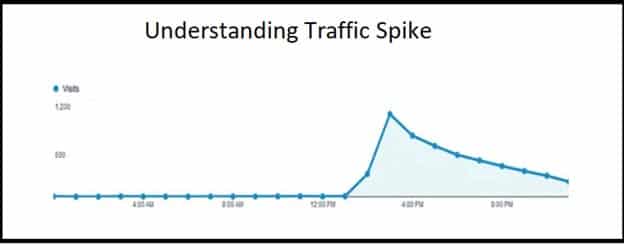
Not all hosting plans are built for WordPress, and choosing the wrong one can lead to headaches. Managed WordPress hosting is ideal for beginners, offering features such as automatic core WordPress updates, plugin updates, and optimized performance. To choose the right plan, estimate your traffic needs early—a shared hosting plan often caps monthly visitors (e.g., 25,000/month), which may not support heavy ad campaigns like Google Ads, which can drive 100 users per hour (approximately 72,000 visitors per month). For higher traffic, consider more powerful plans like managed WordPress, semi-dedicated or VPS plans that scale with your growth.

Example: A lifestyle blogger underestimated the traffic from a viral post and faced slowdowns on a low-tier shared plan. However, upgrading to a higher plan restored performance within hours, saving 40–60% of potential lost visitors.

Secure a Memorable Domain

Your domain is your online identity—make it short, memorable, and relevant to your brand (e.g., “yogawithsarah.com” for a yoga instructor). Some hosts bundle free domain registration with annual plans, but if not, choose a provider that offers domain purchase and renewal without steep markups.

Look for full Name Server and DNS management for free, so you can easily point your domain to your host or set up a custom email service solution. For example, free DNS management allows you to configure subdomains (such as “shop.yourdomain.com”, “mail.yourdomain.com”) without incurring additional fees.

Install WordPress with Ease

Setting up WordPress shouldn’t feel like rocket science. Most hosts offer one-click installers through control panels like cPanel or DirectAdmin, allowing you to launch WordPress in just minutes. Check that your host supports the latest WordPress version for security and compatibility. After installation, log in to your WordPress dashboard to start customizing.

Choose a Fast, Responsive Theme

Your theme sets the look and feel of your site, but more features often means a resource-intensive theme—that is, slower speed! Avoid heavy themes packed with features you don’t need—they slow down your site. Opt for lightweight, responsive themes like Astra or GeneratePress, which load fast and look great on mobile devices.

Test your theme with tools like Google’s Mobile-Friendly Test to ensure it works for all users. For even better results, follow our Speed Optimization Guide for WordPress sites.

Add Essential Plugins Carefully

Plugins add powerful features, but too many can bloat your site or create security risks. Start with must-haves: Yoast SEO for improved search rankings, Wordfence for enhanced security, and WPForms for contact forms or booking systems.

Check your plugins weekly for outdated or unused ones and remove them to prevent vulnerabilities or slowdowns.

Example: An outdated plugin once crashed a small business site, costing 2 hours to fix—regular checks could have prevented it. Managed WordPress hosting often automates plugin updates for you.

Secure Your Site from Day One

Security isn’t an afterthought—hacks or data breaches can ruin your business. Enable SSL to encrypt data, set up daily backups to recover from mishaps, and use DDoS protection to stay safe from malicious traffic surges. Learn more in our Website Security Tips.

Monitor Performance to Keep Visitors Happy

A slow site drives users away. Use tools like Google PageSpeed Insights or Pingdom to regularly check load times. If your site lags, consider optimizing images or upgrading your hosting plan to get faster performance and handle increased traffic.

Why VeeroTech Is Perfect for Beginners

With VeeroTech, you get everything you need for a stress-free WordPress start across shared, managed WordPress, semi-dedicated, or managed VPS hosting. Our one-click installs, automatic updates, daily backups, and high-performance AMD EPYC processors with NVMe storage ensure speed and reliability.

U.S.-based data centers ensure low load times for American and Canadian audiences, while free SSL, DDoS protection, and proactive monitoring keep your site secure.

cPanel and DirectAdmin make management easy, and our 24/7 human support team is available to assist with any issues that may arise.

Additionally, transparent pricing (starting at $6.95 per month) helps you save money. Try us risk-free with our 30-day money-back guarantee.

Conclusion

Starting a WordPress site in 2025 is an exciting journey, and with these detailed steps, you’re ready to launch with confidence. Whether you’re building a blog or a business site, the right hosting makes all the difference. For tips on making your site faster, check out our Speed Optimization Guide.

Complete Guide to Manage WordPress Hosting (2025 Edition)

Introduction

WordPress remains the leading content management system, powering over 40% of websites worldwide. Whether you’re running a personal blog, an e-commerce store, or a high-traffic publication, properly managing your WordPress hosting is vital to maintaining site speed, security, uptime, and user satisfaction.

In this comprehensive 2025 edition, we guide you through the complete process of managing WordPress hosting—from accessing your control panel and organizing files to optimizing performance, securing your environment, and implementing reliable backup strategies. Whether you’re a first-time site owner or a seasoned webmaster, this guide is packed with actionable tips to keep your WordPress site operating at peak performance.

What Does It Mean to Manage WordPress Hosting?

Managing WordPress hosting involves overseeing the entire infrastructure that supports your WordPress site. This includes:

  • Configuring server environments
  • Handling files and databases
  • Optimizing performance
  • Enhancing site security
  • Monitoring uptime
  • Ensuring reliable backups

Rather than reacting to issues like site crashes or slow speeds, good hosting management is about proactive upkeep. It means anticipating problems, maintaining best practices, and using the right tools to support a stable, high-performing website. Effective hosting management lays the foundation for your site’s reliability and scalability.

Step 1: Accessing Your Hosting Control Panel

Your hosting control panel is your mission control. Common platforms include cPanel, Plesk, or custom dashboards offered by managed WordPress hosts.

Key functions to master:

  • File Manager:

    Upload, rename, or edit theme and plugin files directly.

  • Database Management:

    Access phpMyAdmin to query or back up your WordPress database.

  • Resource Monitoring:

    Monitor bandwidth, disk space, CPU load, and RAM usage.

  • Email Setup:

    If your host provides email services, set up mailboxes and forwarders.

  • Domain Management:

    Point domains, create subdomains, and manage DNS settings.

Tip: Spend time exploring your control panel—familiarity will speed up troubleshooting and site management tasks.

Step 2: Managing WordPress Files

WordPress is structured around a specific file hierarchy. Mismanaging or misplacing files can lead to downtime, plugin, theme failures, or even site corruption.

Important file paths:

  • wp-content/: Home to themes, plugins, and media uploads.
  • wp-config.php: Contains core configuration settings, including database login credentials.
  • .htaccess: Controls rewrite rules, redirects, and security protocols.

Best practices:

  • Use SFTP or the control panel’s File Manager to make file changes.
  • Create a routine for cleaning up unused files and backups.
  • Never alter core WordPress files unless absolutely necessary—use child themes or custom plugins instead.

Pro Tip: Always back up files before editing. A misplaced character in .htaccess or wp-config.php can bring your entire site down.

Step 3: Managing WordPress Database

The database is the engine of your WordPress site—it stores content, users, settings, and plugin data. A bloated or poorly maintained database can drastically slow down your site.

How to manage it effectively:

  • Use phpMyAdmin to view and modify tables.
  • Regularly optimize database tables to reduce overhead.
  • Clean out post revisions, spam comments, and expired transients.
  • Run scheduled cleanups using plugins like WP-Optimize or Advanced Database Cleaner.

Backup first:

Always create a full backup before manually modifying database tables.

Step 4: Securing Your WordPress Hosting Environment

Cybersecurity is non-negotiable. WordPress’s popularity makes it a frequent target for attackers, especially in shared hosting environments.

Essential security actions:

  • Install SSL: Use Let’s Encrypt (free) or a premium SSL to secure data transfer.
  • Deploy Security Plugins: Install plugins like Wordfence, Sucuri, or iThemes Security.
  • Restrict Access: Disable XML-RPC and limit login attempts.
  • Permissions: Set proper file permissions (644 for files, 755 for directories).
  • Update Everything: Keep PHP, WordPress core, plugins, and themes up to date.

Advanced tip: Consider using a Web Application Firewall (WAF) to block malicious traffic before it reaches your site.

Step 5: Performance Optimization for WordPress Hosting

Fast-loading sites enhance SEO, decrease bounce rates, and offer a superior user experience. Hosting performance is a direct factor in site speed.

Top performance strategies:

  • Use Lightweight Themes: Opt for themes with minimal built-in features.
  • Limit Plugin Usage: Use only well-coded, actively maintained plugins.
  • Caching: Utilize plugins such as WP Rocket, LiteSpeed Cache, or W3 Total Cache.
  • CDN Integration: Distribute assets through a CDN like Cloudflare, BunnyCDN, or StackPath.
  • Image Optimization: Convert images to WebP and enable lazy loading.
  • Code Minification: Compress CSS, JavaScript, and HTML for faster delivery.

Tool tip: Use tools like GTmetrix, PageSpeed Insights, and WebPageTest to benchmark and guide improvements.

Step 6: Backups and Restoration Planning

Backups are your disaster recovery safety net. Without them, a single mistake can result in catastrophic data loss.

What to include in backups:

  • All WordPress files (themes, plugins, uploads)
  • Full database exports

Recommended tools:

  • Built-in host backups (check retention policy)
  • Plugins like UpdraftPlus, BlogVault, or BackupBuddy
  • Offsite storage with Google Drive, Dropbox, or Amazon S3

Crucial: Regularly test your restore process. A backup that can’t be restored is useless.

Step 7: Use Staging Environments

A staging environment is a replica of your site for safe testing.

Why use staging?

  • Test new plugins or updates without impacting live users
  • Preview design changes
  • Debug code in a controlled space

Most managed hosts offer one-click staging. Alternatively, tools like WP Staging make it easy to create local or on-server clones.

Best practice: Always test before deploying changes to production.

Step 8: Monitor Uptime and Server Health

Uptime is critical for SEO and user trust. Even a few minutes of downtime can result in lost sales or credibility.

Monitoring tools:

  • UptimeRobot: Free and paid plans with detailed monitoring
  • Better Uptime: Combines uptime with incident tracking
  • Jetpack Monitor: Alerts directly to your email or mobile

Key metrics to track:

  • Page speed and response time
  • Time to First Byte (TTFB)
  • 404 errors and downtime alerts

Pro tip: Set up SMS or Slack alerts for real-time downtime notifications.

Bonus Tips to Improve WordPress Hosting Management

  1. Stay Updated:

    Apply all updates regularly—they’re often security-critical.

  2. Audit Plugins and Themes:

    Remove any unused or unsupported plugins and themes.

  3. Enable 2FA:

    Two-factor authentication significantly enhances admin login security.

  4. Use Managed DNS:

    Services like Cloudflare offer DNS-level protection and faster propagation.

  5. Enable Automatic Backups:

    For peace of mind, automate your backup process.

Conclusion

Effectively managing your WordPress hosting in 2025 requires both diligence and the right tools. From mastering your control panel to securing your environment, optimizing performance, and setting up reliable backups—each step contributes to a more stable and scalable website.

Hosting isn’t just a backend task; it’s the infrastructure your online presence depends on. Treat it as a living system that needs continuous improvement. The better you manage your WordPress hosting, the more confidently your site can grow and thrive in today’s digital landscape.

Embrace best practices, stay proactive, and use this guide as your reference point for hosting success.

How Much Does Web Hosting Cost in 2025? Comparing Needs vs. Plans

Starting a website is exciting, but one question always pops up: How much does web hosting cost? If you’re launching a blog, an online store, or a portfolio, understanding web hosting costs and matching them to your needs is crucial. In 2025, web hosting prices range from as low as $1/month to hundreds, depending on the type of hosting and features you choose. Let’s break it down, compare your needs to available plans, and explain why costs vary—so you can make a smart choice without breaking the bank.

Why Web Hosting Costs Vary

Web hosting is like renting space on the internet to make your website accessible. The cost depends on several factors:

  • Type of Hosting: Shared, VPS, dedicated, cloud, or managed WordPress hosting each comes with different price tags based on resources and performance.
  • Resources Provided: More storage, bandwidth, or processing power means higher costs.
  • Features Included: Free domains, SSL certificates, backups, or premium support can increase or offset costs.
  • Scalability: Plans that handle traffic spikes or growth are pricier but save you headaches later.
  • Provider Reputation: Established hosts with strong uptime (99.9% or higher) and support often charge more for reliability.

In 2025, the average cost for web hosting ranges from $1–$15/month for basic plans to $50–$200/month for advanced options, with enterprise solutions going much higher. Let’s explore the main hosting types and their costs to help you align your needs with the right plan.

Types of Web Hosting and Their Costs

1. Shared Hosting: Budget-Friendly for Beginners

Cost: $1–$10/month
Shared hosting is the most affordable option, perfect for small websites, personal blogs, or startups. You share a server with other websites, which keeps costs low but can affect performance during traffic spikes.

  • Who It’s For: Beginners, small businesses, or sites with under 25,000 monthly visitors.
  • Pros: Cheap, easy to set up, often includes free domain and SSL.
  • Cons: Limited resources, slower speeds, and potential security risks from shared servers.

Why Choose It? If you’re just starting and don’t expect heavy traffic, shared hosting is a cost-effective way to get online. Look for plans with unlimited bandwidth and at least 10GB of storage for flexibility.

2. VPS Hosting: More Power, More Control

Cost: $18–$90/month
Virtual Private Server (VPS) hosting gives you a dedicated portion of a server, offering better performance and control than shared hosting. It’s great for growing sites or those needing custom configurations.

  • Who It’s For: Medium-sized businesses, eCommerce stores, or sites with 20,000–100,000 monthly visitors.
  • Pros: Faster speeds, handles traffic surges, more secure.
  • Cons: Requires technical knowledge, pricier than shared hosting.


Why Choose It? VPS is ideal if your site is outgrowing shared hosting or you need specific software setups. It balances cost and performance for growing businesses.

3. Dedicated Hosting: Top-Tier Performance

Cost: $80–$200+/month
With dedicated hosting, you get an entire server for your website, offering maximum speed, security, and customization. It’s expensive but necessary for high-traffic sites.

  • Who It’s For: Large businesses, eCommerce platforms, or sites with 100,000+ monthly visitors.
  • Pros: Unmatched performance, full control, high security.
  • Cons: High cost, requires technical expertise unless managed.

Why Choose It? If your site demands top performance or handles sensitive data, dedicated hosting is worth the investment. Managed options reduce the need for in-house tech skills.

4. Cloud Hosting: Flexible and Scalable

Cost: $10–$200/month
Cloud hosting uses multiple servers to ensure uptime and scalability, making it ideal for unpredictable traffic or rapid growth.

  • Who It’s For: Startups, eCommerce, or sites expecting traffic fluctuations.
  • Pros: High uptime, scales easily, pay-as-you-go options.
  • Cons: Can get pricey with heavy usage, complex pricing models.


Why Choose It? Cloud hosting is perfect for businesses that prioritize reliability and want to avoid downtime costs, which can range from $300,000–$400,000 per hour for some industries.

5. Managed WordPress Hosting: Hassle-Free for WP Sites

Cost: $3.95–$50/month
Tailored for WordPress sites, this hosting includes automatic updates, security, and performance optimizations, saving you time.

  • Who It’s For: Bloggers, businesses, or anyone using WordPress with 10,000–50,000 visitors.
  • Pros: Easy management, WordPress-specific features, strong support.
  • Cons: Limited to WordPress, can be pricier than shared hosting.

Why Choose It? If you’re running a WordPress site and want to focus on content rather than server management, this is a great fit. Look for plans with caching and CDN for SEO benefits.

Matching Your Needs to the Right Plan

Choosing the right hosting plan starts with understanding your website’s needs. Here’s a quick guide to help you decide:

  • Small Blog or Portfolio (Under 10,000 Visitors/Month): Shared hosting ($1–$10/month) is sufficient. Prioritize plans with free SSL, at least 5GB storage, and 24/7 support.
  • Growing Business or Blog (10,000–50,000 Visitors): Managed WordPress or VPS hosting ($10–$50/month) offers better speed and security. Look for CDN, staging tools, and automatic backups.
  • eCommerce or High-Traffic Site (50,000+ Visitors): VPS, cloud, or dedicated hosting ($50–$200/month) ensures performance and scalability. Focus on uptime guarantees (99.9%), fast load times, and robust security.
  • SEO-Focused Sites: Hosting impacts SEO through speed, uptime, and server location. Choose plans with LiteSpeed servers, CDN, and data centers near your audience. Managed WordPress or cloud hosting often include SEO-friendly features.

Pro Tip: Check renewal prices, as introductory rates (e.g., $1.99/month) often jump after the first term (e.g., $11.99/month). Annual payments usually save 20–30% compared to monthly billing.

Hidden Costs to Watch For

Web hosting isn’t just about the monthly fee. Here are potential extras to budget for:

  • Domain Name: $10–$20/year, though many hosts offer a free domain for the first year.
  • SSL Certificates: Essential for security and SEO, often free but can cost $50–$100/year if premium.
  • Backups: Daily backups may cost $1–$5/month if not included.
  • SEO Tools: Tools like Ahrefs or SEMrush for optimization range from $99–$999/month.
  • Migration Fees: Switching hosts can cost $100–$400 if not free.
  • Premium Support: Some hosts charge for priority support, adding $10–$50/month.

To save money, look for hosts offering free migrations, SSL, and domains like VeeroTech. Avoid upselling traps at checkout, like unnecessary SEO add-ons if you already have tools.

Why Investing in Quality Hosting Matters

Cheap hosting might seem tempting, but it can cost you in other ways:

  • Downtime Hurts: Even a few hours offline can lose sales and damage your reputation. Google may crawl your site less often if downtime is frequent, hurting SEO.
  • Slow Speeds Frustrate: A 1-second delay in load time can increase bounce rates by 32%, per Google. Fast hosts prioritize speed for better user experience and rankings.
  • Security Risks: Budget hosts may skimp on protections, leaving you vulnerable to breaches, which could cost billions globally by 2025.

Spending a bit more on reliable hosting (e.g., $5–$20/month vs. $1–$3) ensures uptime, speed, and security, which are critical for customer trust and SEO performance.

Tips for Choosing the Right Hosting Plan

  1. Assess Your Traffic: Estimate monthly visitors to pick a plan with enough bandwidth and storage.
  2. Prioritize Speed and Uptime: Look for 99.9% uptime guarantees and features like LiteSpeed or CDN.
  3. Check Support: 24/7 live chat is a lifesaver for quick fixes.
  4. Read Reviews: Real user feedback on platforms like Trustpilot reveals host reliability.
  5. Test with a Trial: Many hosts offer 30-day money-back guarantees to try risk-free.
  6. Plan for Growth: Choose a host with scalable plans to avoid costly migrations later.


Conclusion: Find the Sweet Spot for Your Budget and Needs

Web hosting costs in 2025 vary widely, from $1/month for basic shared plans to $200+/month for dedicated or cloud solutions. The key is matching your website’s needs—traffic, features, and growth plans—to the right hosting type. Shared hosting works for small sites, while VPS, cloud, or managed WordPress plans suit growing businesses. Don’t skimp on speed, uptime, or security, as these impact user experience and SEO.

Ready to launch your site? Evaluate your needs, compare plans, and choose a reliable host with transparent pricing. Got questions or need a custom recommendation? Contact us today—we’re here to help your website thrive!

Core Web Vitals in 2025: How Your Hosting Affects Google Rankings

In 2025, Google’s ranking algorithms continue to prioritize user experience, with Core Web Vitals (CWV) remaining a critical ranking factor. If your website loads slowly, feels unresponsive, or suffers from unstable layouts, your search rankings—and ultimately, your traffic—could take a hit.

But did you know that your web hosting provider plays a significant role in how well your site performs on Core Web Vitals? In this guide, we’ll break down:

  • What Core Web Vitals Are in 2025
  • How hosting impacts your CWV scores
  • Best hosting practices to optimize performance
  • Real-world fixes to improve your Google rankings

What Are Core Web Vitals in 2025?

Core Web Vitals are a set of metrics Google uses to measure real-world user experience on your website. As of 2025, they still focus on three key areas:

  1. Largest Contentful Paint (LCP) – Measures loading performance (should be under 2.5 seconds).
  2. First Input Delay (FID) / Interaction to Next Paint (INP) – Evaluates interactivity (should be under 200ms).
  3. Cumulative Layout Shift (CLS) – Tracks visual stability (should be under 0.1).

Google uses these metrics to determine whether your site delivers a fast, smooth, and frustration-free experience. If you fail to meet these thresholds, your rankings could suffer—especially on mobile.

How Your Hosting Impacts Core Web Vitals

Your hosting provider influences server response times, uptime, and resource allocation, directly affecting CWV. Here’s how:

1. Server Speed & LCP

  • A slow server increases the Time to First Byte (TTFB), delaying LCP.
  • Shared hosting often leads to resource contention, slowing down your site.
  • Solution: Upgrade to SSD-based hosting, LiteSpeed servers, or a CDN to reduce load times.

2. Server Location & Latency

  • If your server is far from visitors, latency increases, hurting LCP and INP.
  • Solution: Use a global CDN or a hosting provider with edge computing

3. PHP & Database Performance

  • Outdated PHP versions or unoptimized databases can increase FID/INP.
  • Solution: Choose hosting with PHP 8.3+, OPcache, and Redis/Memcached

4. Traffic Spikes & Scalability

  • Sudden traffic surges on shared hosting can crash your site, increasing FID/INP.
  • Solution: Cloud hosting or auto-scaling VPS ensures stability during peak loads.

5. HTTP/3 & QUIC Protocol

  • Modern hosting with HTTP/3 reduces latency, improving LCP and INP.
  • Solution: Ensure your host supports HTTP/3 and Brotli compression.

Best Hosting Practices to Optimize Core Web Vitals

To maximize your CWV scores (and rankings), follow these hosting best practices:

Choose the Right Hosting Plan

  • Static sites? Shared hosting may work.
  • High-traffic sites? Use VPS, cloud, or dedicated hosting.
  • E-commerce? Opt for managed WooCommerce or Magento hosting.

Enable a CDN (Content Delivery Network)

  • Reduces latency by caching content globally (e.g., Cloudflare, BunnyCDN).

Use a Performance-Optimized Stack

  • LiteSpeed + LSCache for WordPress
  • NGINX over Apache for faster static content
  • Edge computing for dynamic content

Enable Caching at All Levels

  • Browser caching (via .htaccess or CDN)
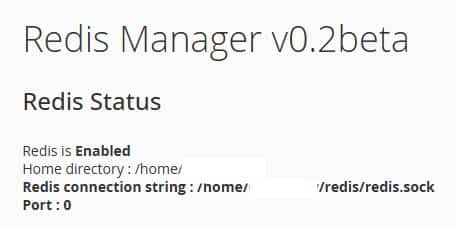
  • Object caching (Redis, Memcached)
  • Full-page caching (for WordPress, use WP Rocket or LiteSpeed Cache)

Monitor & Optimize Continuously

  • Use Google Search Console & PageSpeed Insights to track CWV.
  • Run A/B tests after hosting changes to measure improvements.

Real-World Fixes to Improve CWV & Rankings

Case Study: How Switching Hosting Boosted CWV

A WordPress blog moved from shared hosting to a LiteSpeed-powered VPS and saw:

  • LCP improved from 4.2s → 1.8s
  • INP dropped from 300ms → 120ms
  • Organic traffic increased by 35% in 3 months

Quick Wins for Better CWV

  • Fix render-blocking resources (defer non-critical JS/CSS)
  • Optimize images (WebP + lazy loading)
  • Minimize third-party scripts (reduce unnecessary trackers)
  • Preload key requests (fonts, above-the-fold assets)

Conclusion: Hosting is a Ranking Factor

Google still rewards fast, stable websites, and your hosting choice directly impacts Core Web Vitals. If your site struggles with LCP, INP, or CLS, upgrading your hosting could be the quickest way to boost rankings.

Need a hosting solution optimized for Core Web Vitals? Check out our high-performance hosting plans (link) with built-in speed optimizations, global CDN, and LiteSpeed caching to keep your site at the top of Google.