
Category Archives: Guides

Mastering Answer Engine Optimization (AEO) for AI Search

Search is evolving faster than ever before. With the rise of AI-powered tools and generative search engines, traditional SEO is no longer enough to keep your website visible. The next frontier is Answer Engine Optimization (AEO)—a forward-looking strategy that ensures your content is discoverable, trusted, and usable by AI systems that deliver direct answers instead of just links.

In this article, we’ll explain what answer engine optimization is, why it matters, and how to build a future-proof AEO strategy that positions your content at the center of AI-driven search.

What is Answer Engine Optimization?

Answer Engine Optimization (AEO) is the process of structuring and presenting content so that AI-powered platforms—such as chatbots, virtual assistants, and generative AI search engines—can extract accurate, concise, and context-rich answers.

Unlike traditional SEO, which focuses on climbing the search results page, AEO is about being included in the “answer layer” of the AI-search. This means your content isn’t just listed—it’s surfaced directly as the response.

Think of AEO as the next step in SEO evolution: instead of chasing rankings, you’re shaping your content to be the voice behind the answer.

Why AEO Matters for Your Website

The shift toward AI search isn’t a trend—it’s a permanent change in how people consume information online.

Here’s why AEO is now essential:

  • AI is changing expectations. Users want instant, conversational answers—without scrolling through 10 links.
  • Visibility is shifting. Even if you rank #1 in traditional search, your site may be skipped if it isn’t optimized for AI-driven answers.
  • Authority is amplified. When AI consistently pulls information from your site, it builds trust and recognition, even in zero-click environments.
  • Competition is intensifying. Many websites are still focused on old SEO tactics, creating a window of opportunity for early adopters of AEO.

Bottom line: If your content isn’t optimized for answer engines, you risk being invisible in the future of search.

Core Elements of an AEO Strategy

Building a winning AEO strategy requires combining technical clarity with content depth. Here are the key elements:

1. Structure Content for Clarity

AI systems scan for patterns. Make your content easy to parse:

  • Use clear headings (H2/H3 tags) for subtopics.
  • Present step-by-step processes in bullet points or numbered lists.
  • Craft short, direct answers (40–60 words) to common questions at the start of each section.

👉 Pro tip: Write like you’re answering a question in an exam—clear, precise, and complete.

2. Target Conversational Queries

Users ask AI tools in natural language—not keyword fragments. Optimize for how people actually speak:

  • Add FAQ sections with question-and-answer formats.
  • Focus on long-tail, question-based keywords like “What is answer engine optimization?” or “How to build an AEO strategy?”
  • Anticipate search intent: informational (“what”), practical (“how”), and evaluative (“why”).

3. Prioritize Accuracy and Context

Answer engines thrive on trustworthy sources. That means:

  • Provide factually correct, well-sourced information.
  • Avoid generic or vague phrasing—precision matters.
  • Include supporting context so AI can deliver nuanced responses, not just one-liners.

4. Optimize for Featured Snippets & Structured Data

Many SEO best practices also strengthen AEO:

  • Use schema markup (FAQ schema, HowTo schema) to help AI understand your content.
  • Craft concise summary paragraphs that could serve as direct answers.
  • Keep your site technically sound (fast, mobile-friendly, and secure).

5. Refresh Content Regularly

AI platforms reward fresh, reliable data. Set a routine to update:

  • Guides and tutorials (outdated steps can disqualify your content).
  • Statistics and case studies with the latest data.
  • FAQs to reflect new user questions.

Example: Applying AEO to a “How-To” Article

Imagine you’re writing an article on “How to improve website speed.”

With answer engine optimization (AEO) in mind, you would:

  • Begin with a clear, direct answer:
    “To improve website speed, compress images, enable browser caching, and use a content delivery network (CDN).”
  • Expand into a numbered list with practical tips, such as:
    1. Optimize images and use next-gen formats.
    2. Minimize CSS, JavaScript, and HTML.
    3. Enable browser caching.
    4. Use a reliable content delivery network (CDN).
    5. Reduce server response time.
    6. Implement lazy loading for images and videos.
  • Add an FAQ section with natural follow-ups, such as:
    • “What is a good page load speed?”
    • “How does website speed affect SEO?”
    • “Does hosting impact website speed?”
  • Use structured data markup for definitions, lists, and FAQs to improve chances of being featured in AI-powered and search engine results.

This structured approach increases your chances of being chosen as the direct answer when someone asks an AI tool about sleep improvement.

The Future of Answer Engine Optimization

The integration of AI into search is only accelerating. Soon, voice assistants, generative search tools, and AI copilots will be the first touchpoint for most queries.

Websites that master AEO today will benefit tomorrow by:

  • Becoming the trusted source that AI engines cite repeatedly.
  • Building authority in their industry or niche.
  • Winning visibility even in a “zero-click” search environment where traditional traffic drops.

Those who adapt will thrive. Those who wait may struggle to stay relevant.

Final Thoughts

Answer Engine Optimization (AEO) isn’t about replacing SEO—it’s about expanding it.

By structuring content clearly, targeting conversational queries, prioritizing accuracy, and keeping your information fresh, you can position your site as a reliable source in the era of AI-driven answers.

At VeeroTech, we believe every website owner should prepare for this shift now. Mastering AEO strategy today ensures your content remains discoverable, trusted, and future-proof tomorrow.


10 Quick Ways to Speed Up Your Website Without a Developer

Is your website taking too long to load? A slow website not only frustrates users but also hurts your SEO rankings, conversion rates, and bounce rate. The good news is: you don’t always need a developer to fix it.

In this guide, we’ll walk through simple, quick ways to improve your website speed—even if you have little to no technical knowledge.

Why Website Speed Matters

Before diving into the tips, here’s why website performance optimization is critical:

  • 53% of visitors leave if a mobile site takes more than 3 seconds to load (Google)
  • Page speed is a Google ranking factor
  • Faster websites have higher engagement and conversion rates

10 Quick Ways to Speed Up Your Website

1. Optimize Images

Large image files are one of the most common causes of slow websites. They take time to load, and therefore your site becomes slow.

How to fix it:

  • Use tools like TinyPNG, ImageOptim, or Squoosh to compress images
  • Convert images to next-gen formats like WebP
  • Resize images before uploading—avoid uploading full-resolution photos if not needed

Bonus Tip: Use lazy loading so images load as users scroll down.

2. Use a Fast, Lightweight Theme

If you’re using WordPress or another CMS, your theme can significantly affect speed. Theme functionality, complexity, and dependency on add-ons result in slower speed.

What to do:

  • Choose themes optimized for performance (e.g., GeneratePress, Astra, or Neve)
  • Avoid themes with too many built-in features or animations

Keyword Tip: Search for fastest WordPress themes for your WordPress website platform.

3. Minimize Plugins and Third-Party Scripts

Too many plugins or embedded scripts (like popups, social feeds, or chatbots) can slow down your site.

Quick fix:

  • Deactivate and delete unused plugins
  • Replace heavy plugins with lightweight alternatives
  • Avoid unnecessary third-party widgets and scripts unless essential

4. Use a Caching Plugin or Built-In Caching

Caching stores copies of your website so pages load faster for returning visitors.

Tools to try:

  • WordPress: WP Fastest Cache, W3 Total Cache, or LiteSpeed Cache
  • Other platforms may have built-in caching options—check your settings or ask your host

5. Choose a Better Host And Hosting Plan

Your hosting provider plays a big role in your site’s performance. Host location, resource allocation, plans offered, resource capping, etc. can hamper speed. So choosing the right hosting provider and the right plan is important.

Consider:

  • Switching from shared hosting to a more powerful plan managed or semi-dedicated hosting
  • Using a provider known for quality infrastructure and speed, such as VeeroTech

Tip: Look for hosts with features like SSD storage, server-level caching, and CDN integration.

6. Use a Content Delivery Network (CDN)

A CDN saves static resources like images, videos, JS, etc. on multiple geographical locations and delivers your site’s content from servers closer to your visitors, thus speeding up load times.

Free & easy CDNs:

  • Cloudflare (simple to set up with most hosting providers)
  • BunnyCDN (affordable and effective)

7. Reduce Redirects and Broken Links

Redirect chains and broken links waste loading time and hurt user experience.

Use tools like:

  • Screaming Frog SEO Spider (desktop)
  • Ahrefs Webmaster Tools
  • Broken Link Checker (WordPress plugin)

Fix broken links and limit unnecessary redirects wherever possible to improve load speed and user experience.

8. Clean Up Your Homepage

Your homepage is often the most visited page—make sure it loads quickly.

Steps:

  • Remove heavy sliders, autoplay videos, and unnecessary widgets
  • Limit blog post excerpts to 5–10 on the homepage
  • Use compressed images only

9. Minify CSS, JavaScript, and HTML

Minifying removes unnecessary code and comments, reducing file size, which reduces the file serve time and improves page load speed.

Easiest method:

Use a plugin or tool like:

  • LightSpeed Cache or Autoptimize (WordPress)
  • Asset CleanUp
  • Your CMS’s built-in speed optimization settings

10. Run a Speed Test and Monitor Progress

It’s always a good idea to regularly check your website’s load speed and fine-tune it when something is off.

Use tools like:

  • PageSpeed Insights
  • GTmetrix
  • Pingdom

These will give you a performance score, an issue list with suggested fixes, and an option to track load speed over time.

Final Tip: Speed First, Design Second

It’s tempting to focus on flashy design or extra features—but user experience and speed matter more. Users won’t stick around if the site doesn’t load fast, no matter how good it looks.

Conclusion

You don’t necessarily need to be a developer—or hire one—to speed up your website. With a few smart changes and free tools, you can significantly improve load times, retain more visitors, and even boost your rankings.

Start with image optimization and caching, review your plugins, run regular speed tests, and switch to VeeroTech for a blazing fast hosting experience.

Top 10 Website Security Tips You Should Know to Keep Your Site Safe in 2025

Introduction

Imagine waking up to a hacked website—customer data leaked, your online store down, or your blog gone. With cyberattacks costing businesses $10.5 trillion in 2025, securing your site is non-negotiable. Whether you’re a blogger, shop owner, or freelancer, you want peace of mind.

These 10 practical security tips tackle real fears like data breaches, denial of service (DoS) attack and downtime, helping you protect your site with confidence and a little #TLC (tender loving care).


1. Create Rock-Solid Passwords

Weak passwords are like leaving your door unlocked. Use a mix of letters, numbers, and symbols—at least 12 characters long—and avoid reusing passwords across sites. A password manager like LastPass keeps them safe. Update passwords at least every 6 months—or more frequently for critical accounts.

2. Keep Your Site Updated

Outdated plugins, themes, or CMS software (like WordPress) are hacker magnets. Check for updates weekly and remove unused or incompatible plugins and themes to avoid vulnerabilities. Many hosts offer managed WordPress hosting to automate updates, saving you time and worry.

3. Enable Two-Factor Authentication (2FA)

2FA adds a second step, like a phone app based approval or SMS code, to logins. According to Microsoft, “Multi-Factor Authentication (MFA) can block over 99.9 percent of account compromise attacks.” Set it up for every admin login. You can start by enabling 2FA for your cPanel admin logins. Here’s how to set it up in cPanel with VeeroTech

4. Lock Down with SSL

SSL encrypts data, like credit card details, and shows visitors a padlock icon. Most hosts offer free SSL certificates—check if yours does. Without SSL, browsers may flag your site as unsafe, scaring users away.

5. Set Up a Web Application Firewall (WAF)

A WAF is like a digital bouncer, filtering out malicious traffic like SQL injections (hacker code that steals data) or cross-site scripting (attacks that hijack user sessions). Many shared hosting plans, like VeeroTech’s, include WAF protection, bringing enterprise-level security to all users and all sites.

6. Scan for Malware Regularly

Malware can hide in your site, stealing data or slowing it down. Use tools like Wordfence or Sucuri to scan weekly, and check if your host offers built-in malware detection for extra protection.

7. Back Up Every Day

A hack or glitch can erase your hard work, but daily backups are your safety net. Example: An online news website recovered from a server level crash site in a few hours, saving several days of work, thanks to daily backups. Look for hosts like VeeroTech with automated daily backups to simplify recovery.

8. Protect Against DDoS Attacks

DDoS attacks flood your site with traffic, causing crashes. Strong hosting plans include DDoS protection to keep your site safe and online during surges.

9. Limit Admin Access

Too many admin accounts increase risk. Restrict admin level access to trusted users only and use your host’s control panel to manage permissions carefully.

10. Stay Ready for New Threats

AI-driven attacks and other emerging threats are growing in 2025. Stay informed about new risks and choose a host with proactive monitoring to catch issues early.


Why VeeroTech Makes Security Easy

With VeeroTech, you get robust security features out of the box for shared, WordPress, semi-dedicated, or managed VPS hosting. Free SSL certificates, daily automated backups, advanced DDoS protection, and proactive malware monitoring keep your site safe without the hassle. Plus, our cPanel and DirectAdmin control panels make managing security settings a breeze, and our 24/7 human support team is always ready to help.


Conclusion

Don’t let security fears keep you up at night. These 10 tips will help you stay informed and be prepared against cyberattacks. For more ways to keep your site running smoothly, check our Speed Optimization Guide.

Know someone worried about hacks? Share these tips with them to help them keep their site safe in 2025!

How to Pick the Perfect Web Hosting Plan for Your Needs in 2025


Introduction

Starting a website can feel like embarking on a new adventure—exciting, yet a little scary. Maybe you’re a small business owner worried about customers bouncing because your site’s too slow, or a blogger wondering if your host can handle a sudden traffic spike. We’ve all been there, and in 2025, choosing the right web hosting plan is about easing those worries. It’s not just about tech specs; it’s about finding a partner that supports your dreams. This guide walks you through selecting a plan that’s fast, reliable, and scalable, with tips inspired by real user struggles and solutions that work.


What to Look for in a Hosting Plan

Nobody likes waiting for a website to load—it’s like standing in a slow checkout line. Studies show that a one-second delay can reduce conversions by 7%, and Google prioritizes websites that load quickly. To keep your visitors hooked, prioritize:

1. Speed That Keeps Your Visitors Happy

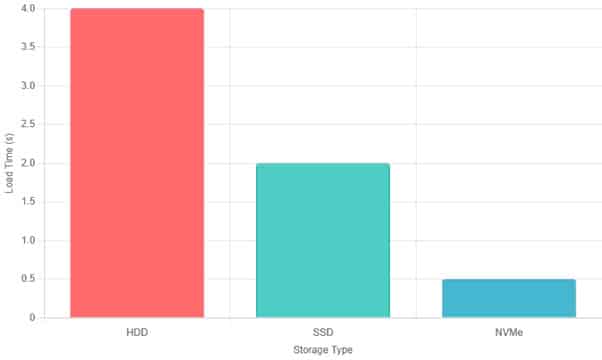
NVMe storage delivers blazing-fast load times for your website

  • High-Performance Hardware: Modern processors like AMD EPYC deliver lightning-fast speeds, powering everything from blogs to online stores.
  • NVMe Storage: Up to 7x faster than traditional SSDs, it ensures your site loads in a blink.
  • LiteSpeed Web Server: Boosts performance for dynamic content, like product pages or portfolios.

Example: A local coffee shop launched its online store and saw page load times drop from 4 seconds to under 1 second, significantly boosting orders.

2. Reliability You Can Count On

A crashed website during a big sale or viral post is a nightmare. You need a host that’s always up, with proactive monitoring to catch issues before they hit. The industry standard is 99.9% uptime—8 hours of downtime a year—but top hosts aim higher. Avoid providers that oversell servers, cramming too many users and slowing everyone down. At VeeroTech, we keep server loads low and use proactive monitoring to resolve issues before they impact you, like a friend watching out for your site 24/7.

3. Room to Grow Without Stress

Starting a website is just the beginning. Whether you’re a freelancer with a portfolio or a business planning to scale, your host should make growth easy. Look for a variety of hosting options—such as shared, semi-dedicated, VPS, or reseller—so you can start small and upgrade seamlessly. For example, you might begin with shared hosting at $6.95/month and move to VPS Hosting as traffic grows, with free migrations to keep things smooth.

4. Security to Sleep Easy

Hackers pose a genuine concern, but robust security can keep them at bay. Look for free SSL certificates to encrypt data, daily backups to recover from mishaps, and DDoS protection to safeguard against traffic surges. Read our Website Security Tips: Dive Deeper into Locking Things Down. VeeroTech includes these features to keep your site safe.

5. Support That Feels Like Family

Tech issues can feel like hitting a brick wall, especially at midnight. You need 24/7 support from real people who care. Example: A Salesforce employee had a plugin crash their site, but our support team resolved the issue in 10 minutes. VeeroTech’s human support is always ready to help, whether it’s a quick question or a complex setup.

6. Honest Pricing, No Tricks

Hidden fees are the worst. Select a host with transparent pricing and no unexpected renewal increases. VeeroTech’s shared hosting starts at $6.95/month, with free migrations included.

7. Easy Management for Everyone

You don’t need to be a tech guru to run a website. User-friendly control panels, such as cPanel or DirectAdmin, make managing domains, emails, and apps a breeze. Look for hosts that offer one-click installs for tools like WordPress, as we do at VeeroTech.


Why VeeroTech Feels Different

We’re not a faceless corporation. VeeroTech is built on word-of-mouth trust, with Reddit users calling us a “hidden gem” for our no-overselling policy and top-notch hardware like AMD EPYC processors. Our 30-day money-back guarantee lets you try us worry-free.

How to Choose Your Plan

  • Write down your needs: Blog, store, or portfolio? Estimate traffic and storage.
  • Compare hosting tiers at VeeroTech Shared Hosting.
  • Test support with a quick question.
  • Check reviews on Reddit or Trustpilot for real user feedback.

Conclusion

Picking a hosting plan in 2025 is about finding a partner that gets you. With VeeroTech’s fast hardware, reliable uptime, and friendly support, you’re set to shine. Start with VeeroTech Shared Hosting and grow your dream website with confidence.

Know someone starting a website? Share this guide to help them find the perfect hosting plan in 2025!

The Different Types of Caching and How They Impact Your Website


Why Caching Is Critical for Website Performance

You’ve probably heard that “speed kills”—but in the world of websites, it’s the opposite. A fast website keeps visitors engaged, boosts search rankings, and increases conversions. Caching is one of the most powerful yet underrated tools for speeding up your site, especially if you’re using WordPress on a cPanel or DirectAdmin hosting plan.

Let’s explore how different types of caching work, and why your website needs them.

What Is Caching? A Simple Explanation for Beginners

Imagine someone asking you the same question over and over. Eventually, you’d write the answer down and hand it to them instead of repeating yourself, right?

That’s caching in a nutshell. Your website stores copies of frequently requested files—like pages, scripts, or images—so it doesn’t have to regenerate them every single time a visitor lands on your site. This saves time, server resources, and makes everything load faster.

Why Websites Need Caching: Speed, Load, and SEO

Every time someone visits your website, their browser makes dozens (sometimes hundreds) of requests to your server. If your server had to build each page from scratch every time, it would slow things down drastically.

Caching reduces this load, leading to:

  • Faster page load times
  • Lower server usage (great for shared hosting)
  • Improved SEO rankings
  • Higher visitor satisfaction and retention

Browser Caching: Making Repeat Visits Blazing Fast

Browser caching stores website assets—like stylesheets, images, and JavaScript—on the user’s device. When they come back, their browser already has most of what it needs, so it loads the page nearly instantly.

In your hosting dashboard (cPanel or DirectAdmin), you can set cache headers that tell the browser how long to store those files. It’s easy, effective, and reduces repeat load on your server.

Page Caching: Storing Complete Pages for Instant Loading

Page caching is like taking a screenshot of your web page and showing it to users instead of rebuilding it every time.

For WordPress sites, this is a game-changer. Plugins like WP Rocket, LiteSpeed Cache, or W3 Total Cache create and serve these static pages, drastically improving speed. This is especially helpful for high-traffic blogs, ecommerce stores, or landing pages.

Page Caching with Litespeed Cache

Also Read: LiteSpeed Web Server + LS Cache Plugin for WordPress on VeeroTech Hosting

Object Caching: Speeding Up Database-Heavy Apps like WordPress

WordPress depends heavily on its database. Object caching saves the results of common queries (like getting your latest blog posts or product details) so the server doesn’t have to run the same database call repeatedly.

Tools like Redis or Memcached are commonly used here. They work well in VPS or dedicated hosting environments.

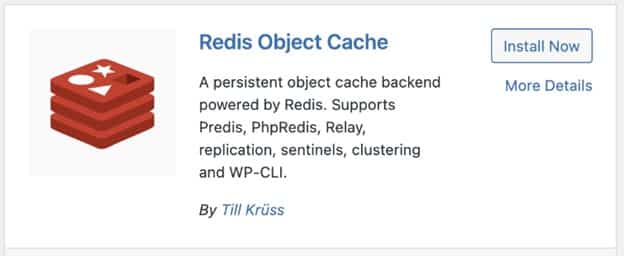
Redis Object Cache Plugin for WordPress

Also Read
How to Enable Redis Object Cache for Your Website on VeeroTech Servers
How to Configure Redis Object Cache in WordPress

Opcode Caching: Optimizing PHP Performance

PHP is the scripting language that powers WordPress. Every time a page is requested, the PHP code is compiled into executable code.

Opcode caching (using tools like OPcache) stores this compiled code in memory so it doesn’t have to be compiled again. That means faster PHP execution and less CPU load—especially beneficial for busy websites.

Most hosting platforms, including ours, have OPcache enabled by default on PHP servers.

CDN Caching: Global Speed via Content Delivery Networks

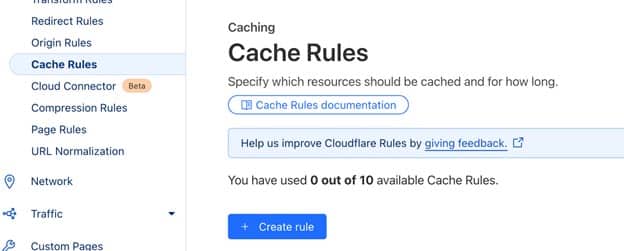
A Content Delivery Network (CDN) like Cloudflare stores cached versions of your site on servers around the world. So when a visitor from Europe hits your site hosted in the U.S., they get the cached content from a nearby server—speeding things up significantly.

CDN caching complements other types of caching by reducing latency and offloading bandwidth.

CDN server locations

Database Caching: Faster Queries, Faster Websites

Database caching stores the results of specific SQL queries so they can be fetched quickly without hitting the database again.

This type is most effective for dynamic sites with frequent content changes. Many managed WordPress hosts offer this by default, or you can use plugins like Query Monitor to analyze queries, then implement optimizations via object caching tools like Redis.

Caching Type What It Caches Best For Tools/Examples
Browser Assets (images, JS, CSS) Repeat visitors Cache headers in .htaccess
Page Full HTML pages Static sites/blogs WP Rocket, LiteSpeed Cache
Object Database query results Dynamic WP sites Redis, Memcached
Opcode Compiled PHP code PHP-heavy apps OPcache
CDN Site content globally International traffic Cloudflare
Database SQL query results Query-intensive sites Integrated with object caching

Best Caching Methods for WordPress Websites

For WordPress users, combining several caching layers is the magic formula. Here’s a good mix:

  • Page caching for the front-end
  • Browser caching for repeat visitors
  • Opcode caching for PHP efficiency
  • Object/database caching for dynamic content

Plugins to Try: WP Rocket, W3 Total Cache, and LiteSpeed Cache

  • WP Rocket: Premium, super user-friendly, and all-in-one.
  • LiteSpeed Cache: Best if your hosting uses LiteSpeed servers.
  • W3 Total Cache: Advanced control for developers.

Each of these offers multiple layers of caching, and they’re compatible with both cPanel and DirectAdmin setups.

How Server-Level Caching Works on cPanel and DirectAdmin

Our hosting plans come pre-optimized with server-side caching options that enhance performance:

  • cPanel: Supports OPcache, LiteSpeed Cache (if the server supports), and EasyApache modules for performance tuning.
  • DirectAdmin: Easily integrates with NGINX caching, Redis, and FastCGI for PHP caching.

These options provide caching from the ground up—without relying solely on plugins.

What Our Hosting Platform Does to Optimize Caching

At VeeroTech, we implement several caching strategies right out of the box:

  • Opcode caching (OPcache)
  • HTTP caching via LiteSpeed
  • CDN integration support
  • Optimized WordPress environments

This ensures your site performs at its best—whether you’re on cPanel or DirectAdmin.

How Caching Impacts Website Speed, SEO & User Experience

A well-cached website can load in under two seconds, which is critical because:

  • 40% of users abandon sites that take over 3 seconds
  • Google uses site speed as a ranking factor
  • Lower bounce rates = better engagement

Caching improves Time to First Byte (TTFB), reduces load times, and creates a smoother experience for your users.

Common Caching Issues and How to Avoid Them

  • Outdated content: Cache may not update instantly when content changes.
  • Login issues: Page caching might show cached pages to logged-in users.
  • Plugin conflicts: Some WordPress plugins don’t play well with aggressive caching.

To avoid problems, test your site regularly and clear the cache when updating content or themes.

When to Clear Cache and Why It Matters

You should clear your cache when:

  • Making design or content changes
  • Updating plugins or themes
  • Experiencing display issues

Most caching tools offer a one-click “Clear Cache” button. Use it—it’s your friend!

Tools to Test Cache Performance (GTmetrix, Pingdom, etc.)

Want to see how caching improves your site?

  • GTmetrix: Great for measuring load times and waterfall breakdowns
  • Pingdom Tools: Easy to use with geographic test locations
  • Google PageSpeed Insights: Gives you insights into caching opportunities

These tools show you real data to validate your efforts.

Smart Caching = Faster Websites and Happier Visitors

Caching isn’t just a “nice-to-have”—it’s a must-have. Whether you’re running a personal blog or a busy ecommerce site, the right caching strategy can improve performance, save resources, and boost your bottom line.

And with our hosting plans supporting both cPanel and DirectAdmin, you’re in full control of how caching works for your website.

FAQs About Website Caching

What is the main benefit of caching a website?
Caching improves load time. Faster load times improve user experience, SEO, and server performance.
Do I need caching if I use WordPress?
Yes. WordPress is dynamic, so caching makes it significantly faster and more efficient.
How often should I clear my website cache?
Only when making changes to content, themes, or settings that affect your site’s display.
Is caching handled by the server or the website?
Both. Plugins handle front-end caching, while server-side caching boosts performance deeper down.
Can caching cause issues with eCommerce sites?
Yes, especially with cart pages or checkout. You’ll need to exclude dynamic pages from cache.
What if my changes aren’t showing on my live site?
Try clearing your browser and site cache—it’s often just an outdated version being shown.