
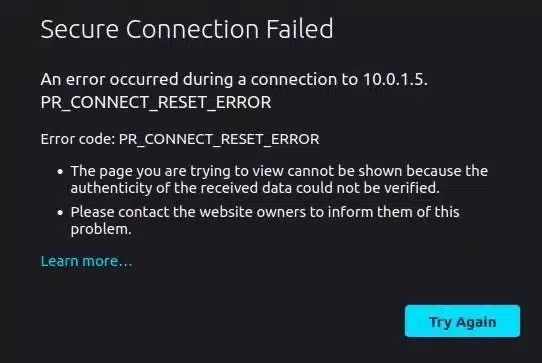
Getting a PR_CONNECT_RESET_ERROR Firefox message while trying to open a website can be frustrating, especially when the same website works normally in Chrome or Edge. Firefox may display “Secure Connection Failed”, leaving you wondering whether the problem is with your browser, internet connection, firewall, DNS, or the website itself.
The good news is that a Firefox connection reset error is usually related to an interrupted connection between Firefox and the destination server. A proxy, VPN, security application, DNS configuration, network issue, or website-side configuration can cause the connection to be terminated before the page loads.
This guide explains practical ways to fix PR_CONNECT_RESET_ERROR Firefox, particularly on Windows, without making unnecessary changes to your system.
What Is PR_CONNECT_RESET_ERROR in Firefox?
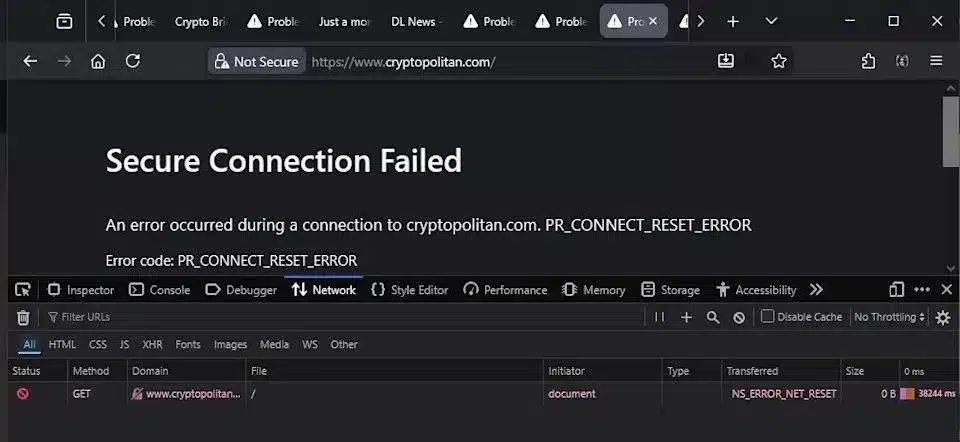
PR_CONNECT_RESET_ERROR means that the connection between Firefox and the requested website was reset before Firefox could complete the connection.
It does not necessarily mean that Firefox itself is broken. The connection can be interrupted by your computer, network, security software, proxy, VPN, router, ISP, or the destination server.
Mozilla explains that secure connection failures can occur when Firefox cannot establish a secure connection, when something on the computer or network interferes with it, or when there is an issue with the website.
Common Symptoms
You may see:
- Secure Connection Failed
- PR_CONNECT_RESET_ERROR
- Firefox unable to connect securely
- A website that works in another browser but not Firefox
- Certain HTTPS websites failing while others work
- Repeated Firefox website connection errors
Why Does PR_CONNECT_RESET_ERROR Happen?
There isn’t one universal cause. Common reasons include:
|
Possible Cause |
What It Can Do |
|
Unstable internet |
Interrupts the connection |
|
Proxy settings |
Routes Firefox through an unavailable proxy |
|
VPN |
Changes the network path |
|
DNS problems |
Prevents reliable domain resolution |
|
Firewall |
Blocks Firefox or secure connections |
|
Antivirus |
May inspect or interfere with HTTPS traffic |
|
Browser extensions |
Can modify or block requests |
|
Incorrect system time |
Can cause certificate problems |
|
Website/server issue |
Server may reset connections |
|
Outdated or modified settings |
Can create compatibility problems |
Mozilla specifically notes that security software can interfere with secure connections and that an incorrect system clock can cause secure website errors.
How to Fix PR_CONNECT_RESET_ERROR Firefox
Try the following solutions one at a time. After each change, reload the affected website to determine whether the Firefox connection reset problem has been resolved.
1. Check Your Internet Connection
Start with the simplest solution.
Open another website in Firefox. Then try the same website in Chrome or Edge.
If multiple websites fail in every browser, the problem is more likely to be your internet connection, router, DNS, or network.
Try:
- Restart your router or modem.
- Disconnect and reconnect Wi-Fi.
- Try another network or mobile hotspot.
- Restart your computer.
- Test the website again.
If the website works on another network, your local network may be responsible for the Firefox network connection error.
2. Restart Firefox and Your Computer
Temporary browser or network processes can sometimes cause connectivity problems.
Close every Firefox window and restart the browser. If the issue remains, restart Windows.
Mozilla recommends restarting the computer as one of the initial troubleshooting steps for Firefox problems.
This is particularly useful if Firefox was working normally earlier and suddenly started showing a PR_CONNECT_RESET_ERROR Windows message.
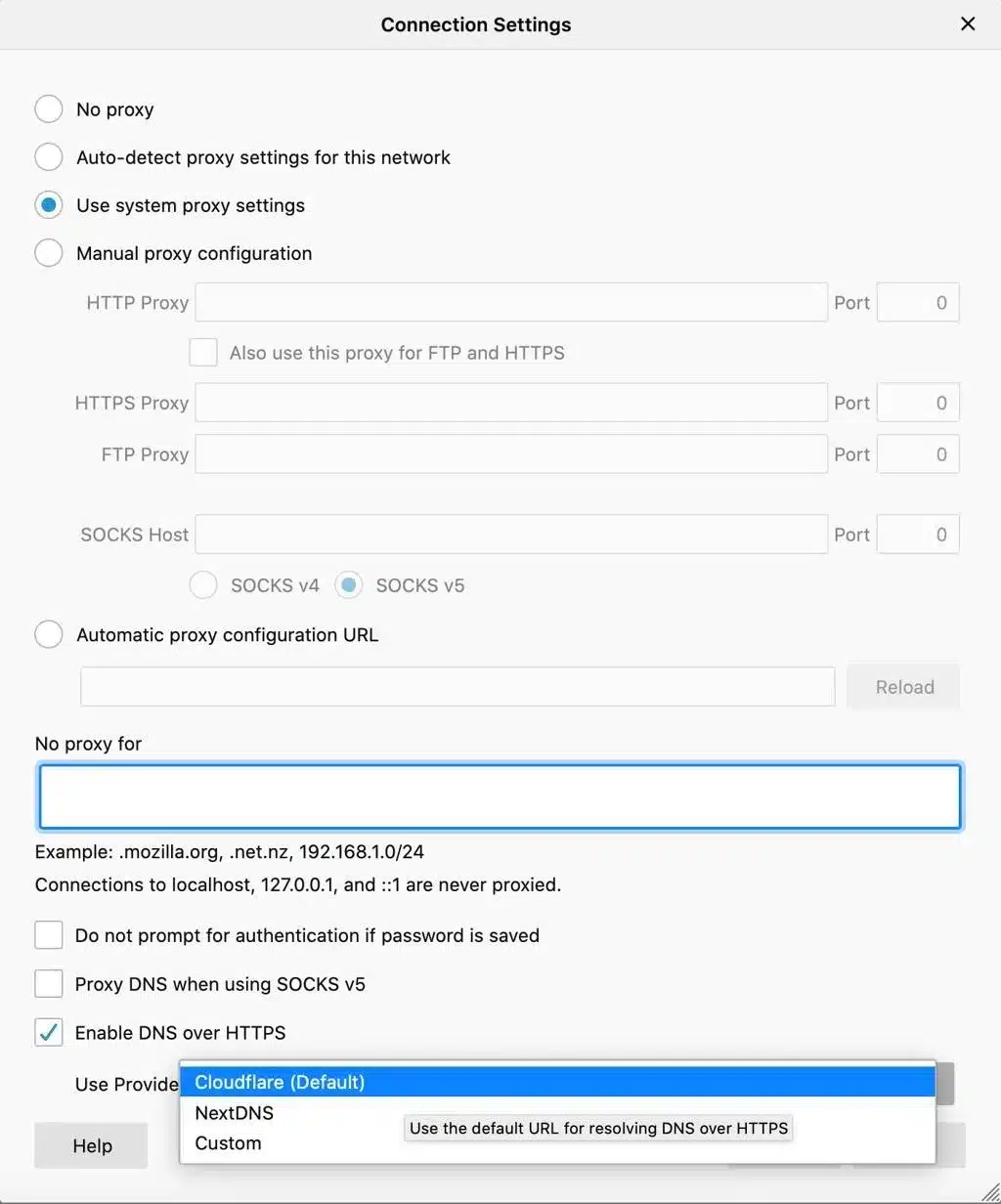
3. Check Firefox Proxy Settings
Incorrect Firefox proxy settings are a common reason websites fail to connect.
To check them:
- Open Firefox.
- Click Menu → Settings.
- Search for proxy.
- Find Network Settings.
- Click Settings.
- If you do not intentionally use a proxy, select No proxy.
- Click OK.
- Restart Firefox.
Mozilla notes that an incorrectly functioning proxy can prevent Firefox from loading websites.
If you’re using a company network, VPN, or managed connection, don’t remove a required proxy without checking with your network administrator.
4. Check DNS Settings
DNS converts a website domain name into an IP address. Problems with DNS can contribute to Firefox internet connection problems.
Firefox also supports DNS over HTTPS (DoH), which changes how DNS requests are handled. Mozilla recommends DoH for privacy, but recognizes that some networks, enterprise environments, parental controls, and VPN configurations may require different DNS behavior.
To review the setting:
- Open Firefox Settings.
- Select Privacy & Security.
- Scroll to DNS over HTTPS.
- Review the current protection level.
- If you suspect a network compatibility problem, temporarily test with another setting, including Off.
- Reload the website.
Do not permanently disable secure DNS simply because you see a connection error. Test the change and restore the preferred secure configuration if it does not resolve the problem.
5. Flush DNS on Windows
If Windows has stale or incorrect DNS information, flushing the DNS cache may help.
Open Command Prompt as Administrator and run:
ipconfig /flushdns
You should receive a message confirming that the DNS Resolver Cache was successfully flushed.
Then restart Firefox and test the website again.
This is a useful step when troubleshooting PR_CONNECT_RESET_ERROR Firefox alongside other DNS-related symptoms.
6. Temporarily Check Firewall and Antivirus Software
Security applications can sometimes interfere with secure connections.
Mozilla notes that some internet security products inspect secure connections and that this can result in connection errors.
If Firefox works normally after temporarily changing the security software’s web-protection settings, the security application may be responsible.
Instead of permanently disabling your antivirus or firewall, check whether:
- Firefox is allowed through the firewall.
- Firefox is listed as a trusted application.
- HTTPS/web scanning is interfering with the connection.
- The security software is fully updated.
- A recent security software update coincided with the problem.
Expert recommendation: Don’t leave your firewall or antivirus permanently disabled just to fix a browser connection error.
7. Disable Firefox Extensions Temporarily
Browser extensions can interfere with websites, especially extensions that modify traffic, privacy settings, DNS behavior, scripts, or security controls.
Firefox’s Troubleshoot Mode temporarily disables extensions and themes, making it a useful diagnostic test.
To test:
- Open the Firefox menu.
- Select Help.
- Choose Troubleshoot Mode.
- Restart Firefox.
- Visit the affected website.
If the website works in Troubleshoot Mode, an extension or customization may be responsible.
Enable your extensions one at a time to identify the problematic one.
8. Clear Firefox Cache and Site Data
Corrupted or outdated browser data can sometimes contribute to website loading problems.
Try clearing the cached data for the affected website first rather than immediately deleting everything.
You can also clear Firefox’s cache through:
Settings → Privacy & Security → Cookies & Site Data
After clearing the relevant data, restart Firefox and test the website.
Mozilla includes clearing cookies and cache among its recommended Firefox troubleshooting steps.
9. Check Your Windows Date and Time
An incorrect system clock can cause HTTPS certificate validation problems.
Check:
- Date
- Time
- Time zone
- Automatic time synchronization
Mozilla specifically identifies an incorrect system clock as a potential cause of secure connection errors.
After correcting the time, restart Firefox and try the website again.
10. Update Firefox
An outdated browser can have compatibility problems with newer website technologies and security protocols.
Open:
Firefox Menu → Help → About Firefox
Allow Firefox to check for available updates.
After updating, restart the browser and test the website.
Avoid changing advances about:config security or TLS settings based on random online tutorials. Incorrectly modifying security preferences can create new compatibility and security problems.
11. Try Firefox Troubleshooting Information
Firefox provides a dedicated troubleshooting page at:
about:support
It contains technical information about your Firefox installation, extensions, modified preferences, security software and other configuration details. Mozilla also provides troubleshooting tools through this page.
If normal troubleshooting doesn’t work, this information can help identify unusual configuration problems.
12. Determine Whether the Website or Server Is the Problem
Sometimes PR_CONNECT_RESET_ERROR Firefox is not caused by your computer.
Try the following comparison:
|
Test |
Result |
Likely Direction |
|
Firefox + Website |
Fails |
Investigate Firefox/network |
|
Chrome + Website |
Works |
Firefox-specific issue possible |
|
Firefox + Another Website |
Works |
Website-specific issue possible |
|
Multiple Browsers + Website |
Fail |
Server/network issue likely |
|
Firefox + Mobile Hotspot |
Works |
Local network issue likely |
|
Firefox + Every Network |
Fails |
Browser/system issue more likely |
A useful diagnostic question is:
Does the website fail only in Firefox, or does it fail everywhere?
If the website fails in every browser and on multiple devices, contact the website owner or hosting provider.
PR_CONNECT_RESET_ERROR Firefox Fix: Quick Troubleshooting Checklist
For a fast troubleshooting process, follow this order:
- Check the internet connection.
- Restart Firefox.
- Restart the computer.
- Test the website in another browser.
- Check Firefox proxy settings.
- Review DNS/DoH settings.
- Flush Windows DNS.
- Test Firefox Troubleshoot Mode.
- Check firewall and antivirus settings.
- Clear site data/cache.
- Check Windows date and time.
- Update Firefox.
- Test another network.
- Contact the website administrator if the problem is server-side.
When Is the Problem Related to Web Hosting?
If you’re a website owner and visitors repeatedly report Firefox secure connection failed, Firefox SSL connection error, or connection reset messages, don’t assume the visitor’s browser is always responsible.
Check your hosting environment for:
- SSL/TLS configuration
- Certificate validity
- Web server configuration
- Firewall rules
- CDN configuration
- Reverse proxy settings
- Server resource usage
- IP reputation or blocking
- Recent server configuration changes
A properly configured hosting environment helps provide a more reliable experience across browsers and networks.
For businesses managing resource-intensive websites, applications, or multiple websites, a managed VPS can provide greater control over server configuration and monitoring.
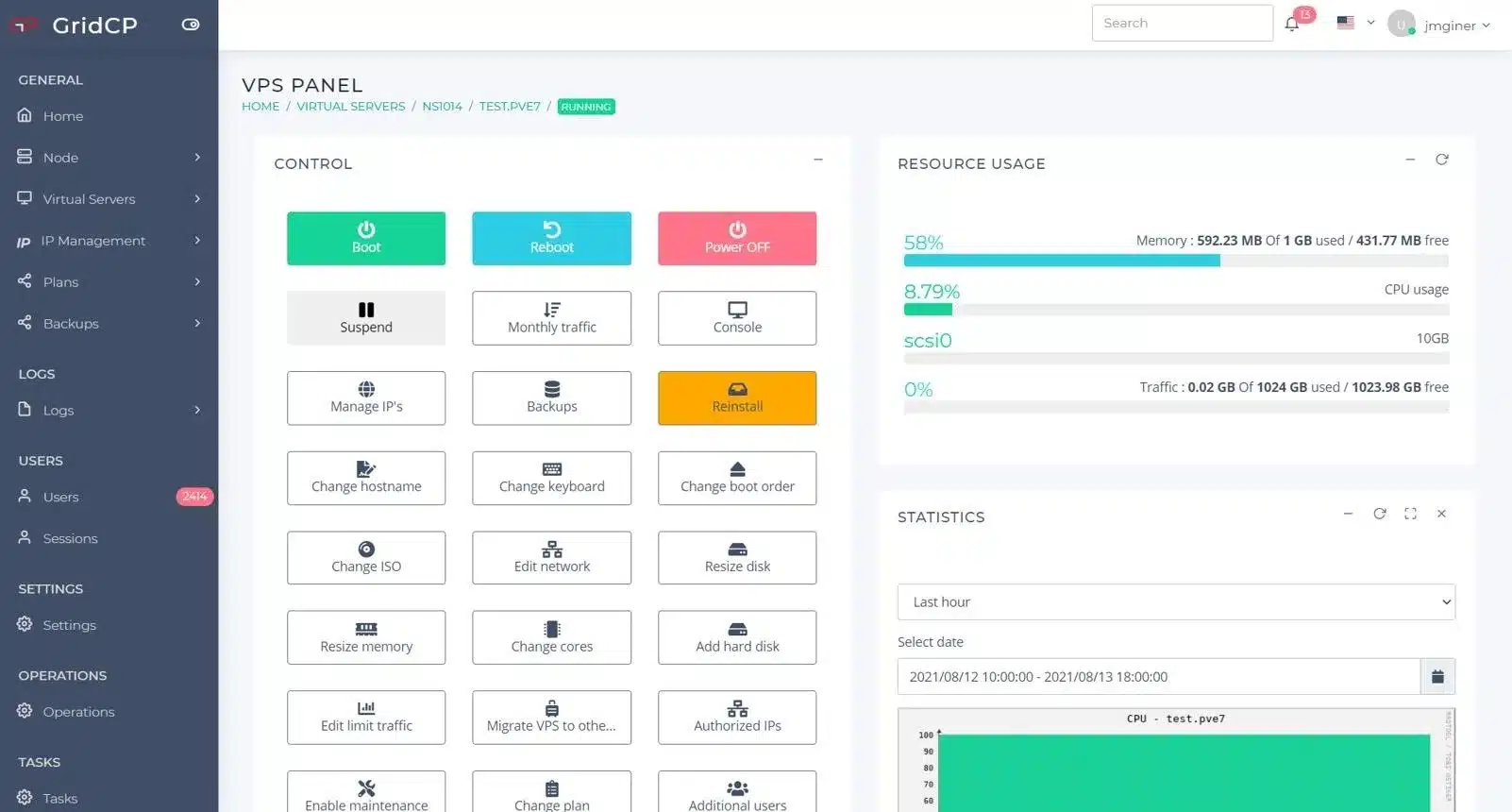
Choosing Reliable Hosting for Better Website Performance
If browser connectivity problems are caused by server configuration, having reliable hosting support can make troubleshooting much easier.
VeeroTech Managed VPS Hosting offers fully managed VPS hosting with features including 24/7 support, daily backups, proactive security, monitoring, guaranteed resources and a 99.9% uptime guarantee.
VeeroTech also provides hosting options including shared hosting, semi-dedicated hosting, managed WordPress hosting, reseller hosting and fully managed VPS hosting.
Related Internal Linking Opportunities
For stronger topical SEO, consider linking this article to:
- Managed VPS Hosting – for businesses needing managed server resources
- Managed WordPress Hosting – for WordPress websites
- Reseller Hosting – for agencies managing multiple client websites
- Semi-Dedicated Hosting – for websites that need additional resources
These internal links can help users move from browser troubleshooting to relevant hosting solutions.
Final Thoughts
The PR_CONNECT_RESET_ERROR Firefox message can look complicated, but most cases can be narrowed down by testing the connection systematically. Start with your internet connection, then move through proxy settings, DNS, security software, extensions, browser data and system configuration.
If the error occurs only on one website, test that website from another browser and network. If it fails everywhere, the website or hosting environment may require investigation.
For website owners, reliable hosting, proactive monitoring, proper SSL configuration and responsive technical support can reduce the impact of server-side connectivity problems.
Looking for reliable hosting backed by managed infrastructure and technical support? Explore VeeroTech Hosting and choose a hosting solution that fits your website, application or business requirements.
Frequently Asked Questions
1. What is PR_CONNECT_RESET_ERROR in Firefox?
PR_CONNECT_RESET_ERROR is a Firefox connection error that indicates the connection was reset before Firefox could successfully complete communication with the website. It can be caused by network problems, security software, proxy settings, DNS configuration, or a server-side issue.
2. How do I fix PR_CONNECT_RESET_ERROR Firefox on Windows?
Start by restarting Firefox and your computer. Then check your internet connection, Firefox proxy settings, DNS configuration, firewall, antivirus software, extensions and Windows date/time. Testing the website on another network can also help identify whether the problem is network-specific.
3. Why does Firefox show Secure Connection Failed?
Firefox shows Secure Connection Failed when it cannot establish a secure HTTPS connection. Possible causes include website TLS problems, security software interference, incorrect system time, or network-related issues.
4. Can DNS cause PR_CONNECT_RESET_ERROR?
Yes. DNS-related problems can interfere with website connectivity. Firefox also has DNS over HTTPS settings that can affect how DNS requests are resolved. Testing the DNS configuration can help identify network-related problems.
5. Why does a website work in Chrome but not Firefox?
The browsers may use different configurations, extensions, DNS behavior, security integrations or network settings. If a website works in Chrome but not Firefox, test Firefox Troubleshoot Mode, proxy settings, DNS settings and security software before assuming the website is down.
If you have any web hosting questions please feel free to reach out to us. We're happy to help.