

If you’re unable to access a website, seeing outdated website content, or receiving unexpected DNS-related errors, the problem may be caused by a cached DNS record on your Windows computer. Fortunately, one of the quickest troubleshooting steps is to use the ipconfig /flushdns command.
The ipconfig /flushdns command clears and resets the Windows DNS client resolver cache. This can help your computer request fresh DNS information instead of relying on an outdated or incorrect cached record. Microsoft specifically recommends this command as part of DNS troubleshooting.
In this guide, you’ll learn how to flush DNS cache, how to use the ipconfig flush DNS command on Windows 10 and Windows 11, what happens when you clear the cache, and what to do if the DNS cache is not clearing.
What Is a DNS Cache?
Before learning how to use the DNS cache flush command, it helps to understand what DNS caching does.
The Domain Name System (DNS) translates human-readable domain names, such as example.com, into IP addresses that computers use to communicate with servers.
Windows temporarily stores recently resolved DNS information in a local cache. This allows frequently accessed domains to resolve faster without requesting the same information from a DNS server every time.
However, cached information can occasionally become outdated or incorrect. For example, if a website has recently changed its hosting server or IP address, your computer could continue using an older DNS record.
This is where a DNS cache reset in Windows can help.
Microsoft’s documentation confirms that ipconfig /flushdns flushes and resets the contents of the DNS client resolver cache, including cached negative responses that can interfere with name resolution.
What Does ipconfig /flushdns Do?
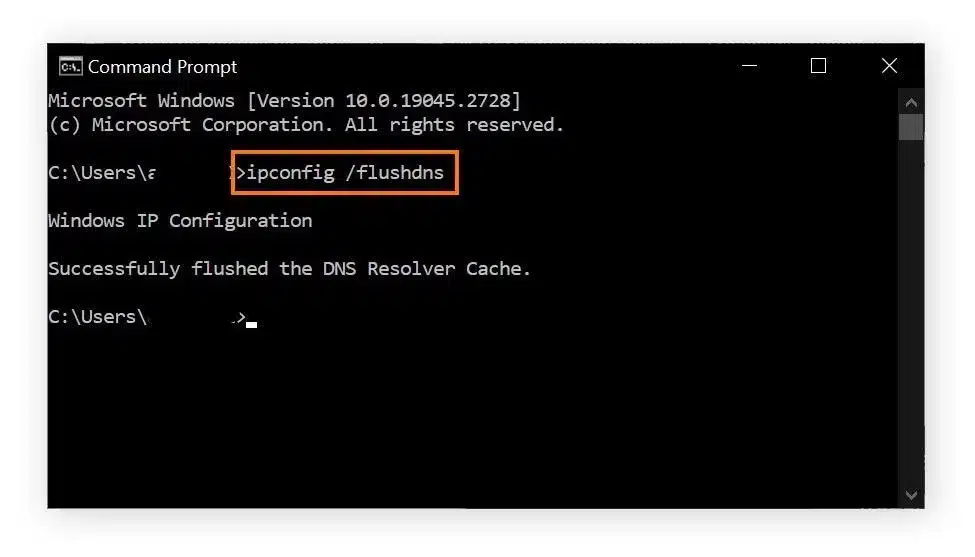
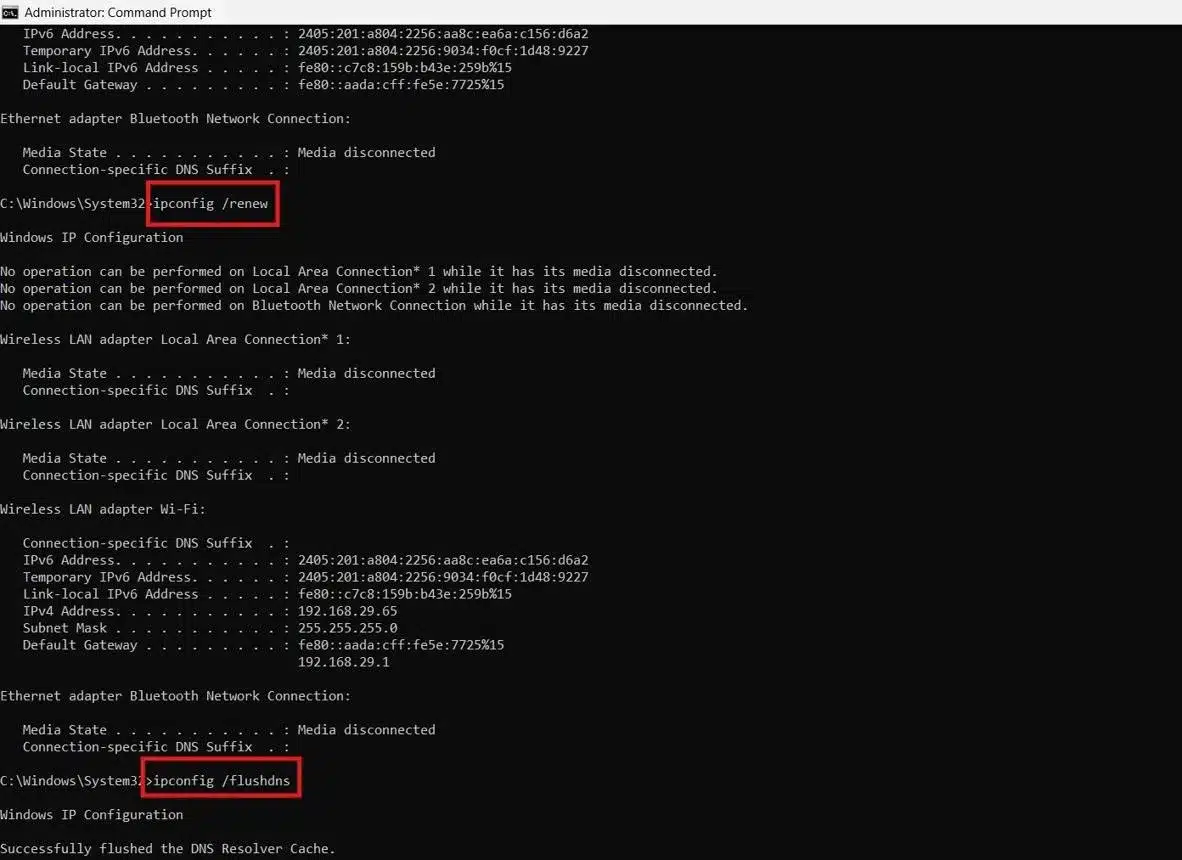
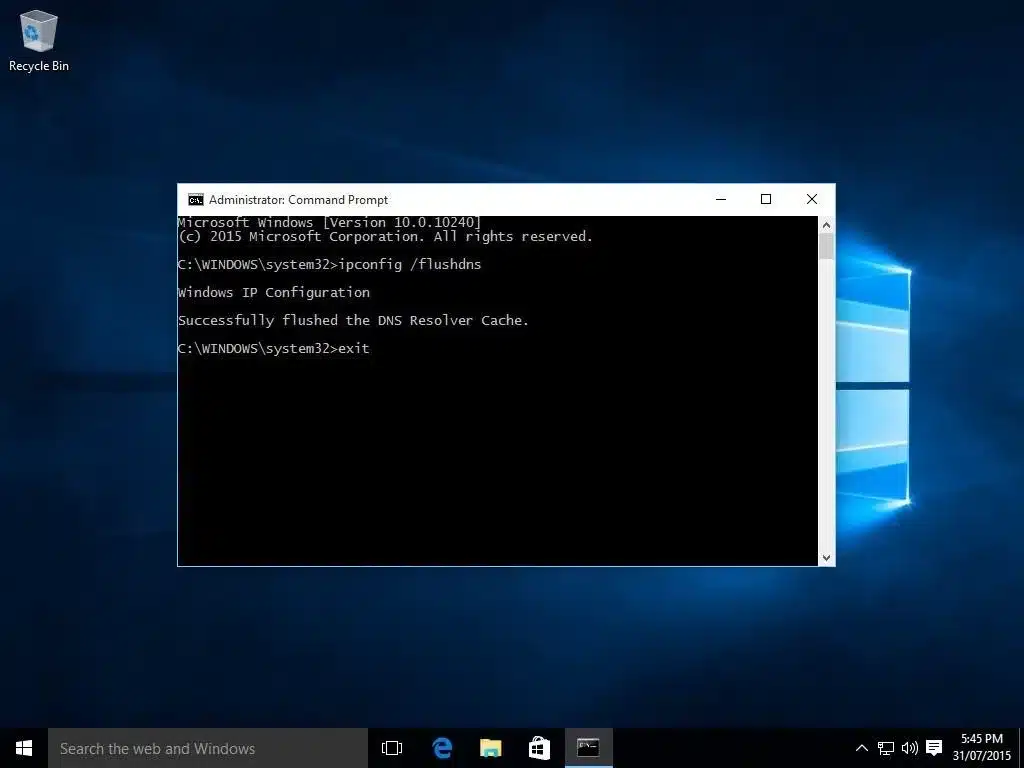
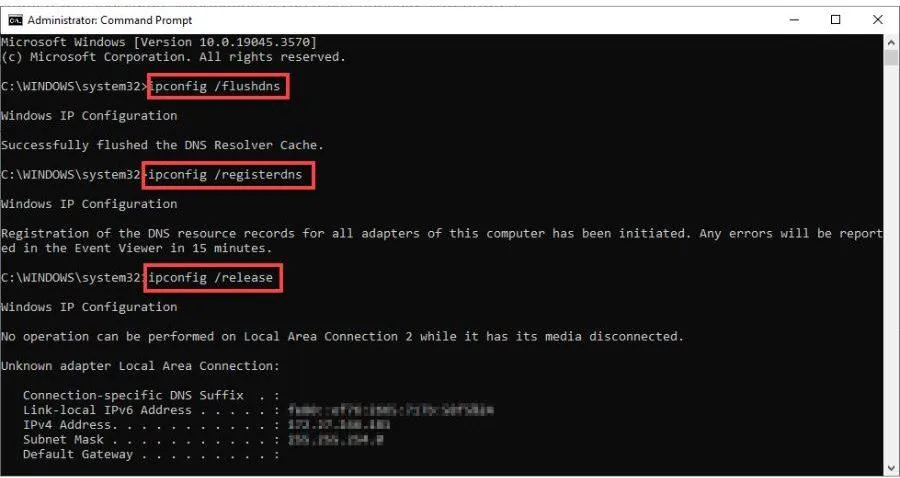
The ipconfig /flushdns command tells Windows to clear its local DNS resolver cache.
The command is:
ipconfig /flushdns
After you execute it successfully, Windows removes the cached DNS entries. When you visit a domain again, your computer can perform a new DNS lookup through its configured DNS server.
What Does the Command Mean?
|
Command |
Purpose |
|
ipconfig |
Displays and manages Windows IP configuration |
|
/flushdns |
Clears the local DNS resolver cache |
|
ipconfig /displaydns |
Displays cached DNS records |
|
ipconfig /renew |
Renews a DHCP-assigned IP configuration |
|
ipconfig /release |
Releases the current DHCP configuration |
|
ipconfig /registerdns |
Initiates manual DNS registration |
Microsoft lists /flushdns specifically as an option for flushing and resetting the DNS client resolver cache.
How to Use ipconfig /flushdns in Windows
Using the Command Prompt flush DNS method takes only a few seconds.
Step 1: Open Command Prompt
Press the Windows key and search for:
Command Prompt
Right-click Command Prompt and select Run as administrator.
An elevated Command Prompt is recommended for network troubleshooting commands.
Step 2: Enter the DNS Cache Flush Command
Type the following command:
ipconfig /flushdns
Press Enter.
Step 3: Check the Confirmation Message
If the command executes successfully, Windows should display a message indicating that the DNS Resolver Cache was successfully flushed.
Your local DNS cache has now been cleared.
Step 4: Test the Website Again
Close and reopen your browser, then visit the website that was causing problems.
If the problem was caused by an outdated local DNS entry, the website may now load normally.
How to Flush DNS Cache in Windows 10
The flush DNS Windows 10 process is straightforward.
- Click Start.
- Search for Command Prompt.
- Select Run as administrator.
- Enter: ipconfig /flushdns
- Press Enter.
- Reopen your browser and test the website.
The same ipconfig /flushdns command can also be used on supported Windows Server versions. Microsoft’s current ipconfig documentation lists Windows 10 and Windows 11 among the supported platforms.
How to Flush DNS Cache in Windows 11
The flush DNS Windows 11 process is almost identical.
Method 1: Command Prompt
Open Command Prompt as administrator and run:
ipconfig /flushdns
Method 2: Windows Terminal
You can also open Windows Terminal with administrator privileges and run:
ipconfig /flushdns
Method 3: PowerShell
PowerShell provides an equivalent command:
Clear-DnsClientCache
Microsoft states that Clear-DnsClientCache clears the DNS client cache and is equivalent to running ipconfig /flushdns.
When Should You Clear the DNS Cache?
A DNS cache flush can be useful in several situations.
1. A Website Recently Changed Servers
If a domain has moved to a new hosting provider or server, cached DNS information may cause your computer to continue connecting to the previous IP address.
Flushing the local cache can help your computer obtain updated DNS information.
2. A Website Is Not Loading
If other websites work but one particular domain doesn’t, stale DNS information may be one possible cause.
3. You See DNS-Related Errors
Errors involving DNS resolution, such as a domain not being found, can sometimes be investigated by clearing the local resolver cache.
4. After Changing DNS Settings
If you’ve changed your DNS server configuration, clearing the resolver cache can ensure that old cached results aren’t being used.
5. Website Migration or Hosting Changes
Website owners and developers may notice different results during a migration. DNS changes can take time to propagate across different DNS resolvers, but clearing your Windows DNS cache removes the local computer’s cached information from the equation.
ipconfig /flushdns vs Other DNS Troubleshooting Commands
Flushing DNS is only one part of DNS troubleshooting Windows users can perform.
|
Command |
Primary Purpose |
When to Use |
|
ipconfig /flushdns |
Clears local DNS cache |
Stale or incorrect DNS entries |
|
ipconfig /displaydns |
Shows cached DNS records |
Inspect DNS cache |
|
ipconfig /release |
Releases IP configuration |
DHCP/IP troubleshooting |
|
ipconfig /renew |
Requests a new DHCP configuration |
IP configuration problems |
|
ipconfig /registerdns |
Registers DNS information |
DNS registration issues |
|
nslookup domain.com |
Tests DNS resolution |
Check DNS responses |
|
netsh winsock reset |
Resets Winsock |
Certain network connectivity problems |
Microsoft recommends checking the computer’s IP configuration with ipconfig /all and using nslookup to test DNS resolution when investigating DNS client problems.
How to Check the DNS Cache Before Flushing
If you want to see what Windows currently has cached, use:
ipconfig /displaydns
This command displays the contents of the DNS client resolver cache.
Look for the domain you’re troubleshooting. If an old or negative DNS response is present, flushing the cache can be a useful next step.
Afterward, run:
ipconfig /flushdns
Then test the domain again.
What If DNS Cache Is Not Clearing?
Sometimes users report that the DNS cache is not clearing or that flushing DNS doesn’t solve the original problem.
First, make sure you entered the command correctly:
ipconfig /flushdns
The forward slash is important.
If the command succeeds but the website still doesn’t load, the problem may not be the local DNS cache.
Try These DNS Troubleshooting Steps
1. Check Your IP Configuration
Run:
ipconfig /all
Check your IP address, default gateway, and configured DNS servers.
2. Test DNS Resolution
Run:
nslookup example.com
Replace example.com with the domain you’re troubleshooting.
Microsoft recommends nslookup for testing DNS resolution independently of the local DNS cache.
3. Renew Your IP Address
If the problem appears to involve DHCP or IP configuration, you can try:
ipconfig /release
ipconfig /renew
Be aware that /release temporarily releases the current DHCP configuration, so use these commands when IP configuration troubleshooting is actually appropriate.
4. Restart the Computer
A restart can help refresh network-related services and configurations after troubleshooting changes.
5. Check Whether the DNS Server Is the Problem
If DNS resolution fails even after clearing the local cache, the issue could be with the configured DNS server, network, router, firewall, or the domain’s authoritative DNS configuration.
Flushing your local cache does not clear DNS caches maintained by your ISP, public DNS provider, router, or authoritative DNS servers.
Does Flushing DNS Improve Internet Speed?
Usually, no.
The purpose of the DNS cache flush command is troubleshooting, not increasing your internet bandwidth or permanently improving connection speed.
After flushing the cache, Windows may need to perform DNS lookups again. In normal circumstances, DNS caching actually helps reduce repeated lookup work.
Therefore, use ipconfig /flushdns when you have a DNS resolution problem rather than treating it as a routine internet-speed optimization.
Does ipconfig /flushdns Delete Your Files or Browsing History?
No.
The ipconfig /flushdns command only clears the Windows DNS client resolver cache.
It does not delete:
- Personal files
- Downloads
- Browser bookmarks
- Website passwords
- Windows documents
- Installed applications
- Your browser history
However, DNS caching is separate from browser-level caching. If a website continues displaying outdated information, you may need to clear your browser cache separately.
DNS Cache Flush: What It Can and Cannot Fix
|
Problem |
Can Flush DNS Help? |
|
Stale local DNS record |
Yes |
|
Cached negative DNS response |
Yes |
|
Recently changed website IP |
Potentially |
|
Incorrect DNS server configuration |
No, not by itself |
|
Website server outage |
No |
|
Broken Wi-Fi connection |
Usually no |
|
Expired domain |
No |
|
Browser cache problem |
No |
|
ISP DNS outage |
No |
|
Firewall blocking traffic |
No |
This distinction is important. A DNS cache reset is a troubleshooting step, not a universal solution for every internet problem.
Expert Tips for DNS Troubleshooting Windows
For reliable troubleshooting, avoid running multiple network reset commands without understanding what each one changes.
Start with the least disruptive steps:
- Check whether the website works on another device.
- Run ipconfig /displaydns.
- Run ipconfig /flushdns.
- Test the domain with nslookup.
- Run ipconfig /all to inspect DNS server settings.
- Check your router or network connection.
- Investigate the hosting server or DNS provider if the problem affects multiple users.
If a website has recently migrated to new hosting, remember that DNS changes may take time to appear consistently across different DNS resolvers. Clearing your local cache can refresh your own computer’s information, but it cannot force every DNS resolver on the internet to update immediately.
How DNS Problems Relate to Web Hosting
DNS is an essential part of website hosting. When someone enters a domain name into a browser, DNS helps direct the request toward the correct server.
For website owners, incorrect DNS records can result in problems such as:
- Website downtime
- Domain resolution errors
- Email delivery issues
- Incorrect server routing
- Subdomain failures
- Hosting migration issues
Reliable hosting combined with correctly configured DNS can make website management easier.
If you’re looking for a hosting environment with cPanel-based website management and DNS management capabilities, explore VeeroTech cPanel Hosting. VeeroTech’s cPanel hosting includes multiple DNS management options along with tools for managing domains, email, databases, files, and websites.
For businesses requiring more control and server-level resources, VeeroTech Managed VPS Hosting can also be considered as part of a broader hosting strategy.
Final Thoughts
Learning how to use ipconfig /flushdns is one of the simplest ways to troubleshoot DNS-related problems on a Windows computer.
The command:
ipconfig /flushdns
clears the local DNS resolver cache and allows Windows to perform fresh DNS lookups. It can be particularly useful after DNS changes, hosting migrations, or when outdated DNS records are preventing a website from loading correctly.
However, remember that a DNS cache reset in Windows only affects the local DNS cache. If the issue continues, use additional DNS troubleshooting commands such as ipconfig /all and nslookup to identify whether the problem is related to your computer, network, DNS provider, or hosting server.
For dependable website hosting, DNS management, cPanel tools, and scalable hosting solutions, explore VeeroTech’s hosting services and choose a platform that supports your website’s performance, security, and growth requirements.
Ready for reliable hosting? Visit VeeroTech and explore hosting solutions designed for businesses, developers, and website owners.
Frequently Asked Questions
1. What does ipconfig /flushdns do?>
The ipconfig /flushdns command clears the DNS client resolver cache stored locally by Windows. This can help remove outdated or negative DNS entries during troubleshooting.
2. How often should I flush my DNS cache?
There is generally no need to flush DNS on a fixed schedule. Use it when troubleshooting DNS resolution problems, after certain DNS configuration changes, or when investigating stale local DNS information.
3. Does ipconfig /flushdns work on Windows 10 and Windows 11?
Yes. The command is supported on current Windows client versions including Windows 10 and Windows 11.
4. What should I do if flushing DNS doesn’t fix my problem?
Try ipconfig /all to check your DNS configuration and nslookup yourdomain.com to test DNS resolution. If these checks fail, investigate your DNS server, network, router, firewall, or hosting configuration.
5. Can flushing DNS fix a website that is down?
No. Flushing the local DNS cache cannot repair a server outage. It can only remove cached DNS information from your Windows DNS client. If the hosting server or authoritative DNS system is unavailable, the underlying issue must be addressed there.
If you have any web hosting questions please feel free to reach out to us. We're happy to help.