
Accessing your hosting control panel is the first step toward managing your website, emails, and databases. This guide explains how to log in to DirectAdmin and manage your hosting account securely. By understanding these three primary access methods, you can choose the one that best fits your current workflow and technical setup.
Quick Steps
Using the Management Portal:
-
Log in to the Customer/Client Portal.
-
Click Services > My Services.
-
Click Manage Service for your hosting package.
-
Click Login to DirectAdmin.
Using Your Domain Name or IP:
-
Enter your
domain.com:2222orIP:2222in your browser. -
Enter your Username and Password.
-
Click Log In.
Follow the step-by-step instructions below to access your DirectAdmin interface.
Method 1: Accessing DirectAdmin via the Management Portal (Recommended)
Accessing your DirectAdmin interface using the Management Portal is always the preferred method because it utilizes secure single sign-on authentication. You begin by logging in to the Customer/Client Portal using your registered email and password. Once you are inside the portal, locate the menu bar and click on Services, then select My Services to view your active hosting plans.
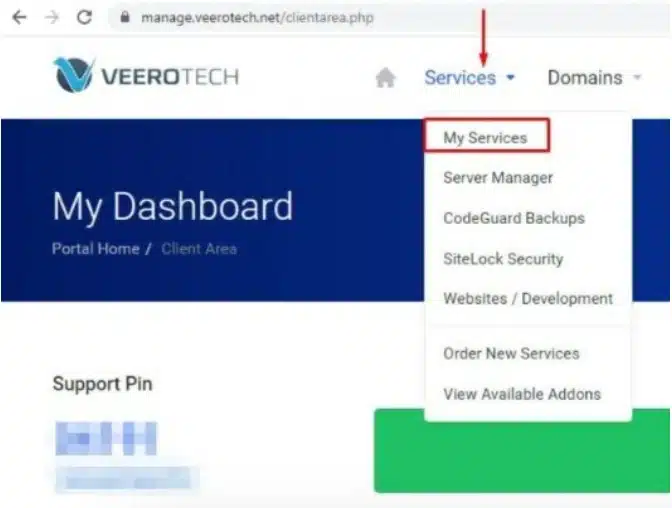
Management Portal
From the list of your products, find your specific DirectAdmin hosting package and click on the Manage Service button, which may sometimes be located within a dropdown menu on the right.
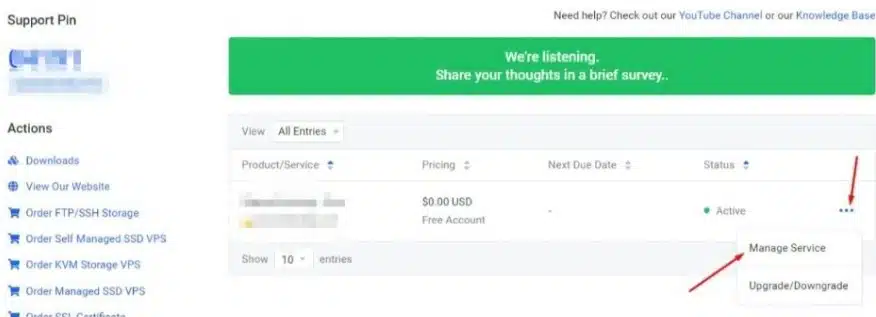
Manage Service
Finally, look at the Actions sidebar and click on Login to DirectAdmin to be immediately redirected to your hosting dashboard in a new window without needing to enter a separate password.
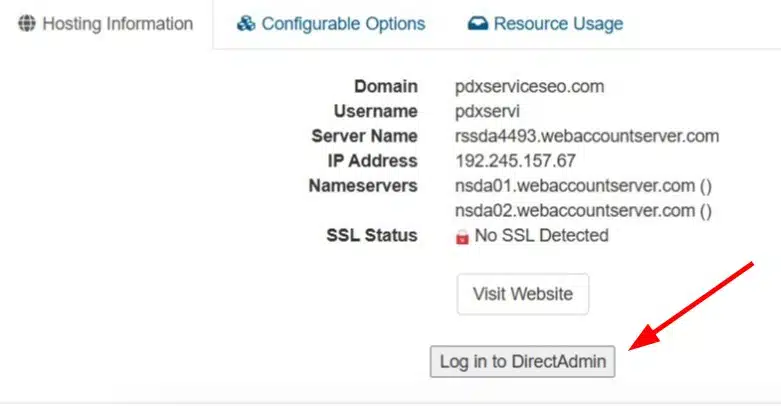
Login to DirectAdmin
Method 2: Accessing Directly via Your Domain Name
You can access DirectAdmin directly using your domain name once your website is operational and your DNS settings have fully propagated. To do this, open your preferred web browser and type your domain address followed by the port 2222, like the following,
https://yourdomain.com:2222
This action will bring up the DirectAdmin login page, where you must enter your unique account username and password. After clicking the Log In button with the correct credentials, the DirectAdmin home screen will appear.
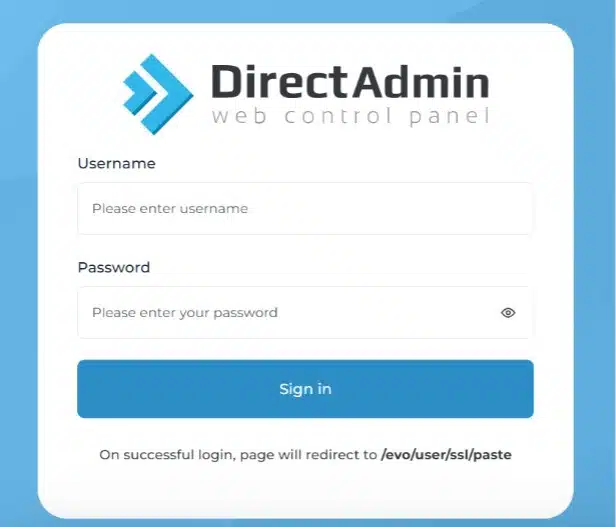
Login to DirectAdmin
Please note that if you access the site via HTTPS for the first time before an SSL is installed, your browser may show a security warning, which you can safely bypass to reach the login screen.
Method 3: Accessing via the Server IP Address
Using the server IP address is the most reliable option if your domain has not yet propagated or if you are in the middle of a migration. You will need to enter the server IP address, followed by the port 2222, into your browser’s address bar, looking something like
https://123.456.78.90:2222This IP address can be found in the welcome email you received when you first purchased your hosting plan. Once the page loads, simply provide your account Username and Password and click Log In to gain full access to your hosting features even while your domain is offline.
Understanding Access Levels in DirectAdmin
Once logged in, DirectAdmin displays features based on your account type. You may see:
-
User Level: For standard hosting tasks like managing files, emails, and databases.
-
Reseller Level: For managing multiple sub-accounts and hosting packages.
If you are a Reseller, you can easily toggle between these views using the access level dropdown menu located at the top right of the interface.

Access Levels in DirectAdmin
Logging Out of DirectAdmin
When you have finished your tasks, it is a security best practice to log out. Click the Logout icon in the top navigation menu to end your session. This notifies the web server that your session is over, preventing unauthorized access from your current browser window. If you forget to log out, the server will automatically terminate the session after a period of inactivity.
Wrapping Up
Congratulations! You now know the three primary ways to access your DirectAdmin account and how to securely log out. Whether you prefer the ease of the Client Portal or the direct access of a domain URL, you are now ready to manage your hosting environment effectively.
If you have any web hosting questions please feel free to reach out to us. We're happy to help.
Our Guiding Principles