
Have you received an inode limit warning from your web hosting provider even though your website has plenty of disk space available? This can be confusing, especially when your website appears to be using only a small portion of its allocated storage.
The problem may be related to inodes in web hosting. Every file and directory stored on a hosting account typically consumes an inode. Website files, WordPress plugins, email messages, cache files, temporary files, and backups can gradually increase inode usage.
When your account reaches its inode limit, you may experience problems uploading files, creating new emails, installing plugins, or updating website content. Understanding how inode limits work can help you prevent these issues before they affect your website.
In this guide, we explain what inodes are, how to check inode usage in cPanel, what causes high inode usage, and how to reduce inode usage safely.
What Are Inodes in Web Hosting?
An inode, short for index node, is a filesystem data structure that stores information about a file or directory. Depending on the filesystem, this information can include file permissions, ownership, timestamps, file size, and pointers to the file’s data.
In simple terms, an inode helps the operating system identify and manage files stored on a server.
For example, a WordPress website might contain thousands of individual files, including images, themes, plugins, scripts, and configuration files. Each file and directory generally requires an inode.
How Do Inodes Work?
Consider a website with the following files:
- 1,000 website images
- 500 WordPress plugin and theme files
- 2,000 email messages
- 1,500 cache and temporary files
These items can account for thousands of filesystem objects. The hosting server tracks the objects using inodes, independently of how much disk space their contents occupy.
The exact inode count depends on the filesystem, server configuration, and hosting provider’s counting method.
Important: An inode is not the same as a megabyte or gigabyte. It represents a filesystem object rather than the amount of storage that object uses.
What Is an Inode Limit?
An inode limit is the maximum number of filesystem objects that a hosting account is permitted to use under its hosting plan or server configuration.
Hosting providers may impose inode limits to manage server resources and prevent accounts containing excessive numbers of files from affecting the shared hosting environment.
Why Do Web Hosting Inode Limits Matter?
When an account reaches its inode limit, the server may restrict the creation of additional files. Depending on the hosting configuration, this can affect:
- Uploading images, documents, and other website files.
- Installing or updating WordPress plugins and themes.
- Generating cache files and temporary files.
- Receiving new email messages.
- Creating backups or extracting archives.
- Updating website content that requires new files.
The precise effects vary by provider and configuration. Existing pages may continue to load, but operations that create new files can fail.
Shared Hosting Inode Limits
Shared hosting accounts often operate under defined resource limits. Inode limits help hosting providers manage the number of files created by individual accounts.
For example, VeeroTech lists 750,000 inodes for its Core shared hosting plan. Limits and policies can differ between plans, so always check the specifications of your current package before making assumptions.
Web Hosting Storage vs. Inode Usage
Disk space and inode usage measure two different things. Understanding this difference is essential when troubleshooting hosting account warnings.
| Feature | Disk Space Usage | Inode Usage |
| What it measures | Storage occupied by file contents | Number of filesystem objects |
| Typical unit | MB or GB | Inodes or files |
| Large video file | High disk usage, relatively few inodes | Usually low inode usage |
| Thousands of small files | Potentially low disk usage | Potentially high inode usage |
| Common solution | Remove or compress large files | Remove unnecessary files and directories |
Example: Low Storage but High Inode Usage
Imagine that your hosting account contains 100,000 small text files, each using approximately 2 KB of storage.
Together, these files occupy roughly 200 MB, excluding filesystem overhead. However, they may consume approximately 100,000 inodes if each file is counted separately.
This explains why a website can have plenty of available storage but still reach its inode limit.
Causes of High Inode Usage
Understanding the causes of high inode usage helps you identify the correct files to clean up instead of deleting important website data.
1. WordPress Cache Files
Caching plugins and server-side caching systems can generate large numbers of temporary files. If cache files accumulate without proper cleanup, inode usage can increase significantly.
Review your caching settings and remove obsolete cache files using the plugin’s recommended cleanup process.
2. Email Accounts and Old Messages
Email messages are stored as individual files in many mail-storage configurations. Large mailboxes containing years of messages, attachments, and spam can contribute substantially to inode usage.
Check your Spam, Trash, Sent, and other folders before permanently deleting unnecessary messages.
3. Backups Stored on the Hosting Account
Full website backups may contain thousands of individual files. Keeping multiple backup copies on the same account can increase inode usage and disk consumption.
Maintain a reliable backup strategy, but move older copies to an appropriate external or remote storage destination when possible.
4. WordPress Plugins and Themes
Installing numerous plugins, themes, and development tools can increase the number of files in your website directory. Inactive plugins and themes may continue to consume inodes until their files are removed.
Delete only plugins and themes that you no longer need, after verifying that they are not required by the active website.
5. Temporary Files, Logs, and Sessions
Applications may generate session files, debugging logs, temporary exports, and other data. Poor cleanup routines can allow these files to accumulate over time.
Review application-specific cleanup options and ask your hosting provider for assistance if the source of the files is unclear.
6. Malware or Unexpected File Generation
Malware, compromised plugins, or incorrectly configured scripts can generate large numbers of unwanted files. A sudden increase in inode usage may indicate an underlying security or application issue.
Run a security scan, review recent changes, and investigate unexpected files rather than deleting them blindly.
How to Check Inode Usage in cPanel
You can often identify inode usage directly through your hosting control panel. The exact location depends on the hosting provider and its configuration.
Step 1: Log In to cPanel
Sign in to your hosting account and open cPanel.
Step 2: Find the Statistics Section
Look for the Statistics panel, commonly displayed in the cPanel sidebar.
Depending on your hosting setup, inode usage may appear under a label such as File Usage.
Step 3: Check the Current Count
Review the reported file count and compare it with your account’s applicable inode limit.
For example, if your account uses 600,000 inodes out of a 750,000 limit, your usage is approximately 80%.
Step 4: Identify the Directories Using the Most Inodes
Use the File Manager or an approved command-line method to investigate directories that may contain excessive numbers of files.
Common locations to review include:
- public_html/ — website files, plugins, themes, and uploads.
- mail/ — email messages and folders.
- tmp/ — temporary application files, where applicable.
- Cache directories — generated website cache files.
- Backup directories — locally stored backup archives or copies.
Note: Inode usage is not displayed by default in every cPanel configuration. The hosting administrator may need to enable file-usage information. See the official cPanel inode usage guide.
How to Reduce Inode Usage Safely
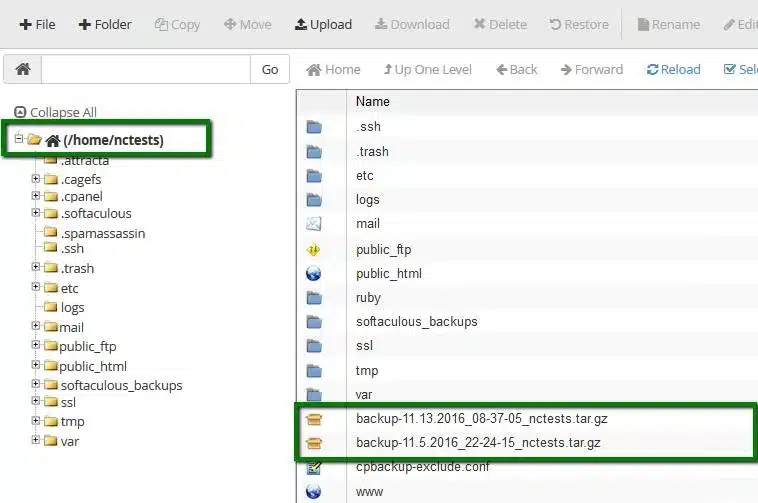
If your account is approaching its limit, the goal is to remove unnecessary filesystem objects while protecting website functionality and important data.
1. Clear Unnecessary Cache Files
Start with your WordPress caching plugin or hosting control panel. Use its built-in purge or cleanup function wherever possible.
Avoid deleting active cache directories while a plugin or application is writing to them. Some cache files will be recreated automatically, which is normal.
2. Remove Unused Plugins and Themes
Open your WordPress dashboard and review installed plugins and themes.
Deactivate and delete components that are genuinely unnecessary. Keep the active theme, any required parent theme, and plugins essential to your website’s operation.
If you manage multiple WordPress installations, review each installation separately.
3. Clean Up Email Accounts
Review large or inactive email accounts. Remove unwanted messages from Spam and Trash, and archive important messages before cleaning up old mail.
Check whether your email client or server retains additional copies of deleted messages.
4. Remove Old Backups Carefully
Identify outdated local backups and redundant archives. Before removing anything, confirm that you have at least one valid, accessible backup stored in a separate location.
Do not delete the only available backup of a live website.
5. Investigate Temporary Files and Logs
Check application-generated temporary files and logs. Use supported cleanup tools or seek hosting support if you cannot determine whether a file is safe to remove.
Do not delete unfamiliar system files, session directories, or application data without understanding their purpose.
6. Find Large Numbers of Small Files
If you have SSH access and the required permissions, a command such as the following can help you inspect a directory’s file count:
find public_html -type f | wc -l
Run it from the appropriate account directory. It counts regular files under public_html recursively; it does not necessarily reproduce your provider’s exact inode count because directories, links, and other filesystem objects may be counted differently.
If SSH access is unavailable, use cPanel File Manager or contact your hosting provider for assistance.
7. Prevent Future Inode Problems
Once you’ve reduced usage, establish a maintenance routine:
- Review inode usage regularly.
- Configure sensible cache expiration and cleanup policies.
- Remove unused plugins, themes, and test installations.
- Avoid storing unnecessary backups on the live hosting account.
- Monitor email retention and spam cleanup.
- Investigate unexpected growth before it becomes an emergency.
How to Fix the Inode Limit Exceeded Error
An inode limit exceeded error generally means that the account has reached a file-count restriction. Follow these steps to address the issue.
Step 1: Confirm the Limit
Check the usage statistics in cPanel or your hosting dashboard. If the reported count is close to or equal to the limit, confirm the applicable policy with your hosting provider.
Step 2: Locate the Main Source
Determine whether the growth is coming from email, cache files, backups, WordPress installations, or another directory.
Step 3: Remove Unnecessary Files
Clean up only files that are confirmed to be unnecessary. Create a backup before making significant changes.
Step 4: Check Whether Usage Has Decreased
Refresh your hosting statistics after cleanup. Some hosting systems may take time to recalculate or display updated usage.
Step 5: Contact Hosting Support
If the count remains high or you cannot identify the cause, ask your provider to investigate the account’s inode usage.
If your website consistently requires more files than your current plan supports, discuss a suitable hosting upgrade or a change in how the application stores its data.
How Inodes Affect Website Performance
Inodes do not directly determine how quickly a webpage loads. Website speed depends on many factors, including server resources, database queries, application code, caching, network conditions, and storage performance.
However, high inode usage can be associated with operational problems.
For example, excessive numbers of small files may increase directory-management overhead, complicate backups, or contribute to cleanup and scanning tasks taking longer. Reaching an enforced inode limit can also prevent applications from creating files they need.
Reducing unnecessary files can improve account manageability and help prevent file-creation failures, but it is not a guaranteed website-speed optimization.
Choosing the Right Hosting Plan for Your Website
If inode usage continues to grow, evaluate your hosting requirements before changing plans.
| Hosting Type | Suitable Use Case | What to Consider |
| Shared hosting | Small websites and blogs | Account-level file and resource limits |
| Managed WordPress hosting | WordPress websites requiring managed support | WordPress-specific features and the plan’s inode policy |
| Reseller hosting | Agencies managing multiple client websites | Account separation and individual account limits |
| Managed VPS hosting | Projects needing greater isolation and control | Server configuration, administration, and filesystem limits |
A different hosting plan is not automatically free of inode restrictions. Review the actual policy for your chosen service before migrating.
Explore VeeroTech WordPress Hosting, Managed WordPress Hosting, Reseller Hosting, or Managed VPS Hosting to compare options for your website.
Conclusion:
Understanding inodes in web hosting helps you avoid file-creation errors, manage hosting resources, and keep your website easier to maintain. By monitoring inode usage, cleaning unnecessary files, managing email storage, and reviewing backups, you can reduce the risk of reaching your account’s inode limit.
If your website continues to outgrow its current hosting environment, choosing a plan that matches your workload can help you manage future growth more effectively.
Ready to find the right hosting solution for your website? Explore VeeroTech hosting services for shared hosting, WordPress hosting, reseller hosting, and managed VPS options. Review the features and resource policies of each plan, and contact the VeeroTech team if you need help choosing the right fit.
Frequently Asked Questions
1. What are inodes in web hosting?
Inodes are filesystem data structures used to identify and manage files and directories. Hosting providers may count these objects toward an account-level inode limit.
2. How do I check inode usage in cPanel?
Log in to cPanel and look for File Usage or inode information in the Statistics panel. If the information is unavailable, contact your hosting provider to confirm whether it is enabled.
3. How can I reduce inode usage?
Remove unnecessary cache files, old backups, unwanted emails, unused plugins, and redundant website files. Always verify that files are safe to delete and keep a reliable backup.
4. What happens when I exceed my inode limit?
Depending on your hosting configuration, you may be unable to create additional files. This can affect uploads, email delivery, plugin updates, and other operations that require new filesystem objects.
5. Is inode usage the same as disk space usage?
No. Disk space measures the amount of storage occupied by file contents, while inode usage measures filesystem objects. Many small files can consume numerous inodes without using much disk space.
If you have any web hosting questions please feel free to reach out to us. We're happy to help.