
Introduction
Launching a website has never been easier. Whether you’re starting a blog, business website, or portfolio, WordPress combined with shared hosting offers a cost-effective and beginner-friendly solution.
In this guide, you’ll learn how to install WordPress on shared hosting step-by-step, along with optimization tips to improve performance, security, and SEO.
What is the easiest way to install WordPress on shared hosting?
The easiest way to install WordPress on shared hosting is by using a one-click installer like Softaculous in cPanel. This allows you to set up your website within minutes without any coding knowledge.
What You Need Before Installing WordPress
Before you begin, ensure you have:
- A domain name
- A hosting account with VeeroTech
- Access to cPanel or hosting dashboard
Start with affordable shared hosting plans
Method 1: Install WordPress Using cPanel (Softaculous)
Step 1: Login to cPanel
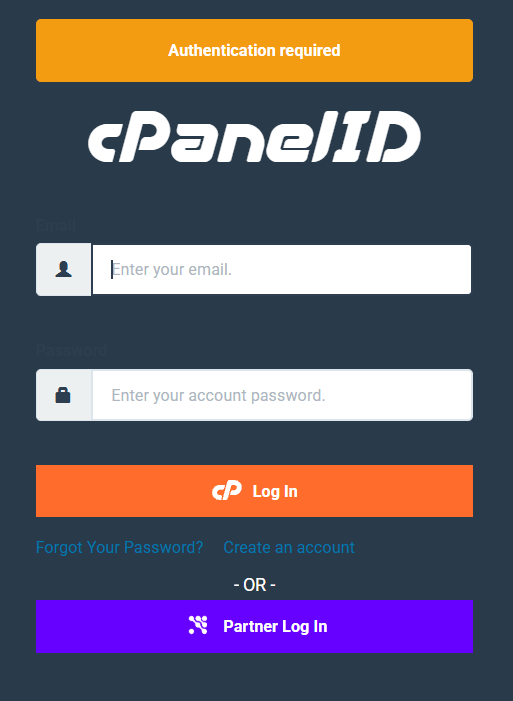
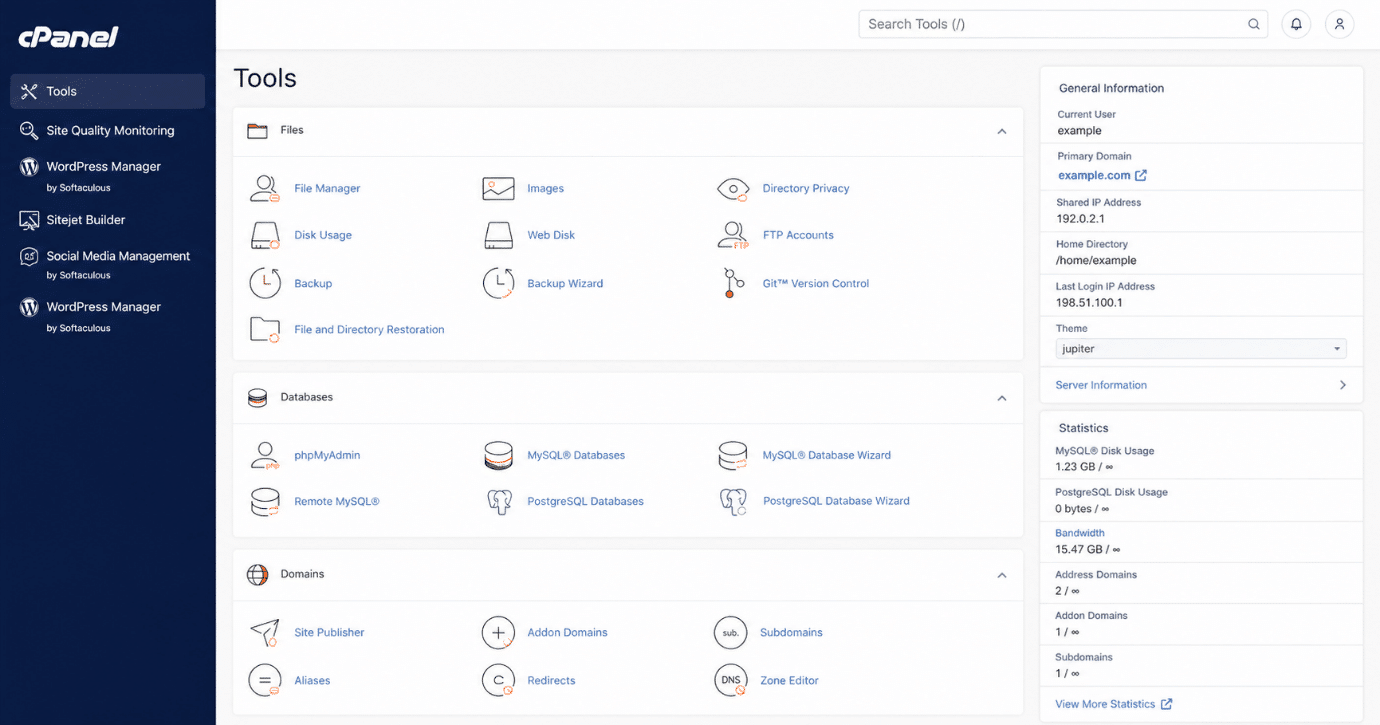
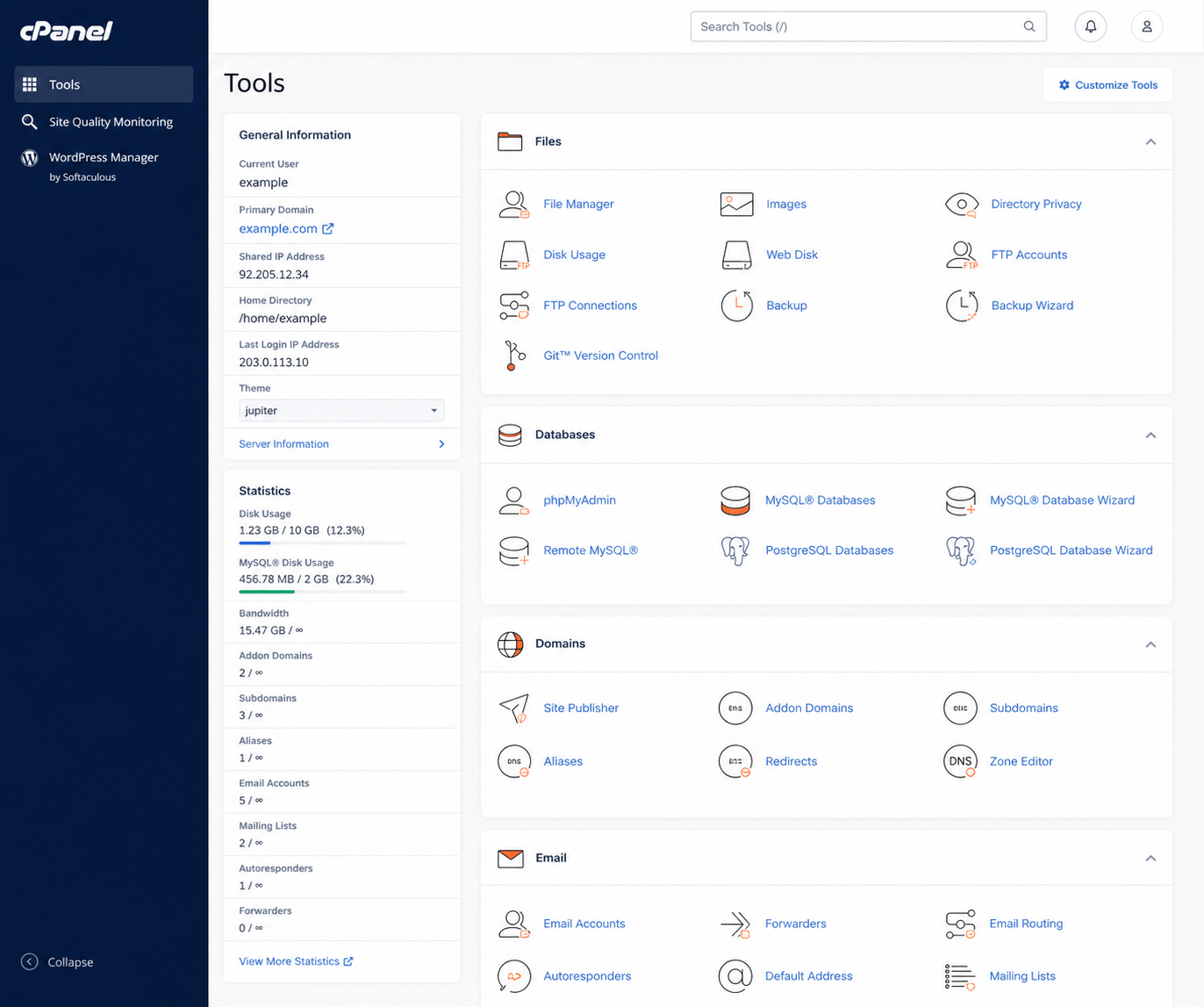
- Login to your hosting account
- Open the cPanel dashboard
Step 2: Locate Softaculous Installer
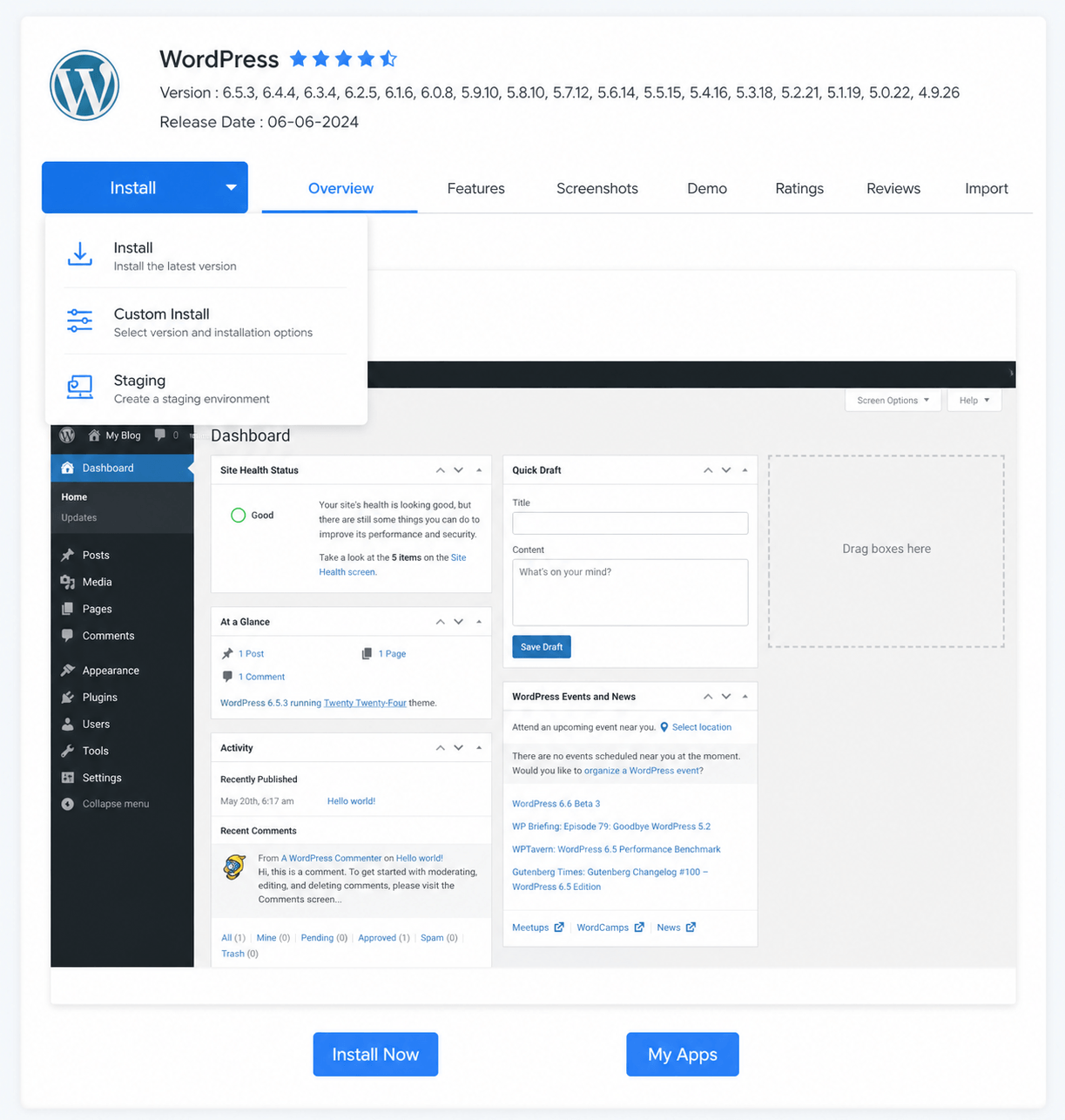
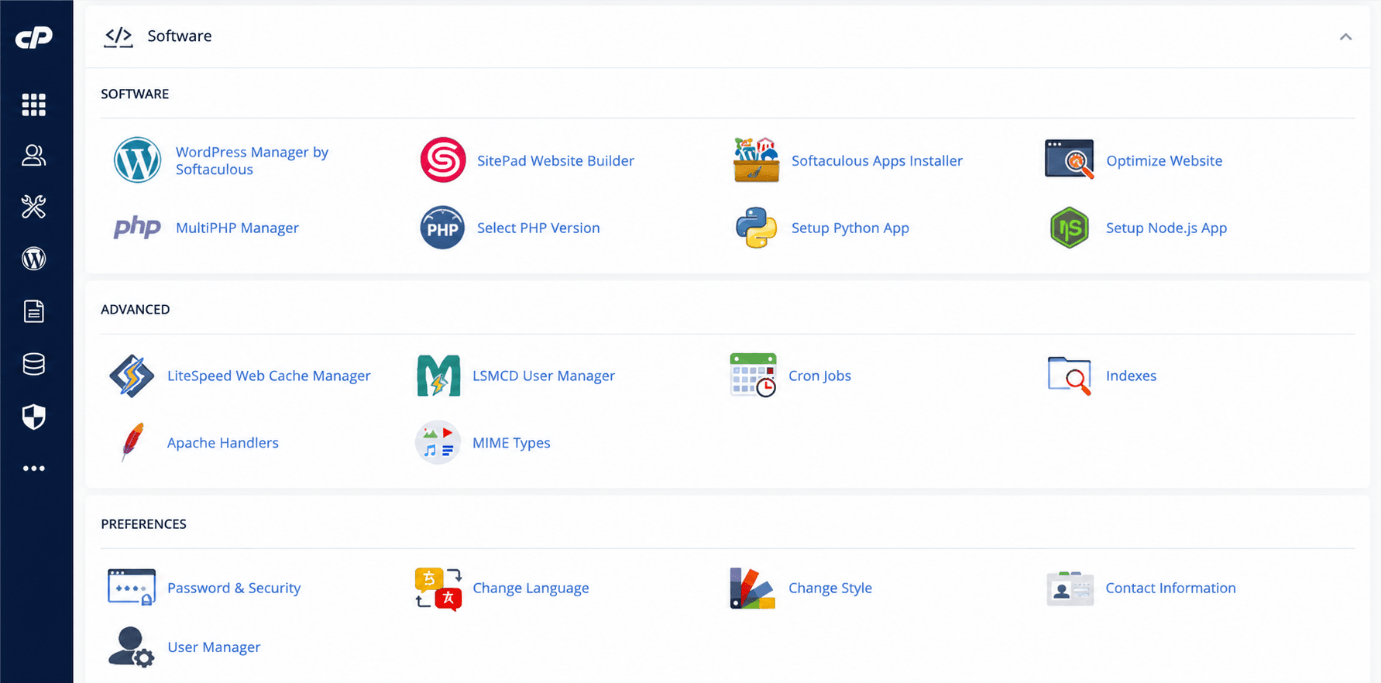
- Navigate to “Software” section
- Click on Softaculous
- Choose WordPress
Step 3: Configure Installation Settings
- Select your domain
- Choose HTTPS (recommended)
- Set directory (leave blank for main domain)
Step 4: Enter Website Details
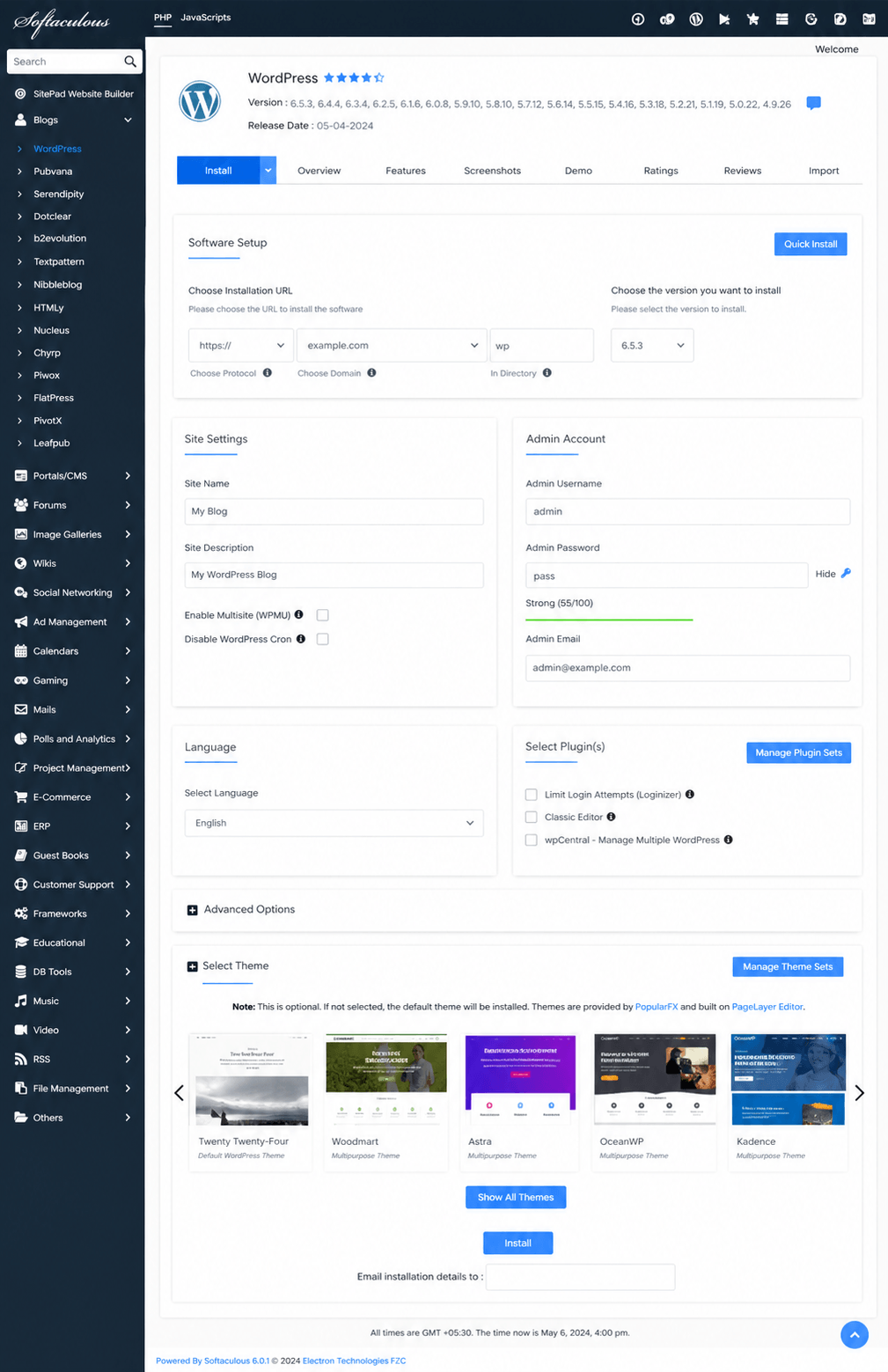
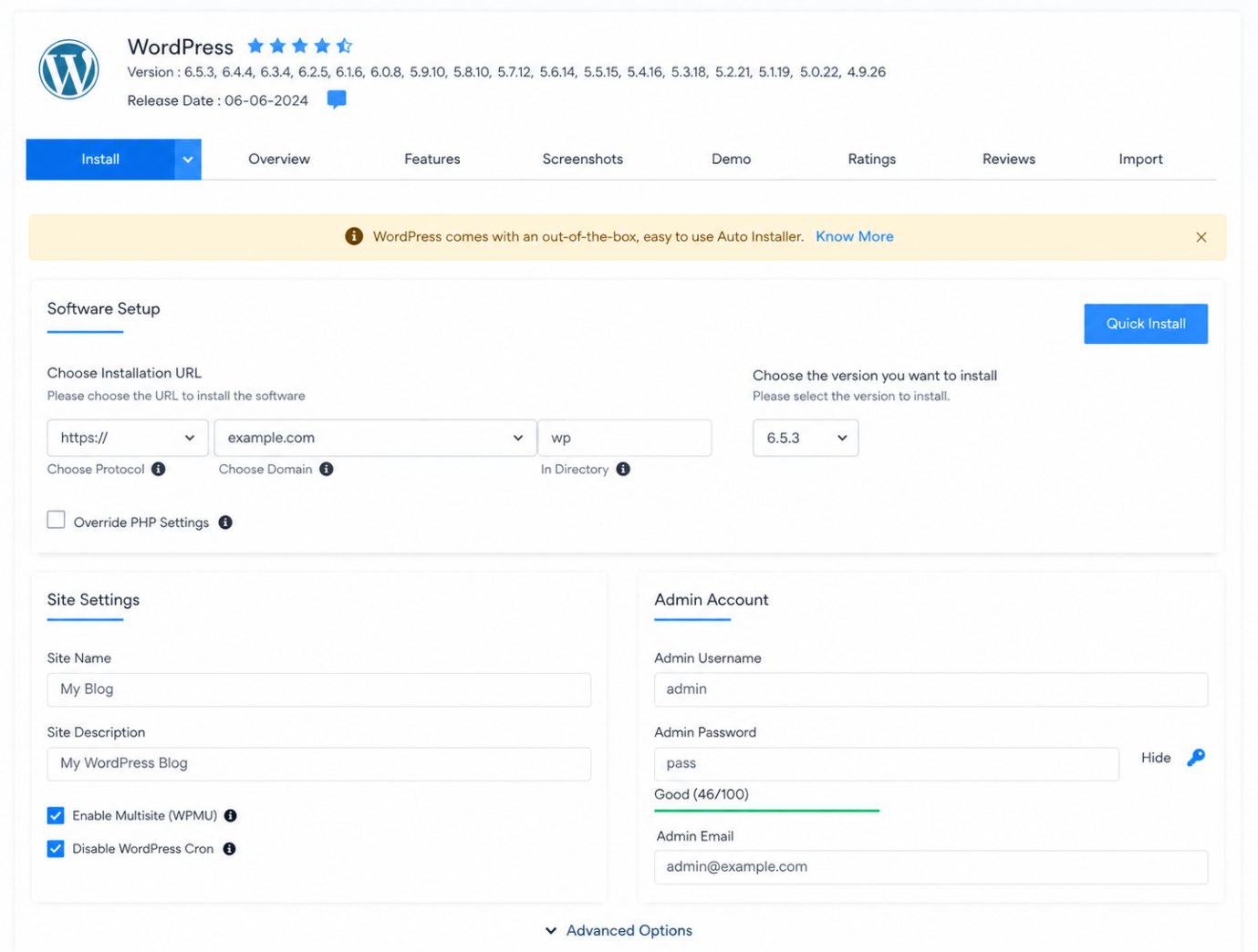
- Site name & description
- Admin username & password
- Email address
Always use a strong password
Step 5: Choose Theme (Optional)
- Select a theme or skip for later customization
Step 6: Complete Installation
- Click “Install”
- Wait a few seconds
- Access your site and admin panel
WordPress Dashboard Overview
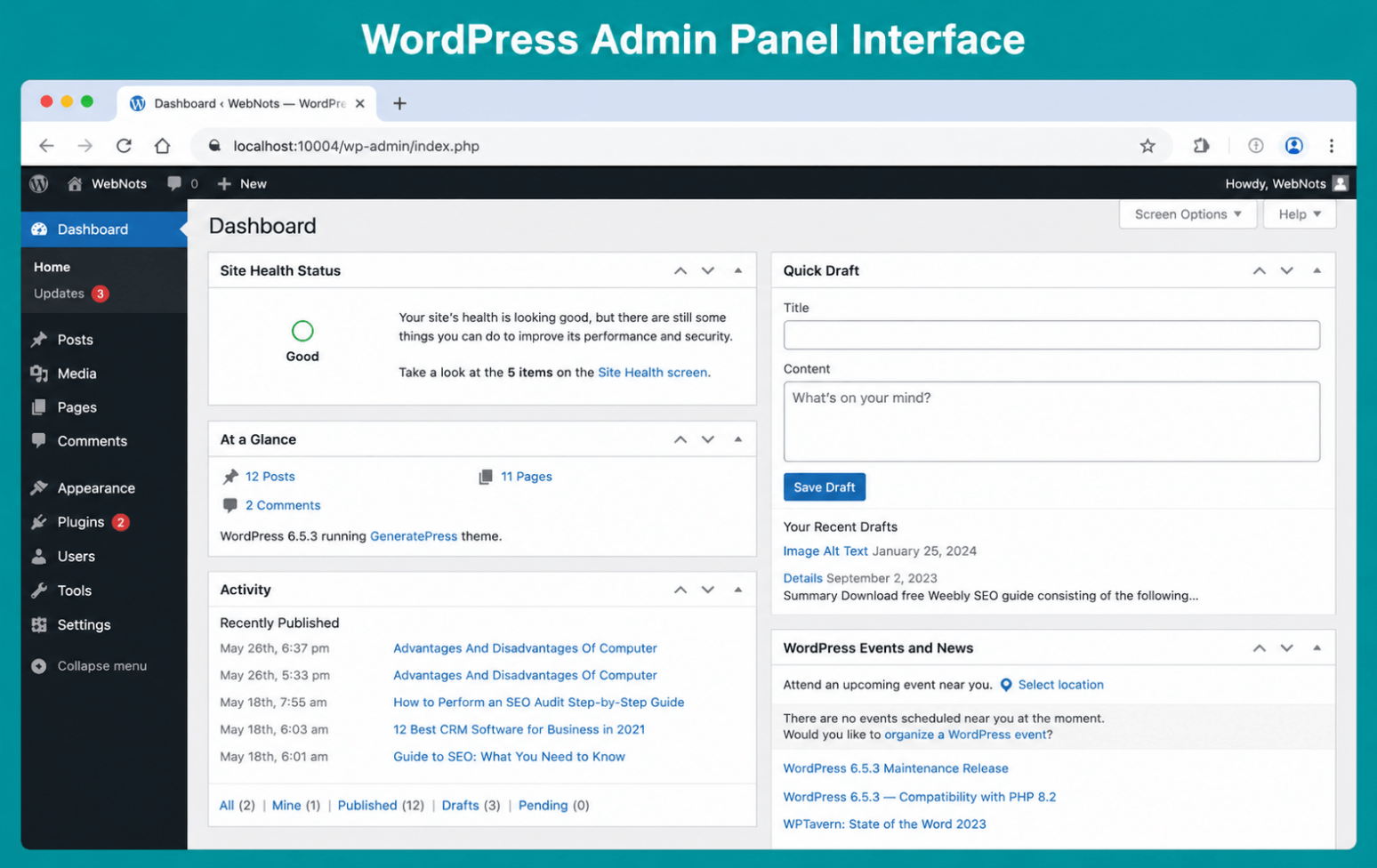
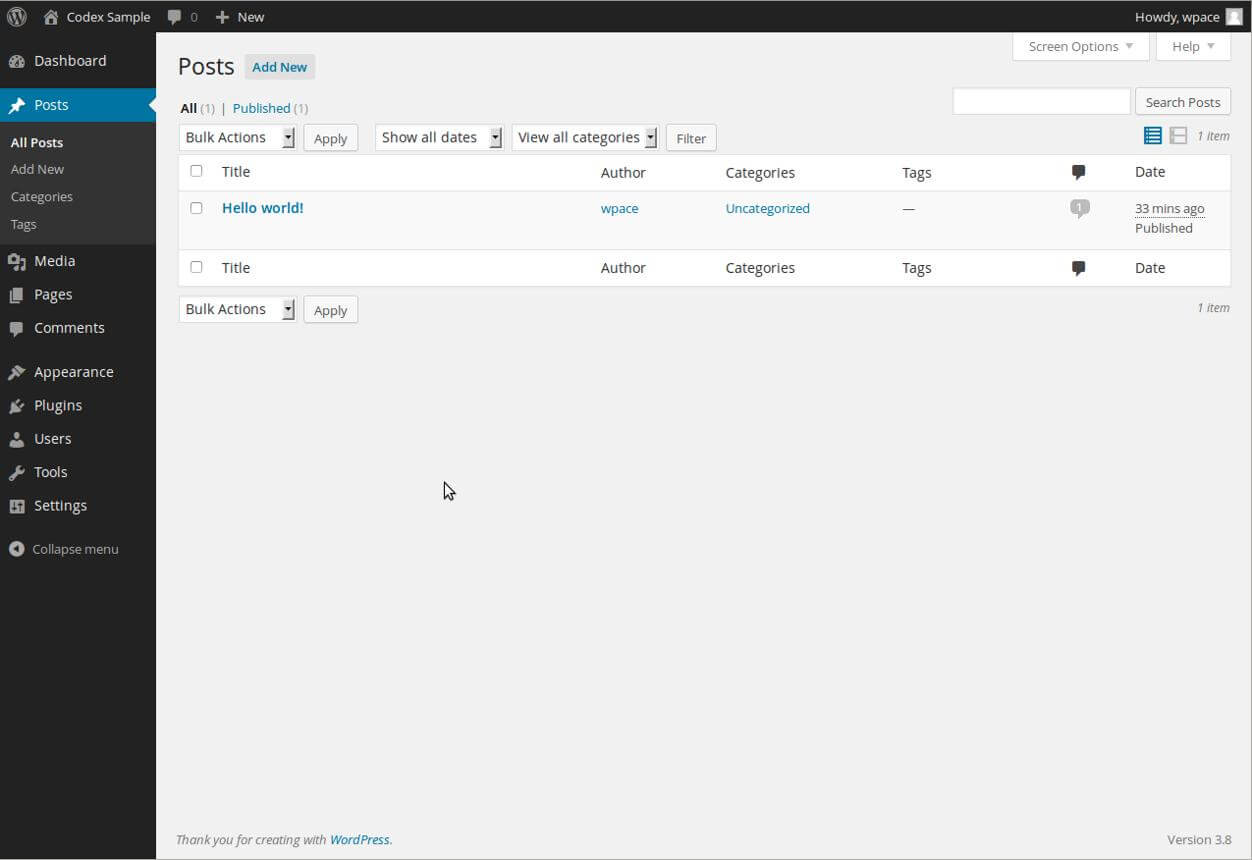
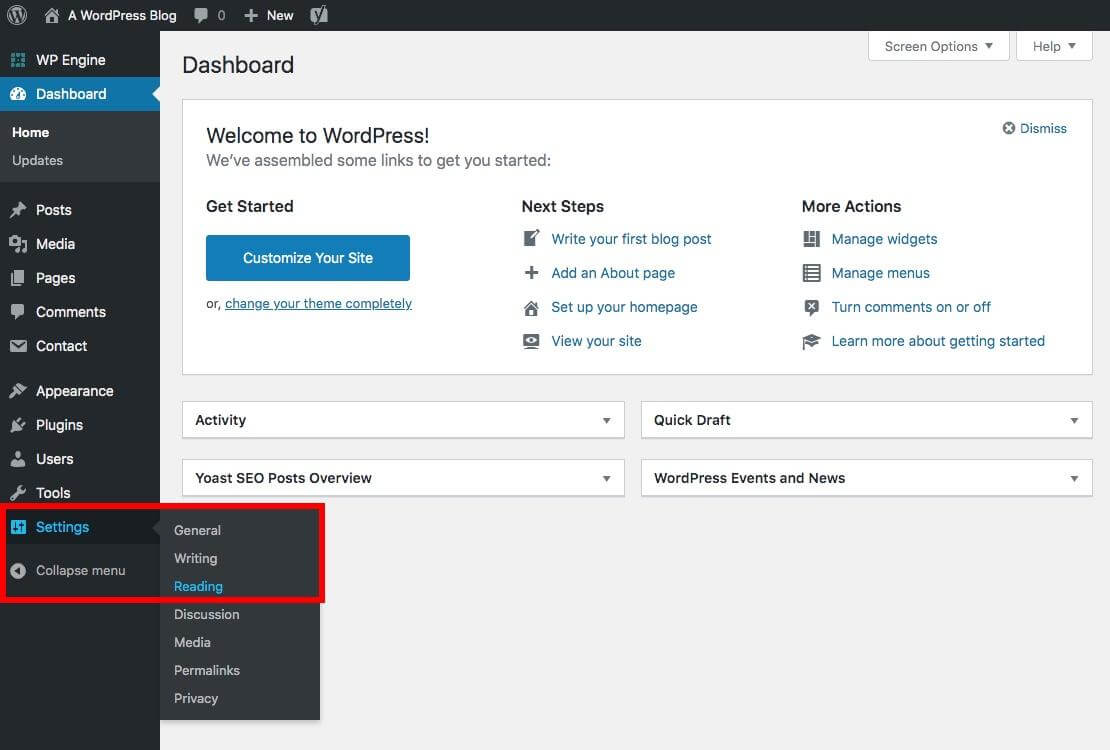
Once installed, you can manage content, themes, plugins, and settings from your dashboard.
Method 2: Manual WordPress Installation (Advanced)
For advanced users:
- Download WordPress from WordPress
- Upload files via FTP or File Manager
- Create MySQL database
- Configure wp-config.php
- Run installation
Recommended for developers needing full control.
Best Settings After Installing WordPress
1.Update Permalinks
- Go to Settings → Permalinks
- Choose “Post Name”
2. Install Essential Plugins
- SEO plugin
- Cache plugin
- Security plugin
3. Choose a Lightweight Theme
- Improves speed and user experience
How to Optimize WordPress on Shared Hosting
Improve Speed
- Enable caching
- Compress images
- Use CDN
Need help? Optimize your website performance
Improve Security
- Enable SSL
- Use strong passwords
- Install firewall plugins
Learn to secure your website from threats
Common Mistakes to Avoid
- Using weak login credentials
- Installing too many plugins
- Ignoring backups
- Not updating WordPress
Shared Hosting vs Managed Hosting
|
Feature |
Shared Hosting |
Managed Hosting |
|
Cost |
Low |
Medium |
|
Speed |
Moderate |
High |
|
Support |
Basic |
Advanced |
|
Security |
Limited |
Strong |
If your website grows, consider upgrading.
When Should You Upgrade Hosting?
Upgrade if:
- Your website is slow
- Traffic increases
- Security issues arise
Consider upgrade to managed VPS hosting
Why Choose VeeroTech for WordPress Hosting?
With VeeroTech:
- High-performance hosting
- Easy WordPress setup
- Advanced security
- Expert support
- Scalable solutions
Ready to build your website?
Start with VeeroTech shared hosting and launch your WordPress site in minutes.
FAQs
1. Can I install WordPress on shared hosting?
Yes, WordPress can be installed easily using one-click tools.
2. Is shared hosting good for beginners?
Yes, it is affordable and beginner-friendly.
3. Do I need coding knowledge?
No, installation is simple with Softaculous.
4. How long does installation take?
Less than 5 minutes.
5. Can I host multiple websites?
Yes, depending on your hosting plan.
6. What is Softaculous?
Softaculous is a one-click installer that simplifies application installation.
7. Is cPanel required?
Most shared hosting providers offer cPanel, but alternatives exist.
If you have any web hosting questions please feel free to reach out to us. We're happy to help.