
If you own a WordPress website, the WordPress Admin Login is the gateway to everything from publishing content and managing plugins to controlling users and website settings.
Unfortunately, many website owners experience problems such as forgotten passwords, hacked login pages, redirect loops, or simply not knowing the correct WordPress login URL.
Whether you’re a beginner or managing multiple business websites, understanding how to access, secure, and troubleshoot your wp-admin login is essential for maintaining a healthy and secure website.
In this comprehensive guide, you’ll learn:
- How to access your WordPress Admin Login
- Different WordPress login URLs
- Common WordPress login problems
- Best security practices
- How to change your login URL
- Expert recommendations for better website security
- Why reliable WordPress hosting matters
What Is WordPress Admin Login?
The WordPress Admin Login is the authentication page that allows authorized users to access the WordPress admin dashboard.
After successful login, you can:
- Create blog posts
- Upload media
- Install themes
- Manage plugins
- Edit website settings
- Manage users
- Monitor website performance
The admin dashboard acts as the control center of your entire website.
Understanding the WordPress Login URL
Most websites use one of these default login URLs:
|
Login Method |
URL |
|
Standard Login |
yourdomain.com/wp-login.php |
|
Admin Login |
yourdomain.com/wp-admin |
|
Subdirectory Install |
yourdomain.com/blog/wp-admin |
|
Subdomain Install |
blog.yourdomain.com/wp-admin |
The WordPress login page automatically redirects authenticated users to the dashboard.
How to Access the WordPress Admin Dashboard
Step 1
Open your browser.
Step 2
Visit your WordPress login URL:
https://yourdomain.com/wp-admin
or
https://yourdomain.com/wp-login.php
Step 3
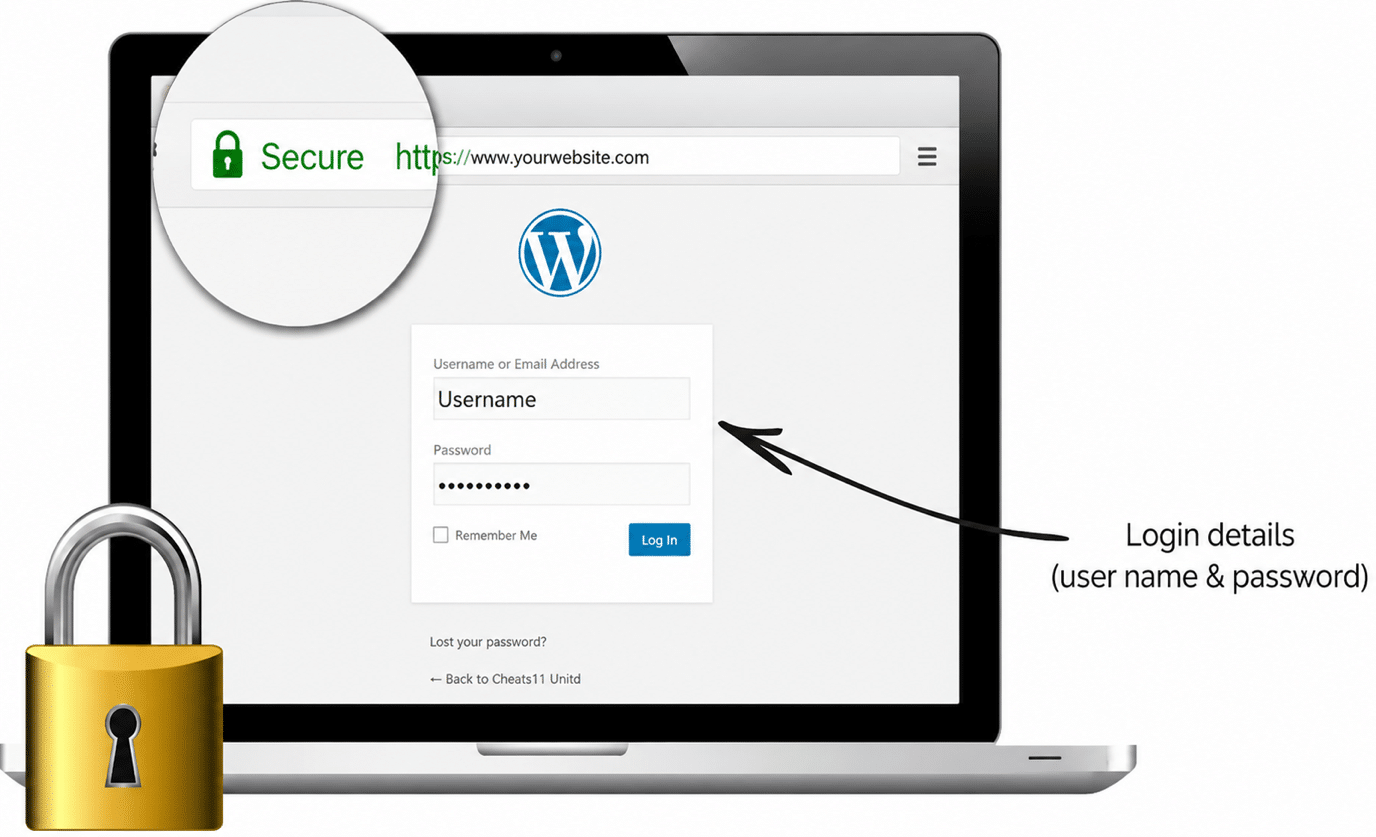
Enter:
- Username or Email
- Password
Step 4
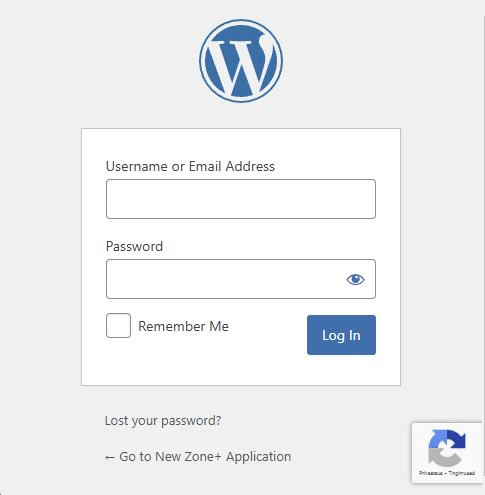
Click Log In.
You’ll now enter the WordPress admin dashboard.
Understanding the WordPress Admin Dashboard
The dashboard contains several important sections:
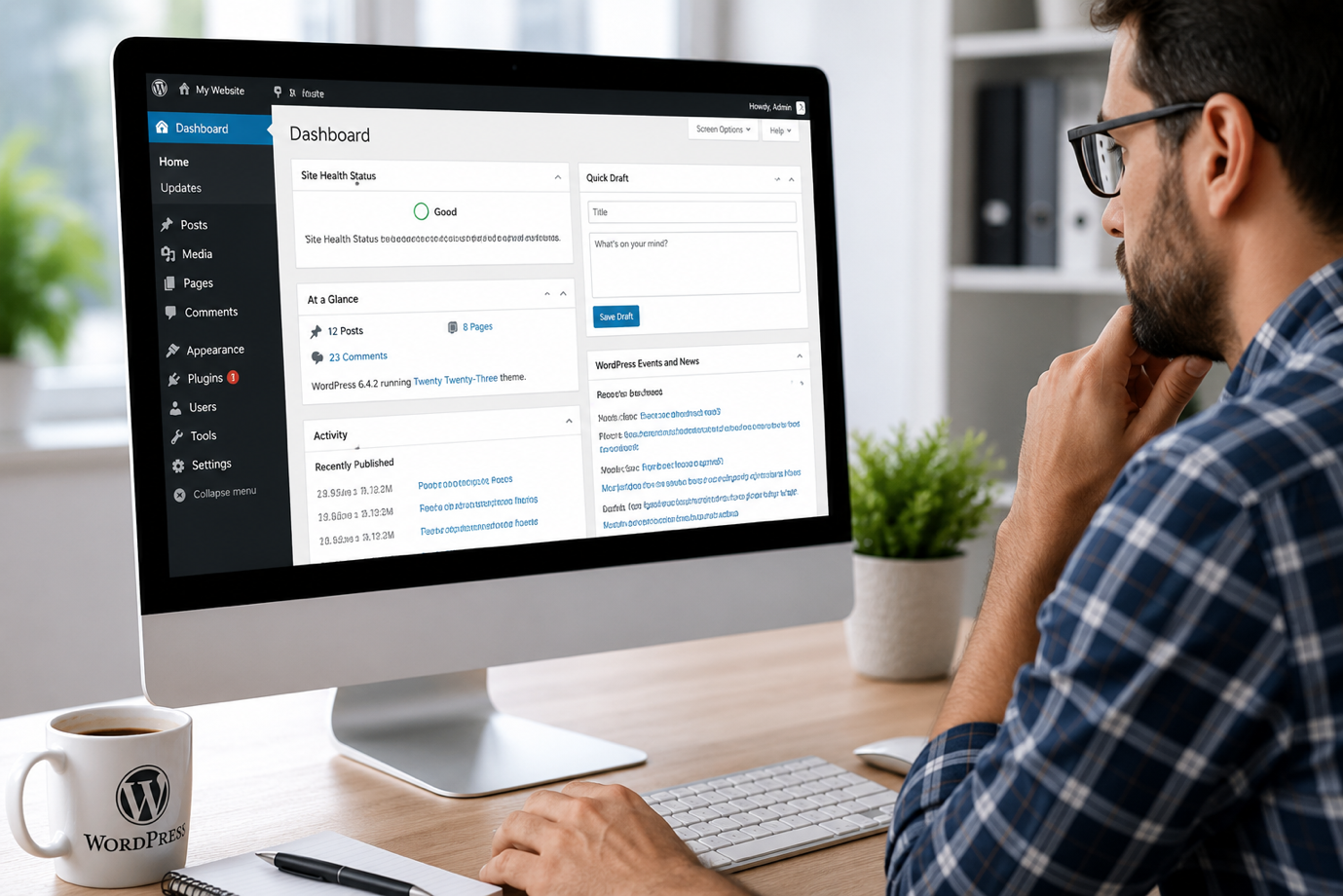
- Dashboard
- Posts
- Pages
- Media
- Appearance
- Plugins
- Users
- Tools
- Settings
From here, you can manage every aspect of your website.
Common WordPress Login Issues
Many website owners eventually experience WordPress login issues.
Some of the most common include:
Incorrect Username or Password
Usually caused by:
- Typing errors
- Password changes
- Browser autofill mistakes
Solution
Use the Lost Password option.
White Screen After Login
Possible causes:
- Plugin conflicts
- Theme conflicts
- PHP memory limits
Solution
Disable plugins via File Manager or FTP.
Redirect Loop
Symptoms:
- Login page refreshes continuously
- Cannot enter dashboard
Possible causes:
- Corrupted cookies
- Wrong site URL
- Cache issues
403 Forbidden
Usually caused by:
- Security plugins
- File permission errors
- Hosting firewall
500 Internal Server Error
Often occurs because of:
- Broken .htaccess
- Plugin conflicts
- Corrupted WordPress files
WordPress Login Not Working? Here’s How to Fix It
If your WordPress login is not working, follow these troubleshooting steps.
Clear Browser Cache
Delete:
- Cookies
- Cache
- Stored login sessions
Reset Password
Use:
Forgot Password
or
Reset via the hosting control panel.
Disable Plugins
Rename:
wp-content/plugins
to
plugins-old
Try logging in again.
Switch to Default Theme
Rename your active theme folder.
WordPress will automatically activate a default theme.
Restore .htaccess
Delete the existing file.
Generate a fresh one by visiting:
Settings → Permalinks → Save.
Increase PHP Memory
Edit:
wp-config.php
Add:
define(‘WP_MEMORY_LIMIT’,’256M’);
WordPress Login Security Best Practices
Website attacks frequently target the login page.
Improving WordPress login security helps prevent hacking attempts.
Use Strong Passwords
Avoid:
- admin123
- password
- 123456
Instead use:
- Long passwords
- Mixed characters
- Password managers
Enable Two-Factor Authentication
Adds an extra verification step.
Benefits:
- Stops stolen passwords
- Prevents brute-force attacks
- Protects administrator accounts
Limit Login Attempts
Restrict repeated failed logins.
Benefits:
- Stops brute-force attacks
- Reduces server load
Keep WordPress Updated
Always update:
- Core
- Plugins
- Themes
Older versions contain known vulnerabilities.
Install Security Plugins
Popular security tools include:
- Wordfence
- Solid Security
- Sucuri Security
These improve Secure WordPress login by monitoring suspicious activity.
How to Change WordPress Login URL
The default login URL is widely known.
Hackers often target:
- /wp-admin
- /wp-login.php
One effective way to improve WordPress login security is to Change WordPress login URL.
Benefits:
- Reduces automated attacks
- Blocks common bots
- Adds another security layer
Popular plugins:
- WPS Hide Login
- Perfmatters
Example:
Instead of:
domain.com/wp-admin
Use:
domain.com/mysecurelogin
WordPress Login Security Checklist
|
Security Practice |
Recommended |
|
Strong Password |
✅ |
|
Two-Factor Authentication |
✅ |
|
Change Login URL |
✅ |
|
Daily Backup |
✅ |
|
SSL Certificate |
✅ |
|
Security Plugin |
✅ |
|
Firewall |
✅ |
|
Malware Scanning |
✅ |
Managed Hosting vs Basic Hosting for WordPress Login Security
|
Feature |
Basic Hosting |
Managed WordPress Hosting |
|
Automatic Updates |
❌ |
✅ |
|
Malware Protection |
Limited |
Advanced |
|
Login Protection |
Basic |
Advanced |
|
Daily Backups |
Optional |
Included |
|
Performance Optimization |
Basic |
Optimized |
|
Security Monitoring |
Limited |
24/7 |
Reliable WordPress hosting significantly improves both website performance and login security.
Why Your Hosting Provider Matters
Many login problems actually originate from poor hosting.
A quality hosting provider offers:
- Faster servers
- Automatic backups
- Security monitoring
- Malware scanning
- SSL certificates
- Firewall protection
- Expert WordPress support
Businesses using managed hosting generally experience fewer WordPress login issues and enjoy better website uptime.
Expert Tips for a Secure WordPress Admin Login
- Never use “admin” as your username.
- Enable automatic backups.
- Install an SSL certificate.
- Enable Two-Factor Authentication.
- Regularly update plugins and themes.
- Monitor failed login attempts.
- Change the default login URL.
- Choose secure managed WordPress hosting.
Conclusion
The WordPress Admin Login is one of the most important parts of your website. Keeping it secure ensures your business, customer data, and website remain protected against unauthorized access and cyber threats.
By following the best practices outlined in this guide using strong passwords, enabling two-factor authentication, changing the login URL, and choosing reliable WordPress hosting you can significantly reduce the risk of login-related issues and improve your website’s overall security and performance.
Investing in secure hosting and proactive maintenance today can save you from costly downtime and security breaches tomorrow.
Looking for fast, secure, and reliable WordPress hosting?
Choose VeeroTech for high-performance hosting solutions designed to keep your WordPress website secure, optimized, and always online. Whether you’re launching a new website or migrating an existing one, our hosting services provide robust security, automatic backups, expert support, and exceptional uptime to help your business grow with confidence.
Frequently Asked Questions
1. What is the default WordPress Admin Login URL?
The default WordPress login URL is:
yourdomain.com/wp-admin
or
yourdomain.com/wp-login.php
2. Why is my WordPress login not working?
Common causes include:
- Incorrect password
- Plugin conflicts
- Browser cache
- Corrupted .htaccess
- Hosting issues
3. How can I secure my WordPress login page?
Improve WordPress login security by:
- Using strong passwords
- Enabling Two-Factor Authentication
- Changing the login URL
- Installing security plugins
- Limiting login attempts
4. Can I change the default login URL?
Yes.
Using plugins like WPS Hide Login allows you to Change WordPress login URL and reduce brute-force attacks.
5. Which hosting is best for WordPress security?
Managed WordPress hosting provides automatic updates, backups, malware protection, security monitoring, and optimized performance.
If you have any web hosting questions please feel free to reach out to us. We're happy to help.