
Keeping a regular backup of your WordPress website is one of those tasks you don’t think about until you desperately need it. If your site experiences a rogue plugin conflict, accidental file deletion, or a security breach, having a recent backup copy can save you hours of stress and downtime. While server-side backups are highly useful, a fundamental rule of data administration is redundancy. Storing your backups externally on Google Drive ensures that your data remains completely safe and accessible, even if something unexpected happens to your primary hosting server.
Quick Steps
- Install and activate the UpdraftPlus plugin.
- Navigate to Settings > UpdraftPlus Backups and open the Settings tab.
- Select Google Drive from the list of remote storage options.
- Authenticate and link your Google Account to grant access.
- Configure your automatic backup schedule and retention limits.
- Save changes to let the process run automatically in the background.
Follow the step-by-step instructions below to link your WordPress site to Google Drive.
1. Why Use Google Drive for Backups?
Utilizing cloud storage like Google Drive provides a secure, isolated container for your website data. By keeping your database and core files outside of your local server environment, you mitigate risks associated with localized server issues. Google Drive is a preferred industry option because it offers 15GB of free storage space, features accessible cross-platform file retrieval, and integrates natively with almost every major WordPress optimization utility.
2. Install and Configure UpdraftPlus
While there are multiple backup tools available, UpdraftPlus is widely considered the industry standard due to its reliability and beginner-friendly interface. To begin, log in to your WordPress Admin Dashboard, navigate to Plugins > Add New, and search for “UpdraftPlus.” Click Install Now and then Activate. Once the plugin is running, navigate to Settings > UpdraftPlus Backups and switch over to the Settings tab.
From the grid of available storage options, select Google Drive. Scroll down to the bottom of the interface and click Save Changes.
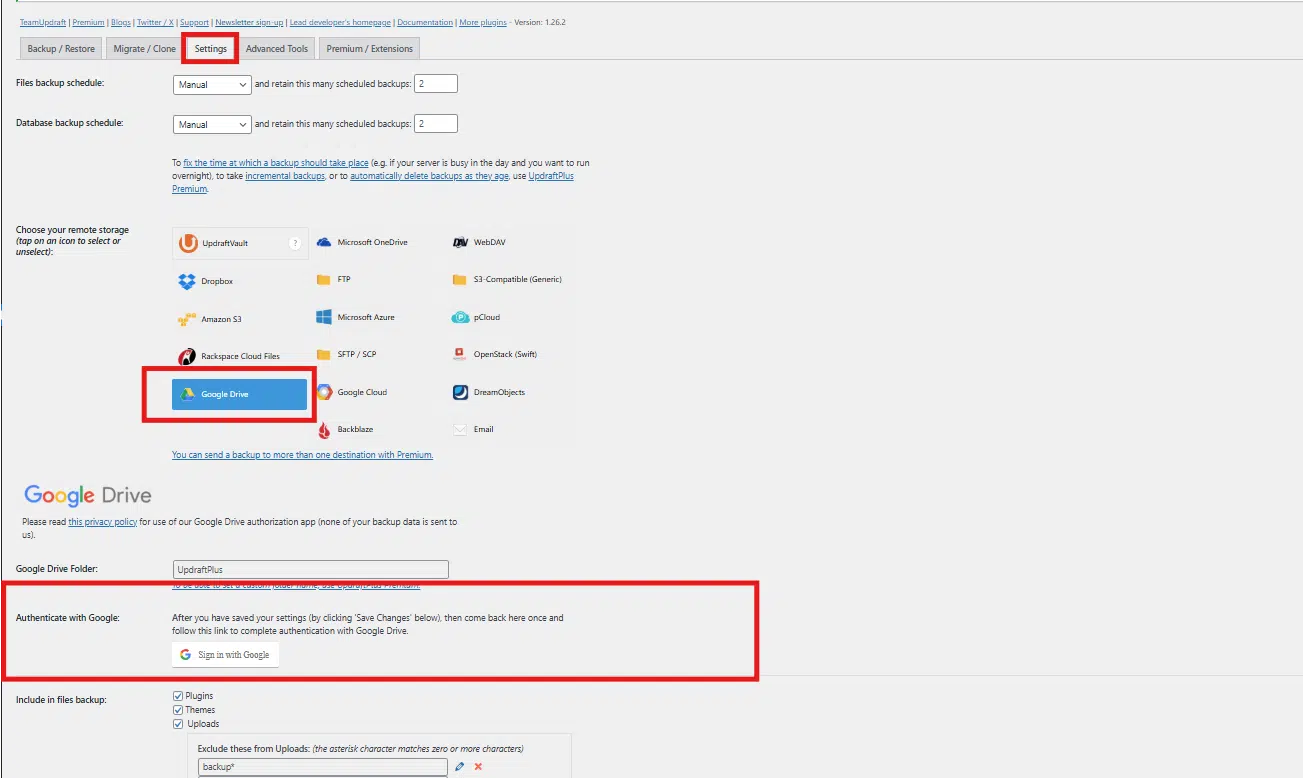
Configure UpdraftPlus Plugin
This action will trigger a prompt asking you to authorize the connection; click the link provided to sign into your Google account and grant the plugin permissions to write files to your cloud storage drive.
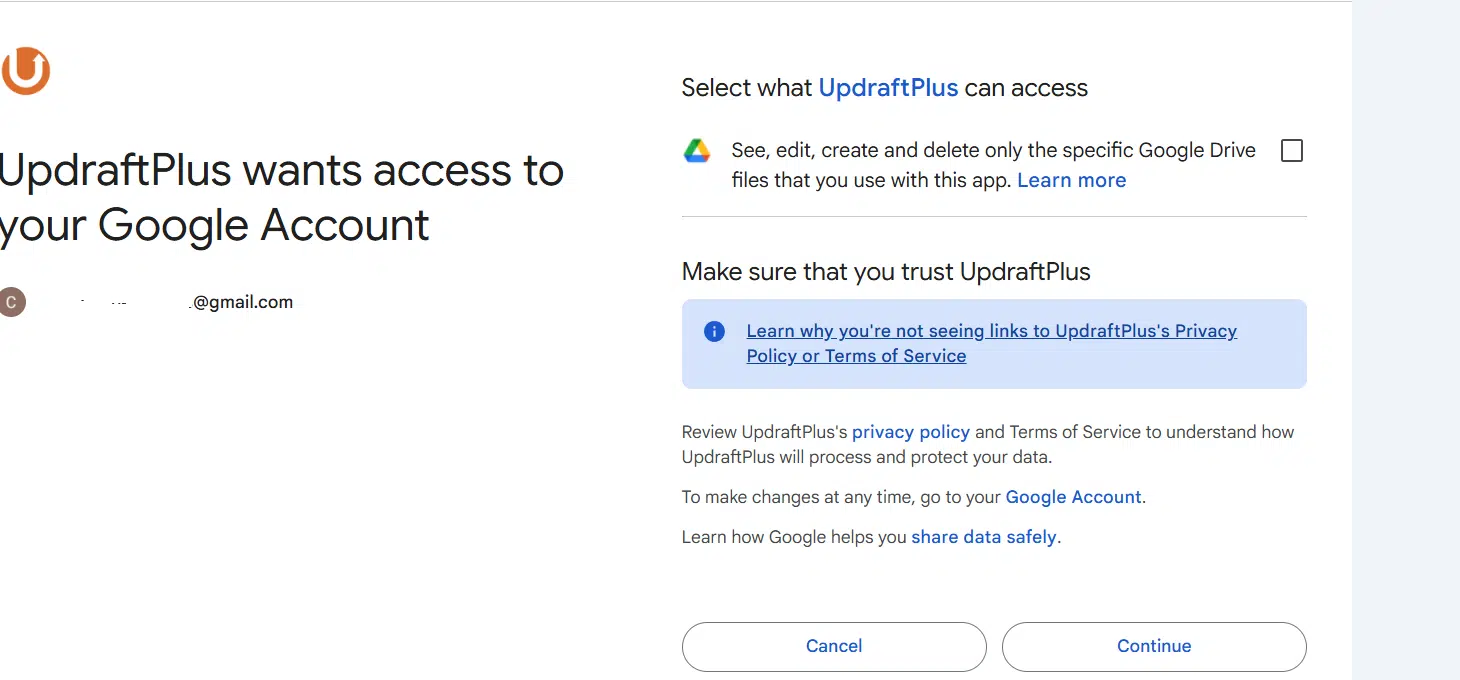
Configure UpdraftPlus Plugin
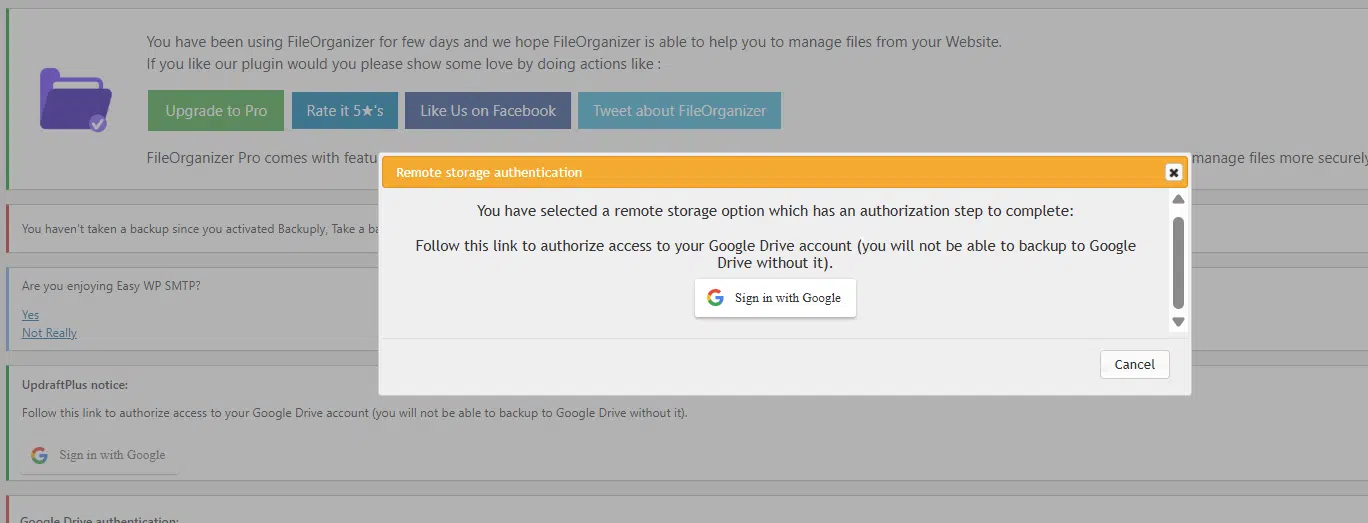
Configure UpdraftPlus Plugin
3. Set Up Automatic Backups
Manual backups are easy to forget, which is why automating the task is critical. Back inside the UpdraftPlus Settings tab, look for the Files backup schedule and Database backup schedule dropdown menus. Changing both from “Manual” to your preferred frequency, Daily or Weekly, is generally recommended for production sites. Next, define your retention policy by setting the number of backups to keep (e.g., keeping the last 3 or 4 copies). This prevents your Google Drive from running out of space by automatically deleting the oldest archive when a new one is successfully created.
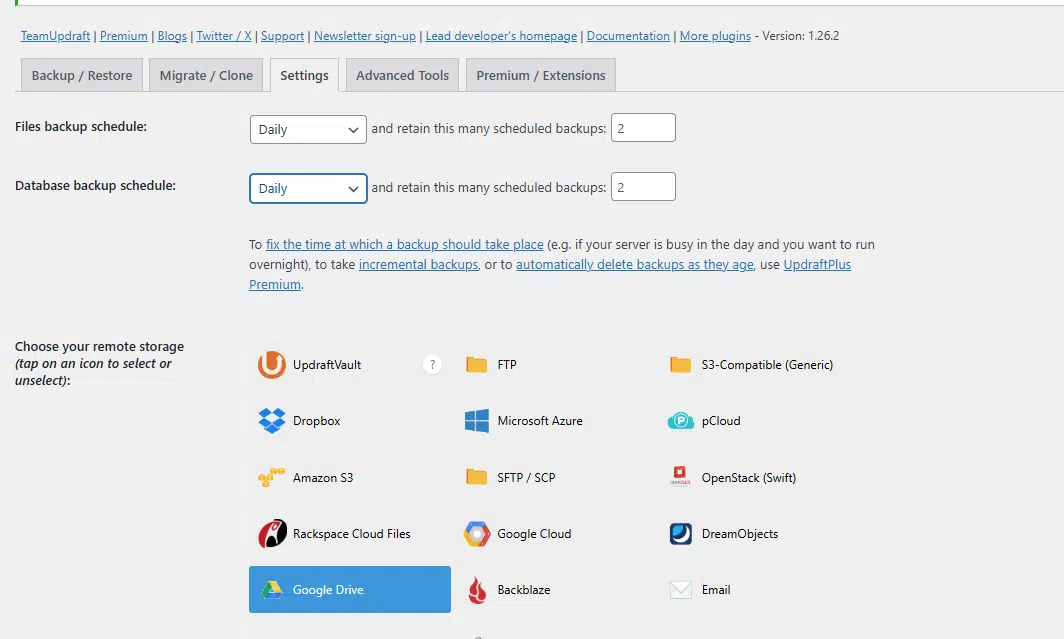
Set Up Automatic Backups in UpdraftPlus Plugin
4. Best Practices for Backup Maintenance
Keep Multiple Copies: Always retain at least 2–3 recent restore points in your rotation history.
Backup Before Updates: Perform a manual backup immediately before upgrading themes, plugins, or the WordPress core.
Perform Verification Audits: Periodically check your Google Drive account to confirm that archive zip files are transferring smoothly.
Monitor Storage Caps: Keep an eye on your 15GB Google threshold to ensure large media libraries don’t fill up the drive.
Wrapping Up
Backing up your WordPress site to Google Drive is a straightforward preventative measure that offers invaluable peace of mind. By leveraging the automated functionality of UpdraftPlus alongside your default cPanel server backups, you establish a multi-layered redundancy system that keeps your business assets safe. Set it up once, verify the connection, and let the automation protect your hard work in the background.
If you have any web hosting questions please feel free to reach out to us. We're happy to help.
Our Guiding Principles