
Seeing a “Not Secure” warning or a broken padlock in your browser address bar after installing an SSL certificate can be frustrating.
In WordPress, this is almost always caused by insecure image URLs or mixed content. A situation where your main website loads securely over https://, but specific media files, stylesheets, or scripts are still being pulled in using old http:// links stored in your database.
Instead of spending hours manually editing individual posts or page builder modules, you can resolve insecure image links across your entire site in just a few minutes using the Better Search Replace plugin.
Prerequisites: Before proceeding, verify that your SSL certificate is active on your hosting account. We also strongly recommend taking a full database backup before running any bulk updates.
Quick Steps
-
Install and activate the Better Search Replace plugin.
-
Go to Tools > Better Search Replace in your admin menu.
-
Input
http://yourdomain.comin the Search for field. -
Input
https://yourdomain.comin the Replace with field. -
Select your database tables and run a Dry Run to preview changes.
-
Uncheck the dry run option and run the actual search and replace.
Follow the step-by-step instructions below to fix insecure image URLs.
Install the Plugin
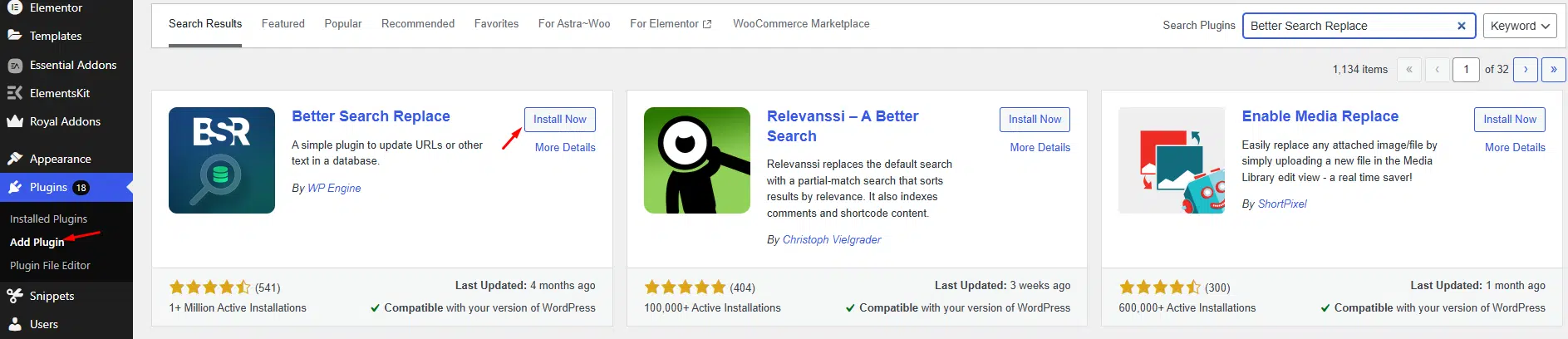
WordPress Admin Add Plugin
Log in to your WordPress dashboard, go to Plugins → Add New, search for and install Better Search Replace, then activate the plugin.
Run Search And Replace
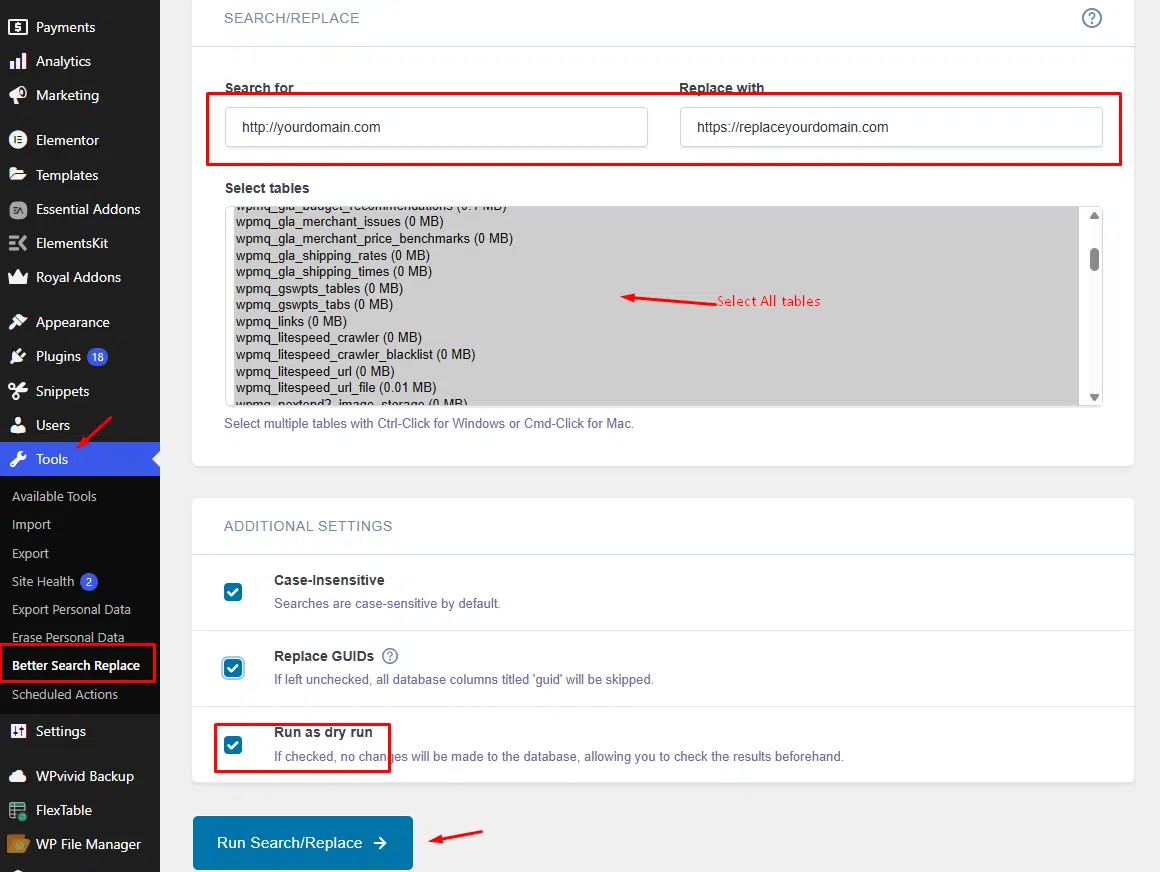
WordPress Plugin Better Search Replace
Go to Tools → Better Search Replace, enter http://yourdomain.com in the Search field and https://replaceyourdomain.com in Replace, select all tables (or at least wp_posts, wp_postmeta, and wp_options), enable Run as dry run, and click Run Search/Replace.
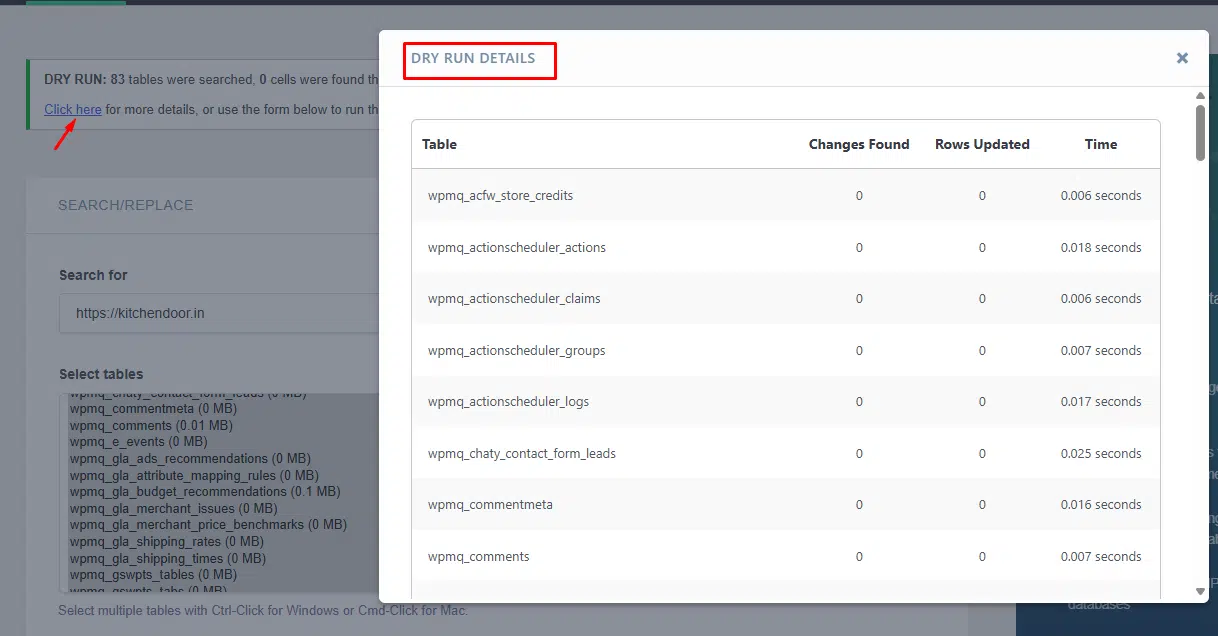
WordPress Plugin Better Search Replace
Review the dry run results, uncheck “Run as dry run”, and click Run Search/Replace again to perform the actual replacement.
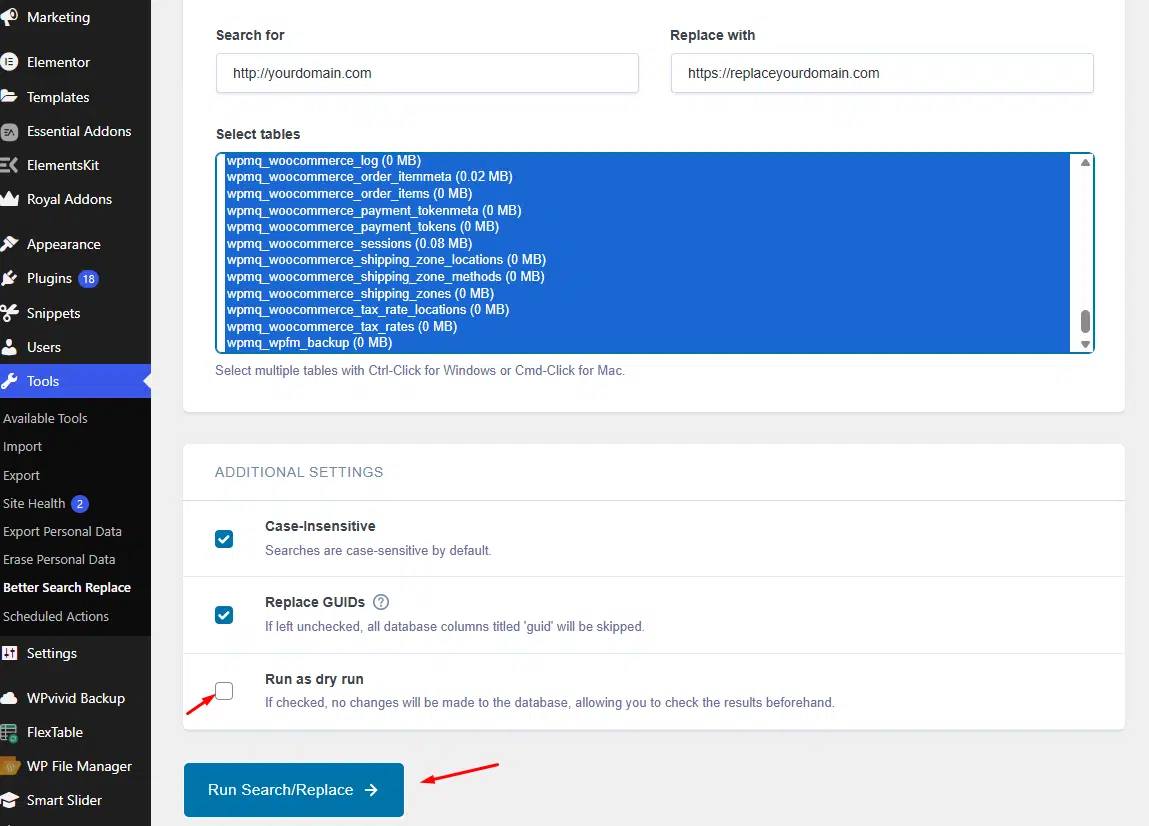
WordPress Plugin Better Search Replace
After completing the replacement, clear your WordPress and browser cache, then open your site to verify the padlock and check the browser console (F12 → Console) to ensure there are no mixed content warnings.
Alternative Fix
If images still load over HTTP, you can force HTTPS via .htaccess, update WordPress Address (URL), and always take a database backup, avoid partial URL replacements, and ensure CDN URLs use HTTPS.
Wrapping Up
By updating HTTP URLs to HTTPS using Better Search Replace and clearing cache, you can quickly resolve mixed content issues and ensure your WordPress site loads securely without warnings.
If you have any web hosting questions please feel free to reach out to us. We're happy to help.
Our Guiding Principles