
Stepping into the role of a hosting provider or consolidating multiple client websites under a single management system is a major milestone. A DirectAdmin reseller hosting account provides a lightweight, fast, and highly reliable environment to build your brand and manage your server space. To help you lay a solid foundation, this guide walks you through the essential initial steps: logging in, creating resource-limited packages, and provisioning your very first client accounts.
Quick Steps
- Log in via the VeeroTech Management Portal or directly using the port
2222. - Switch to the Reseller Level view in your dashboard.
- Create User Packages to establish disk space and bandwidth limits.
- Provision User Accounts for your clients and assign their packages.
- Configure Custom Nameservers so clients can point their domains to you.
Follow the step-by-step instructions below to configure your reseller environment.
1. How to Log Into DirectAdmin
When your reseller account is activated, you receive an onboarding email containing your secure credentials and server assignments. You can access your control panel using two primary pathways:
Option A (Recommended)
Log in to your VeeroTech client Portal. From the top menu, navigate to Services > My Services. Find your reseller plan, click View Details, and click the Login to DirectAdmin button to bypass manual login prompts.
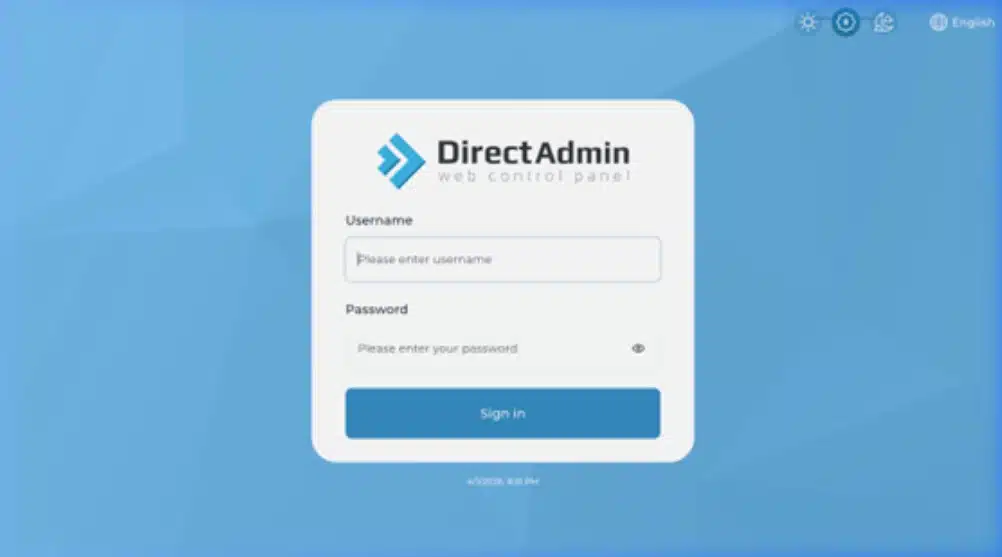
DirectAdmin Login Page
Option B (Direct URL)
Open your browser and navigate directly to your assigned server IP or domain using the port 2222 (e.g https://your-domain.com:2222). Enter your administrator credentials on the login screen.
2. Creating User Packages
Before you can create client accounts, you must build “blueprints” or packages that define their allocated server resources.
-
Ensure your dashboard view is set to Reseller Level by checking the access toggle at the top right of the screen.
-
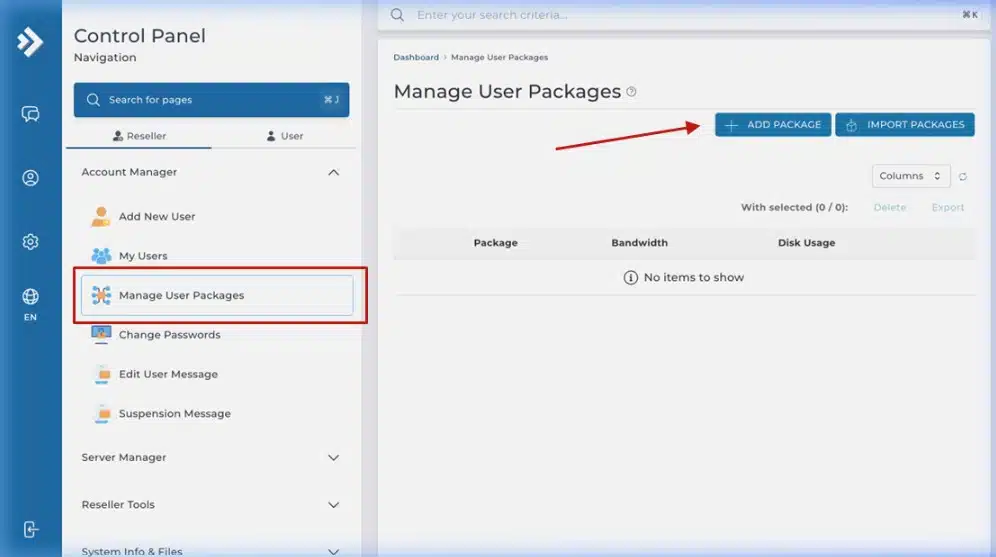
Using the left-hand navigation sidebar, go to Account Manager > Manage User Packages.
-
Click the Add Package button located in the top-right corner.
-
Set your preferred limits for Disk Space (storage), Bandwidth (monthly transfer), Domains, and Email Accounts.
-
Give your package a clear, tier-based name (such as Starter or Business) at the bottom of the page, then click Save.
DirectAdmin Manage User Packages interface
Overselling Note: Unlike traditional cPanel limits, DirectAdmin allows you to toggle overselling allocations right within the package layer. This gives you total corporate flexibility in how you divide and market your server space.
3. Creating Client User Accounts
With your packages established, you are ready to provision a functional control panel for an individual client.
-
Navigate to Account Manager > List Users in your sidebar.
-
Click the Create User button.
-
Fill out the administrative form with a unique Username (lowercase only), a strong Password (use the built-in generator icon), and the client’s primary Domain Name.
-
Use the dropdown menu to select the specific User Package you created in the previous step.
-
Choose the appropriate IP Address allocation, and check the box for Send Email Notification if you want DirectAdmin to automatically dispatch an onboarding email to your user. Click Submit to finalize the account creation.
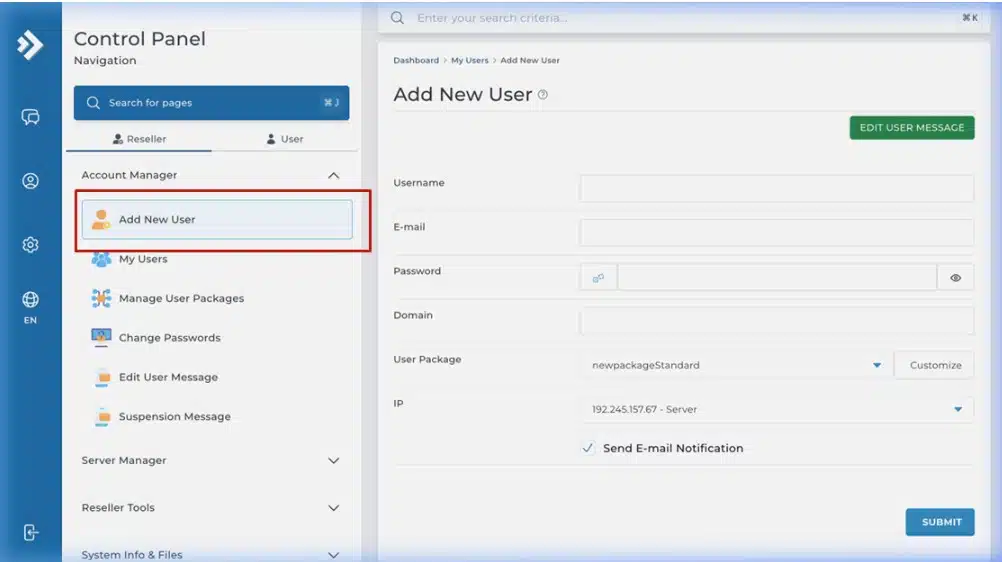
DirectAdmin Add New User Interface
Wrapping Up
Congratulations! You have completed the initial configuration of your DirectAdmin reseller hosting account. By setting up resource tiers and learning how to provision isolated client areas, you have taken the first major step toward managing a scalable web hosting environment.
If you have any web hosting questions please feel free to reach out to us. We're happy to help.
Our Guiding Principles