
The “ERR_CACHE_MISS” error is a frequent occurrence in Google Chrome, typically appearing when you attempt to access a website or submit a web form. If you are managing a site on a cPanel server, you might encounter this message while testing site updates or clicking “submit” on a contact page. Despite its technical appearance, this error is usually a local browser-side hiccup rather than a server failure. It essentially means the browser is struggling to retrieve data from its cache or requires you to resend information to complete a request.
Quick Steps
-
Refresh the Page to trigger a form resubmission.
-
Clear Your Browser Cache to remove corrupted temporary files.
-
Use Incognito Mode to rule out profile-specific settings.
-
Disable Browser Extensions that might interfere with page requests.
-
Verify Website URL Settings to prevent redirect loops.
-
Audit the .htaccess File in cPanel for incorrect rules.
-
Purge Caching Plugins like LiteSpeed or WP Rocket.
Follow the step-by-step instructions below to resolve the ERR_CACHE_MISS error.
1. Refresh the Page and Confirm Resubmission
The most immediate fix is often the simplest: hit F5 or click the reload icon in your browser. If the error occurred after you filled out a form, Chrome may display a popup asking to “Confirm Form Resubmission.” Clicking “Continue” or “Yes” allows the browser to resend the data (POST request), which often clears the error immediately if it was caused by a temporary network glitch.
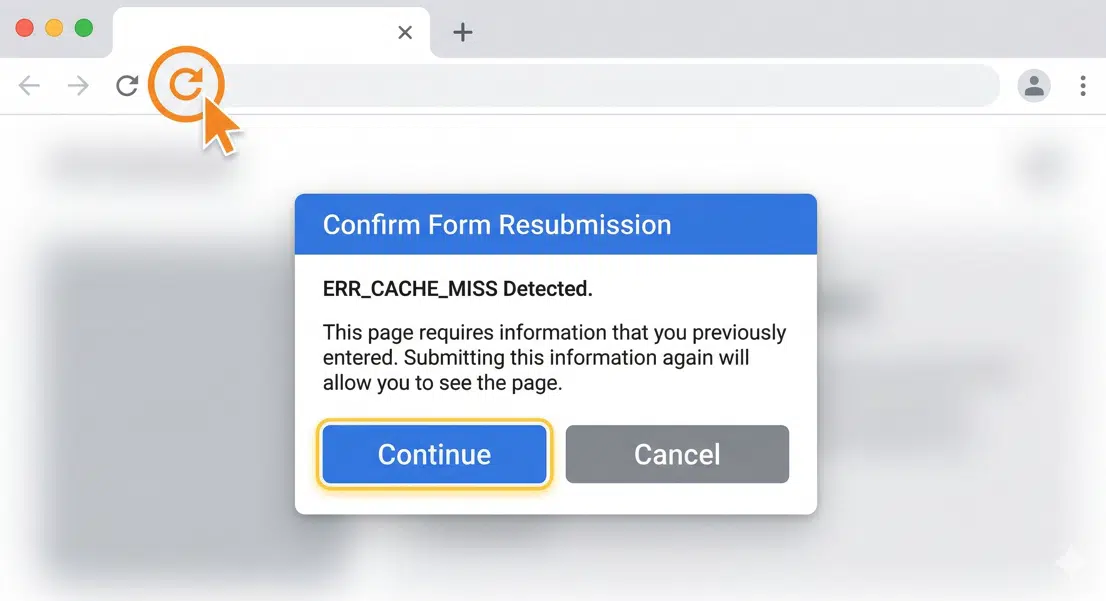
ERR_CACHE_MISS Error in Google Chrome
2. Clear Your Browser Cache
A “clogged” or corrupted cache is a primary culprit for this error. To clear it in Chrome, press Ctrl + Shift + Delete (or Cmd + Shift + Delete on Mac). In the settings window that appears, ensure “Cached images and files” is selected, set the time range to “All time,” and click Clear data. This forces Chrome to download a fresh copy of your website files from the server instead of relying on potentially broken local data.
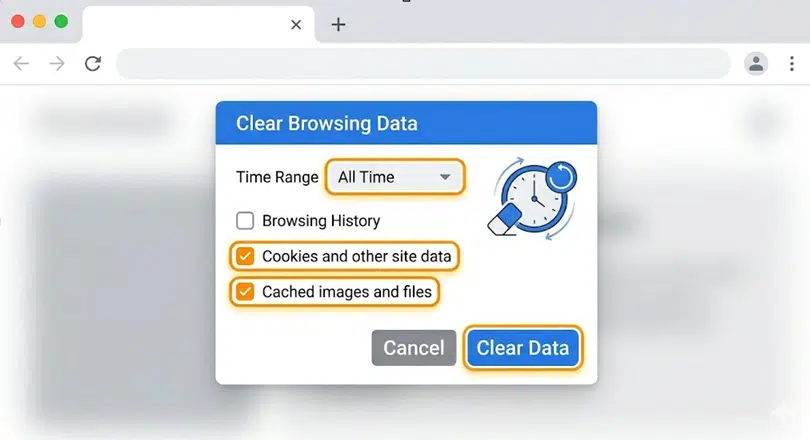
ERR_CACHE_MISS Error in Google Chrome
3. Test in Incognito Mode and Disable Extensions
To isolate the problem, open a new Incognito window (Ctrl + Shift + N) and attempt to load your site.
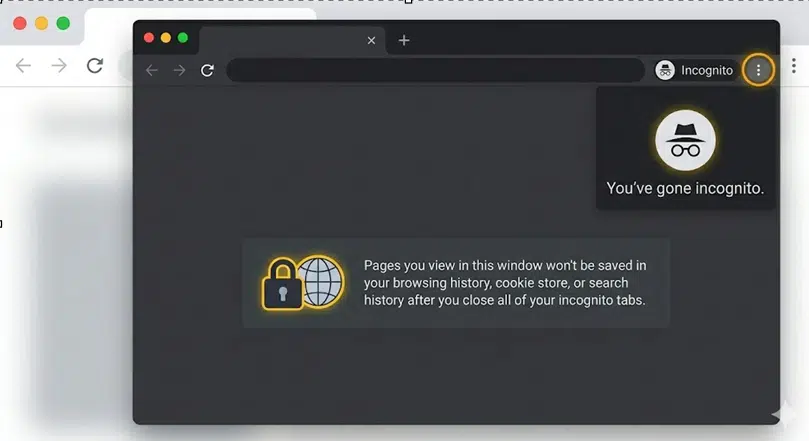
Incognito window
If the error disappears, the issue is likely caused by a browser extension or a specific setting in your main profile. Ad-blockers and security extensions are known to occasionally interfere with page headers. Try disabling your extensions one by one in the Chrome://extensions menu to identify which one is triggering the “cache miss.”
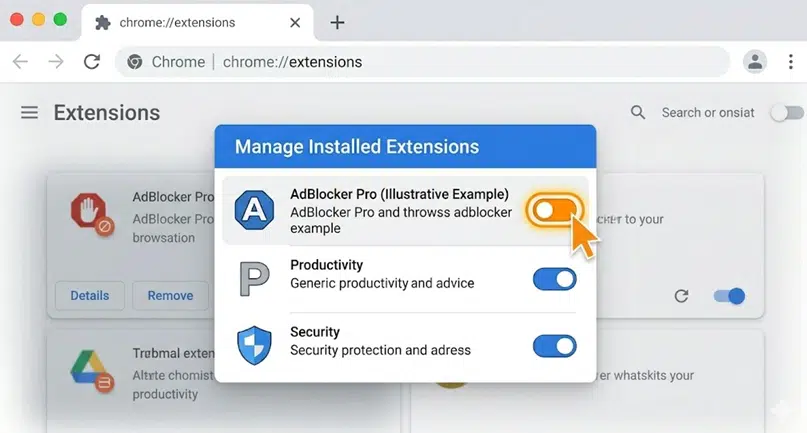
Manage Installed Extensions
4. Check Website URL Settings
If you are running a CMS like WordPress, mismatched URLs can confuse the browser and lead to caching errors. Log in to your WordPress dashboard and navigate to Settings > General to ensure your WordPress Address and Site Address match perfectly. Furthermore, ensure you aren’t accidentally forcing an infinite loop between http:// and https:// within your cPanel redirects or CMS settings.
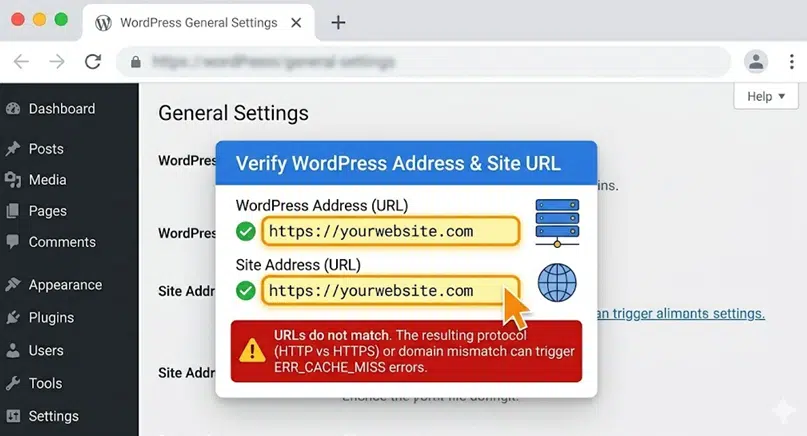
Website URL Settings
5. Review the .htaccess File
Incorrect redirect rules in your server configuration can also be the source of the problem. Access your cPanel File Manager, navigate to the public_html folder, and locate your .htaccess file. You can test if this file is the cause by renaming it to .htaccess_old. If the website begins loading correctly afterward, you may need to regenerate the file or remove conflicting rewrite rules that were causing the browser to lose track of the cached data.
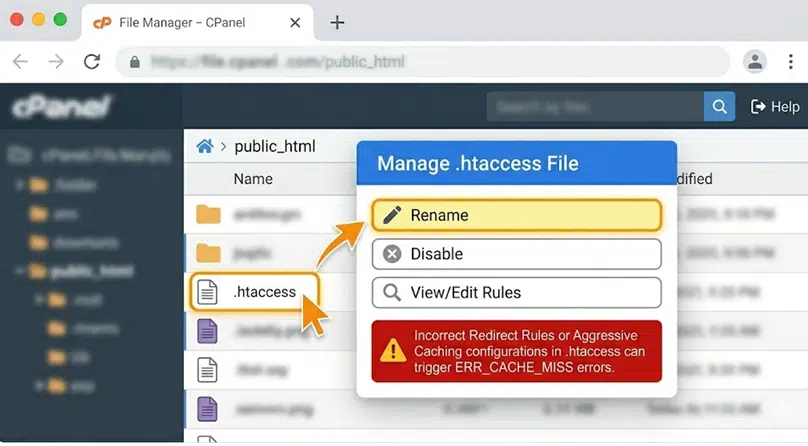
cPanel File Manager
6. Clear Server-Side Caching Plugins
If your website uses aggressive caching tools like LiteSpeed Cache, WP Rocket, or W3 Total Cache, an outdated server-side cache might be sending confusing signals to Chrome. Log in to your WordPress admin area and use the “Purge All” or “Clear Cache” option within your plugin’s dashboard. This ensures that both the server and the browser are perfectly synchronized with the latest version of your site.
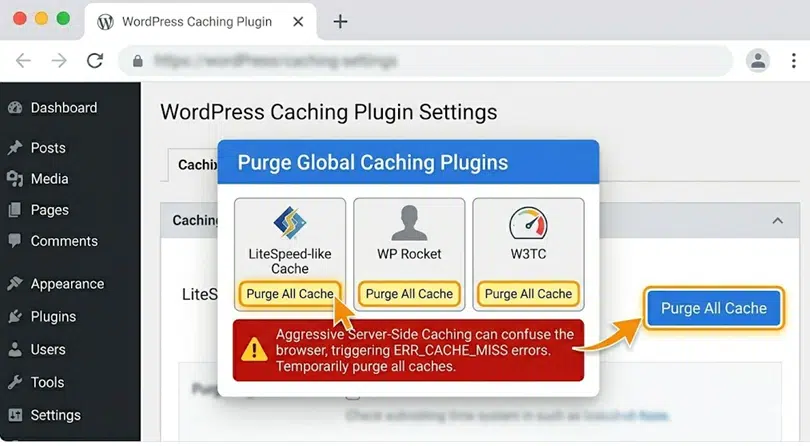
Purge All option within your plugin’s dashboard.
Wrapping Up
While “ERR_CACHE_MISS” looks like a technical failure, it’s usually just a local browser issue. Most of the time, clearing your cache or checking your extensions will do the trick. If the problem persists across every device you try, then it’s time to look closer at your site configuration or reach out to us if you need any assistance.
If you have any web hosting questions please feel free to reach out to us. We're happy to help.
Our Guiding Principles