
Before you start
Why check your PHP version?
- Each PHP version is maintained for a limited time. Once it reaches end of life, the PHP project stops releasing security fixes for it.
- Newer versions are faster, and many plugins and themes now need a recent version to work properly.
- On VeeroTech managed plans, we apply PHP security updates for you, so you don’t need to install anything. Switching versions is still up to you.
- We recommend using the latest PHP version your website supports.
Which versions are still supported by the PHP project?
|
PHP version |
Status |
|
8.5, 8.4, 8.3 |
Supported |
|
8.2 |
Security fixes only, until 31 December 2026 |
|
8.1 and older |
End of life (no longer maintained by the PHP project) |
Good to know
- Your version number may look “old” even when it’s patched. Security fixes are often added without changing the version number. So your site can show a lower number than the latest release on php.net and still be up to date. This is expected.
- The versions you can choose are the ones installed on your server, so the list may differ from other hosts.
- What you’ll need: your DirectAdmin login, or WordPress admin access.
Check your PHP version
You only need one of these methods.
Method 1: Select PHP Version (DirectAdmin)
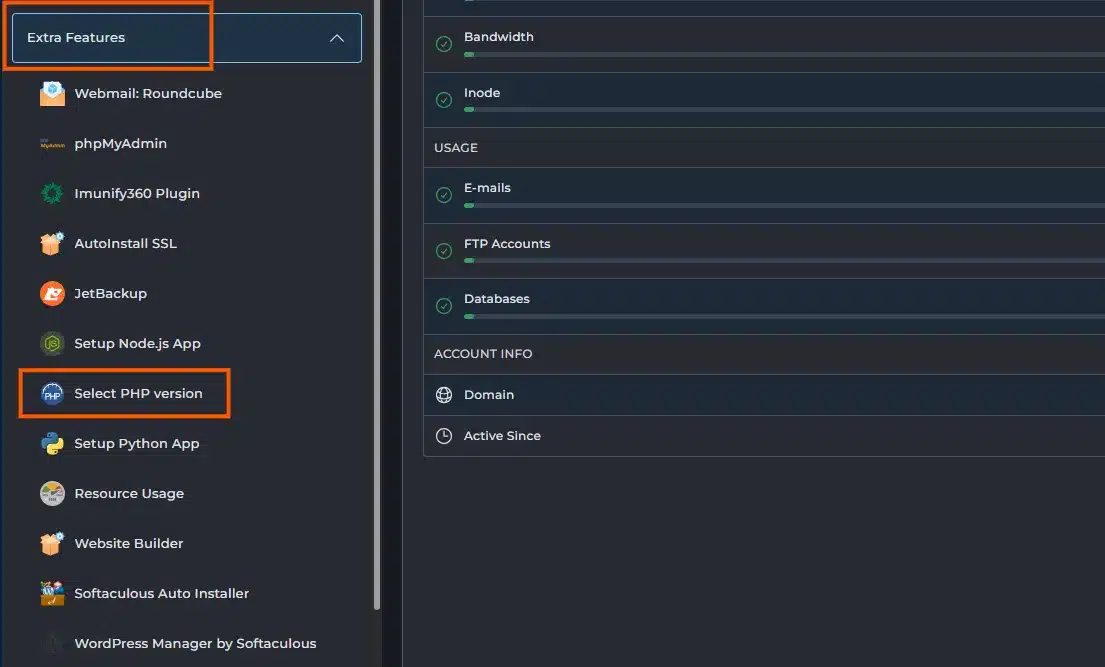
DirectAdmin accounts use Select PHP Version, the same CloudLinux tool as on our cPanel plans. Only its place in the menu is different.
- Log in to DirectAdmin.
- Choose your domain from the domain drop-down at the top of the page.
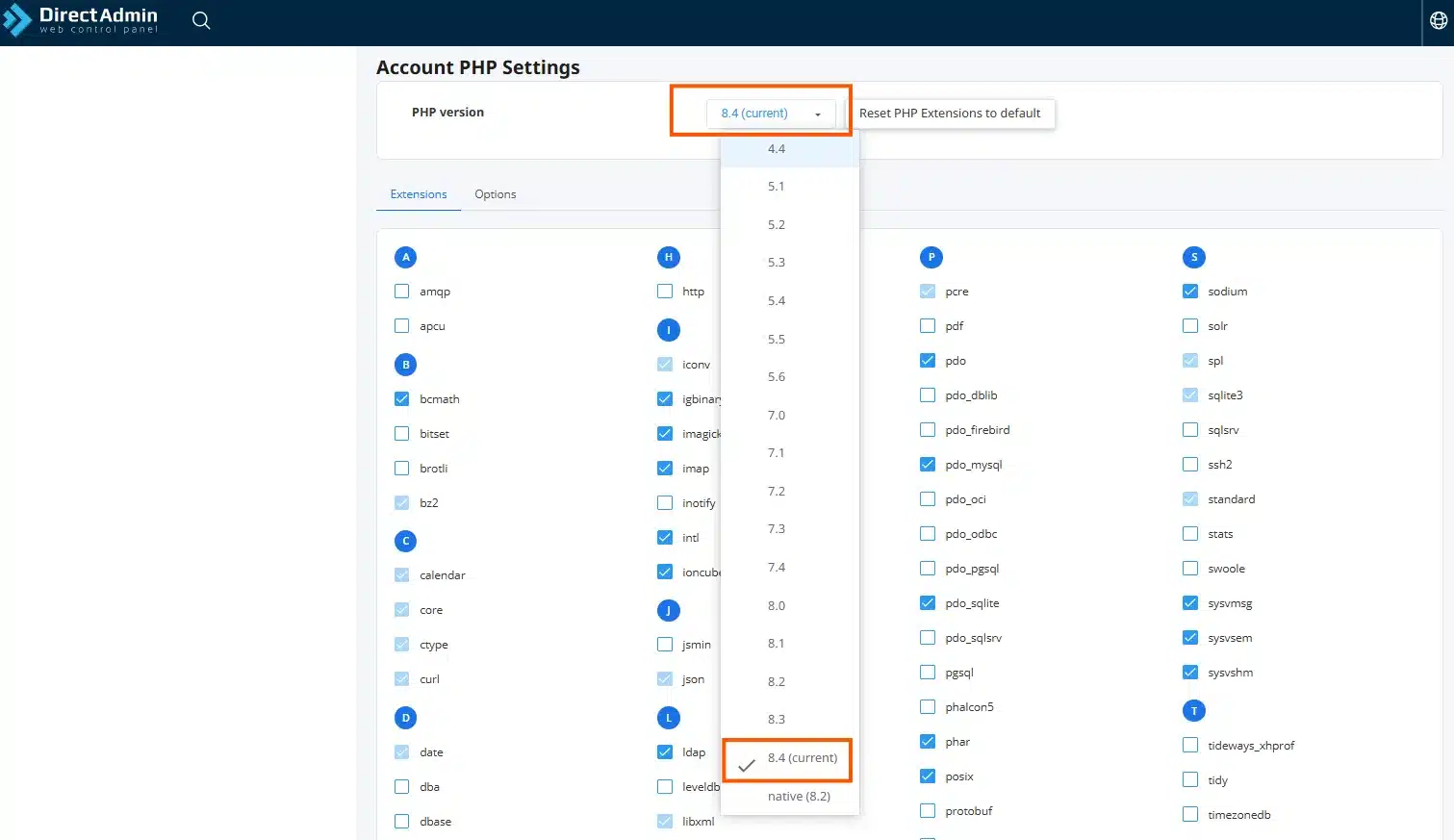
- Open Select PHP Version.
- Can’t see it? Type “PHP” in DirectAdmin’s search box.
- The current PHP version for that domain is shown at the top of the page.
Method 2: WordPress Site Health
Useful if you only have WordPress admin access.
- Log in to your WordPress dashboard.
- Go to Tools → Site Health.
- Click the Info
- Open the SERVER Look for PHP version.
Method 3: A phpinfo page
This shows exactly what your website uses. Delete the file as soon as you’re done: it reveals details about your server to anyone who finds it.
- Open File Manager in DirectAdmin.
- Go to your site’s folder (usually
domains/yourdomain.com/public_html). - Create a new file with a random name, for example
info-7f3k2.php. - Paste in this single line and save:
<?php phpinfo();
- Visit
https://yourdomain.com/info-7f3k2.phpin your browser. - The version is at the top of the page.
- Delete the file.
Change your PHP version
Step 1: Prepare
- Take a backup of your files and database.
- Check compatibility. Make sure your CMS, theme and plugins support the version you’re moving to.
- WordPress: update WordPress, plugins and themes first. Most compatibility problems come from old plugins.
- Write down your current version, so you can switch back if needed.
- Use a staging copy if you have one, and test there first.
Step 2: Switch the version
- In DirectAdmin, choose your domain from the domain drop-down.
- Open Select PHP Version.
- Pick the new version from the list.
- Click Apply.
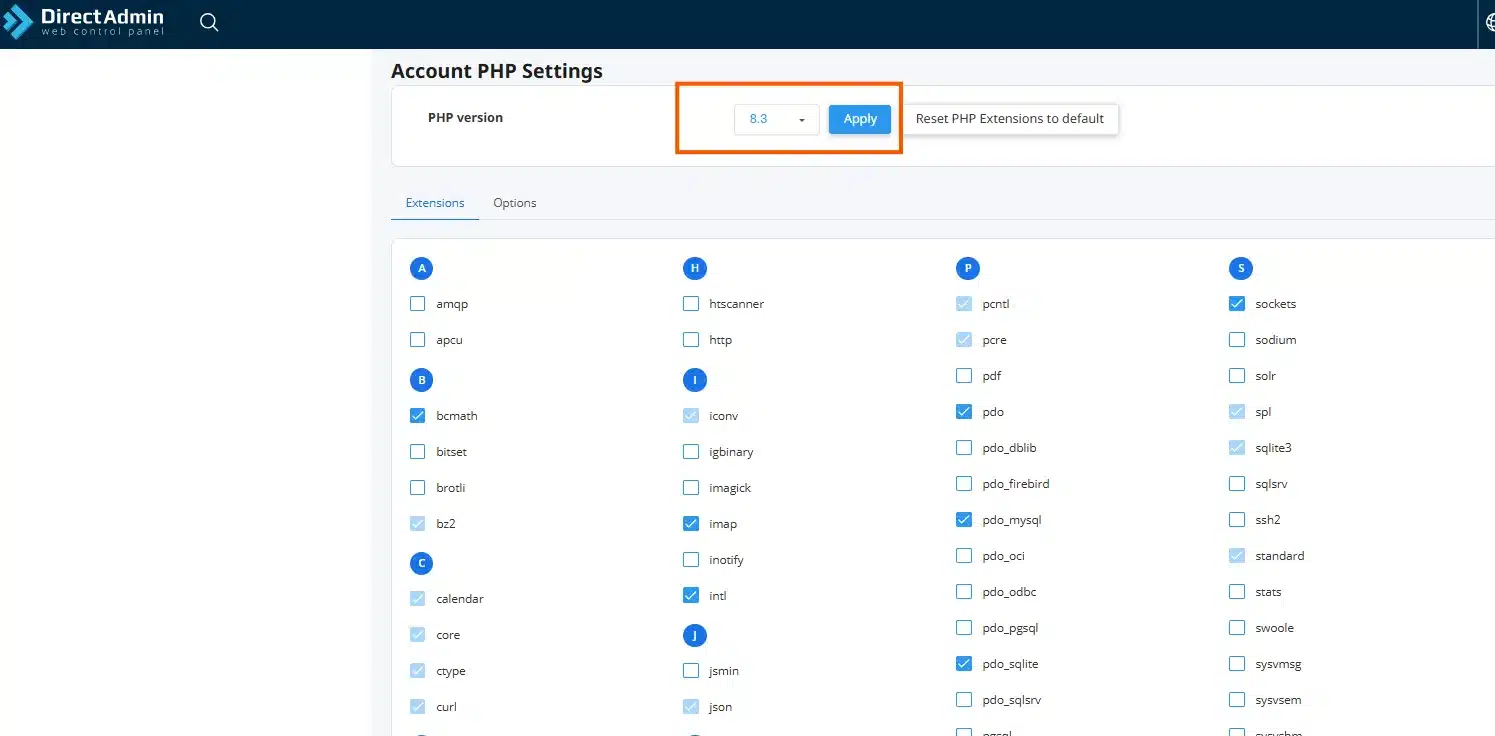
PHP modules and settings are on the same screen. Our PHP Version Selector guide shows how to use them. It uses cPanel screenshots, but the Select PHP Version page works the same way.
Resellers: each client account has its own setting. Repeat the change in each account that needs it.
Which version should I pick?
- The latest version your site supports.
- Avoid PHP 8.1 and older: they are end of life.
- PHP 8.2 stops receiving security fixes on 31 December 2026.
Test your site after switching
Check these straight away:
- The home page and a few inner pages load normally
- You can log in to the admin area
- Contact and checkout forms submit
- Images and file uploads work
- Your site’s error log shows no new errors
Something broke?
- Switch back to the version you wrote down in Step 1.
- Update the plugin or theme that caused the error, or contact its developer.
- Try the newer version again.
Troubleshooting
I changed the version but my site still shows the old one
- Check that you picked the right domain in the domain drop-down before applying.
- Wait a minute and reload, then check again with a phpinfo page (Method 3).
White screen or “500 Internal Server Error” after switching
- Usually a plugin or theme that doesn’t support the new version.
- Switch back first, then find the cause in your error log.
Lots of “deprecated” warnings on the page
- The site still works, but some code uses features the new PHP version is phasing out.
- Turn off on-screen error display, and ask the plugin or theme developer for an update.
The version I want isn’t in the list
- Open a support ticket and tell us which version you need.
FAQ
How do I check my PHP version in DirectAdmin?
Log in to DirectAdmin, choose your domain from the domain drop-down and open Select PHP Version. The current version is shown at the top of the page.
Will my PHP modules and settings carry over to the new version?
Not always. In Select PHP Version, modules and settings can differ between versions. After switching, check that the modules your site needs are still enabled. Our PHP Version Selector guide shows where to find them.
Is it safe to change my PHP version?
Yes, if you prepare. Take a backup, update your CMS, theme and plugins first, and test the site after switching. You can switch back at any time from the same screen.
Which PHP version should I use?
The latest version your website supports. PHP 8.1 and older are no longer maintained by the PHP project, and PHP 8.2 stops receiving security fixes on 31 December 2026.
Why does my PHP version number look older than the latest release?
Security fixes are often added to existing builds without changing the version number, so an older-looking number can still include the latest fixes.
Related guides
- How to check your PHP version in cPanel
- PHP Version Selector (change PHP version): PHP modules and settings in Select PHP Version
- Open a support ticket
Sources
[1] PHP Group. Supported versions. https://www.php.net/supported-versions.php
If you have any web hosting questions please feel free to reach out to us. We're happy to help.
Our Guiding Principles